 0:46
How to make your first map animation
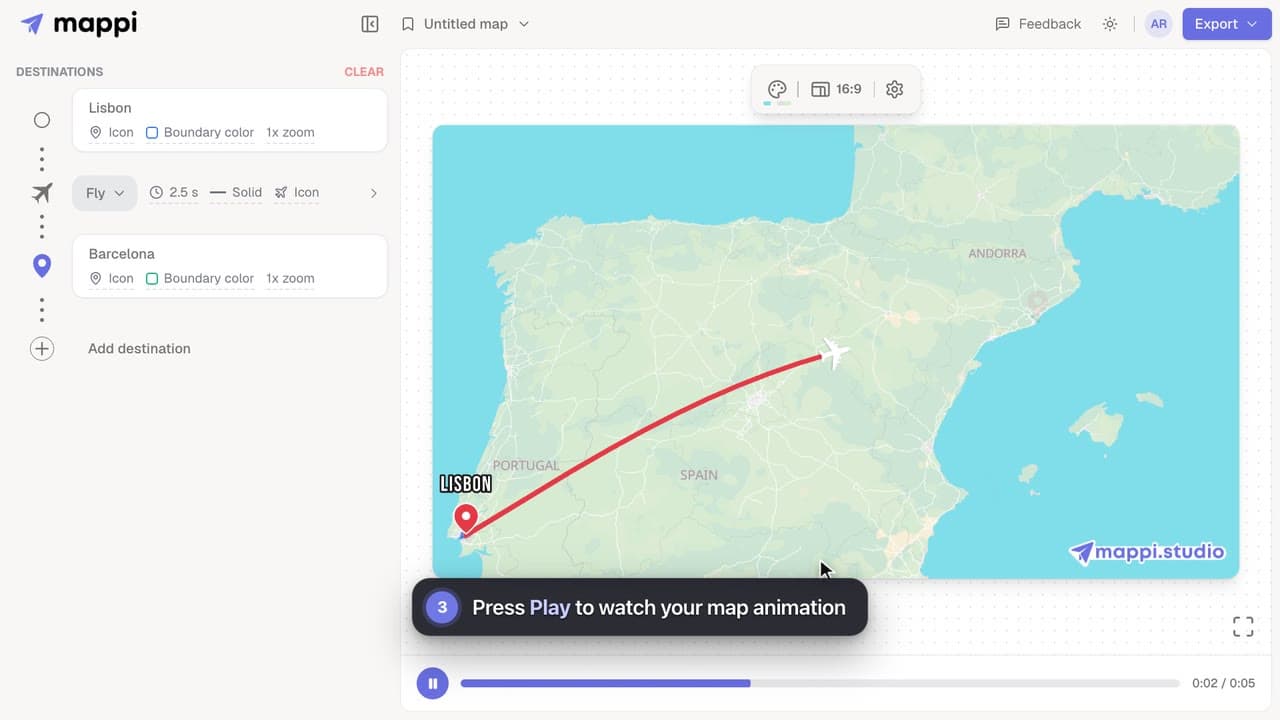
Make your first map animation in about a minute: search for two destinations, preview the animated route, and export it as an MP4 video. Video guide.



Short video guides and quick answers for making animated map videos with Mappi, the map animation maker, from your first destination to a 4K export.
29 video guides · 22 articles · Updated
Watch one short video to learn the whole loop: add destinations, preview the animation, and export a finished map video.
0:46Video guide · Getting startedHow to make your first map animationMake your first map animation in about a minute: search for two destinations, preview the animated route, and export it as an MP4 video. Video guide.Watch the guideEvery guide belongs to one topic. Open a topic to see all of its videos and articles.
Your first map animation, the editor, and saving your work.
Add stops, drop pins, and choose how each route travels.
Markers, moving route icons, labels and fonts.
Themes, satellite, map labels and boundary shapes.
Route timing, camera framing and what stays on the map.
Aspect ratios, resolution, 4K, frame rate and watermarks.
Fix stuck exports, blurry video and route errors.
Plans, subscriptions, invoices and your account.
Each video shows one task in the real editor, step by step, in about a minute. The written steps sit under every video.
0:46Make your first map animation in about a minute: search for two destinations, preview the animated route, and export it as an MP4 video. Video guide.
 0:41
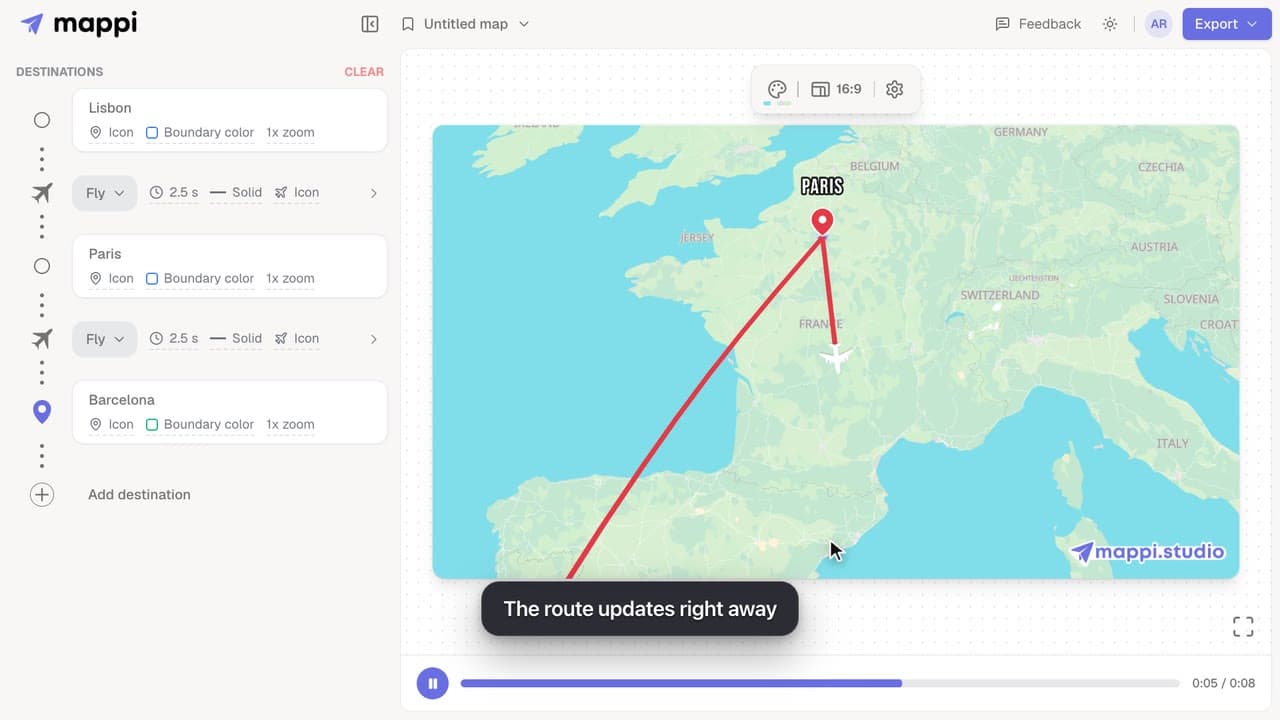
Add destinations to your map animation, drag stops into a new order, and delete the ones you don’t need. The routes between them update automatically.
 0:36
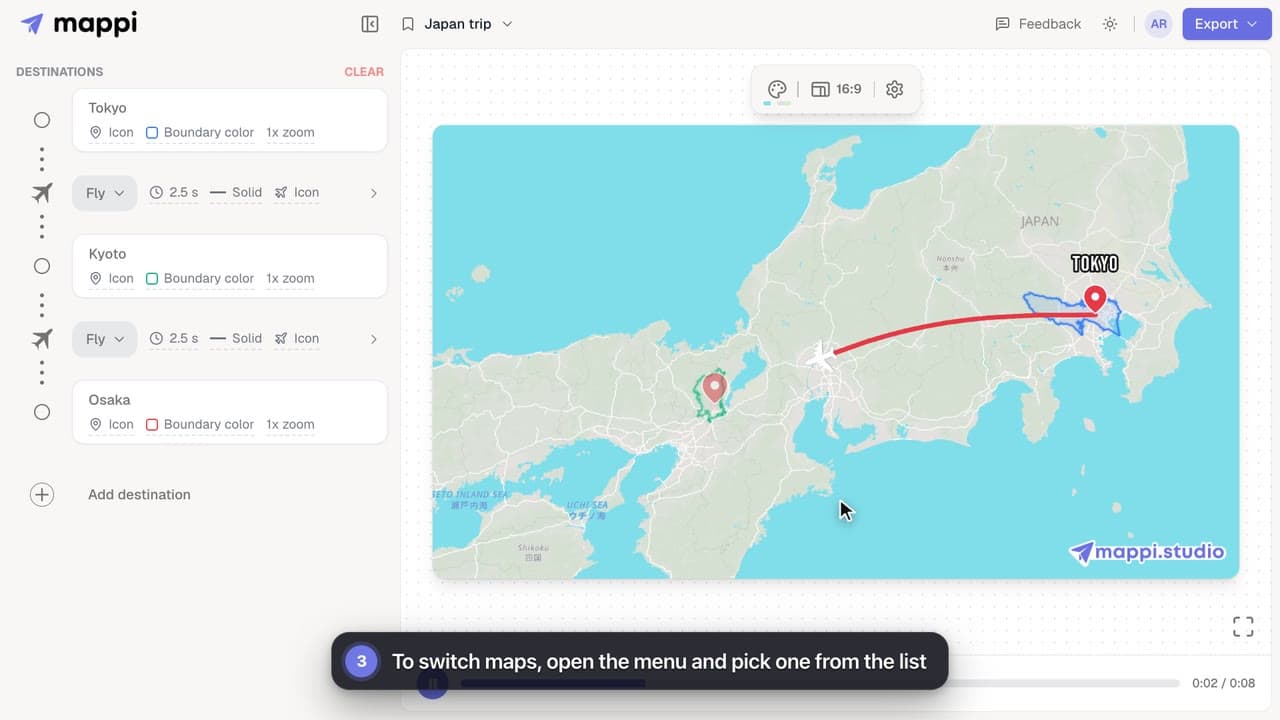
Save your map animation from the menu at the top of the editor, then reopen it anytime. Learn where saved maps are stored and how to update them.
 0:39
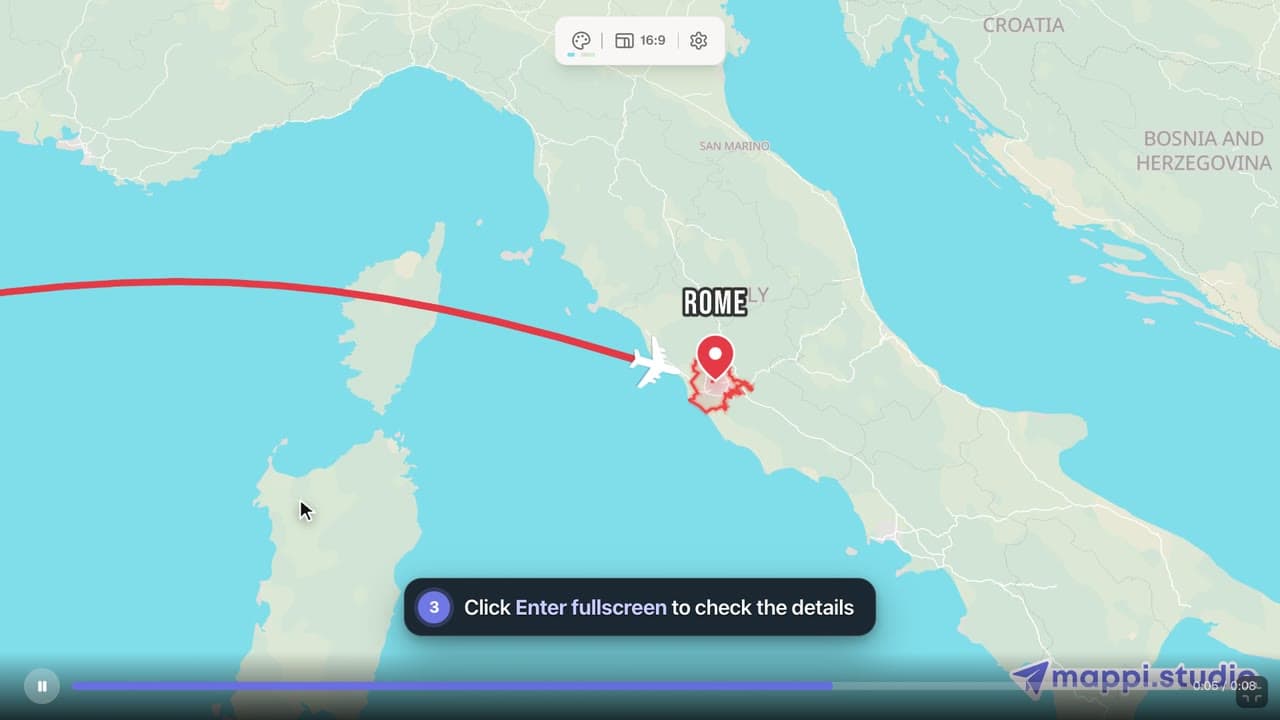
Play, pause and scrub your map animation in the editor preview, use keyboard shortcuts, and check the details in fullscreen before you export it.
 0:41
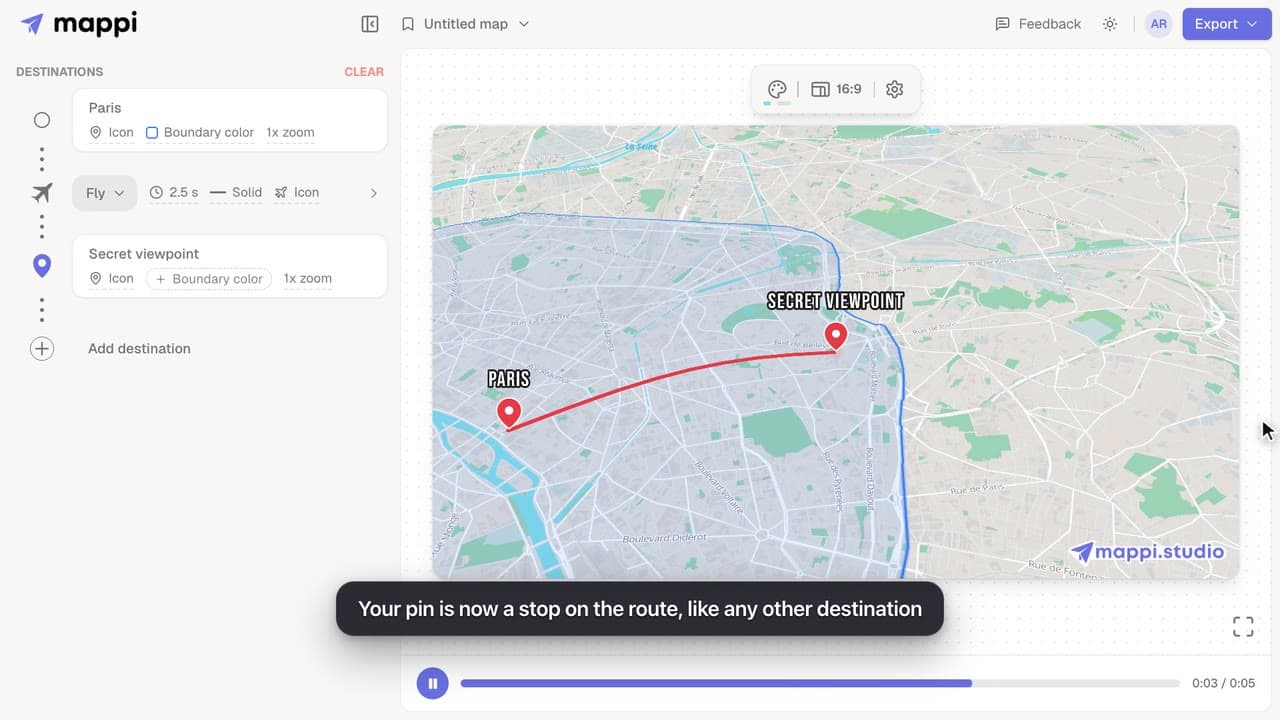
Add a destination search can’t find: drop a custom pin anywhere on the map, set the exact spot and zoom, name it, and add it to your animated route.
 0:41
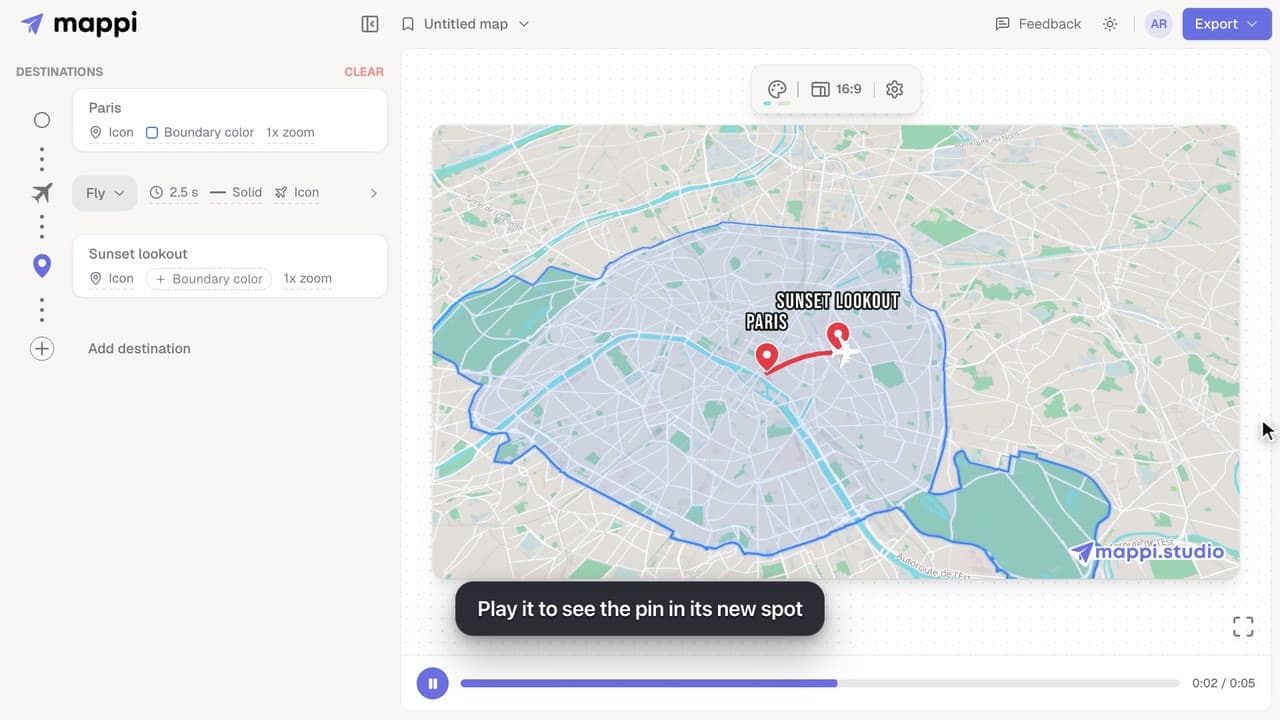
Edit a custom pin after you add it: move it to a new spot, rename its label, or swap it for a place from search. Moves and swaps can be undone in one click.
 0:40
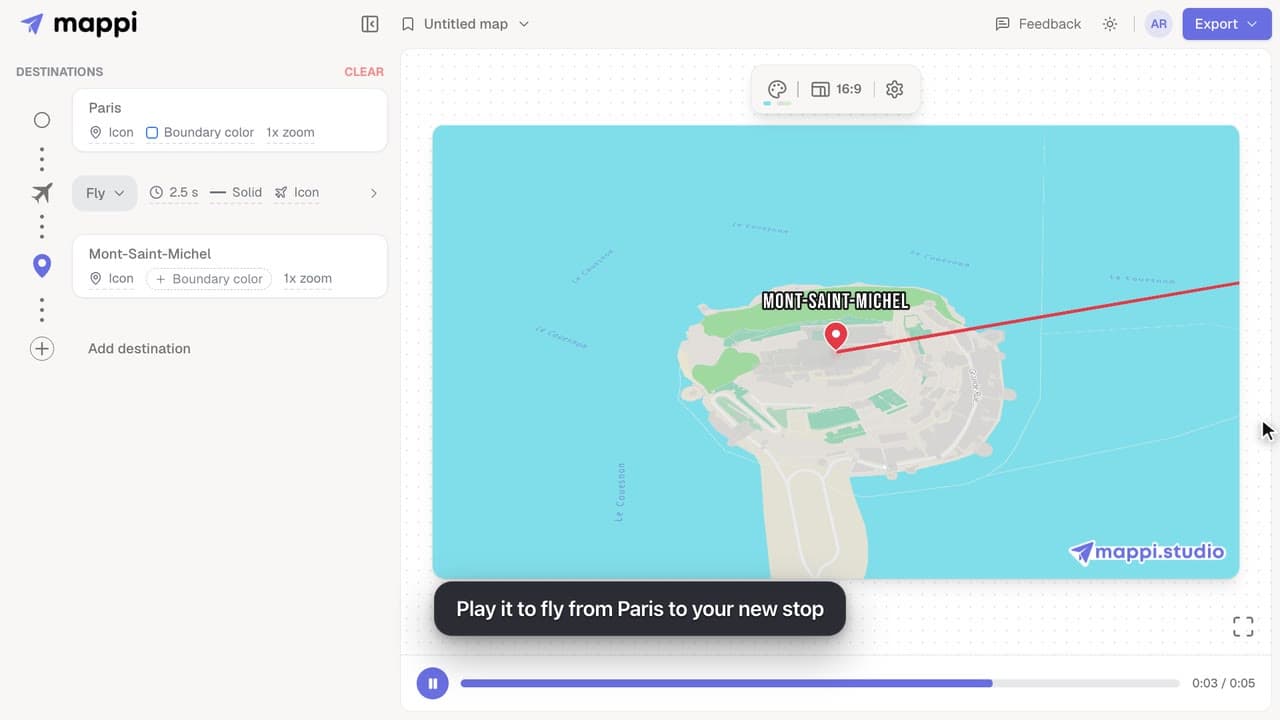
Paste latitude and longitude, or a map link, into the Mappi pin picker to add a destination at an exact GPS position. Supported coordinate formats inside.
 0:38
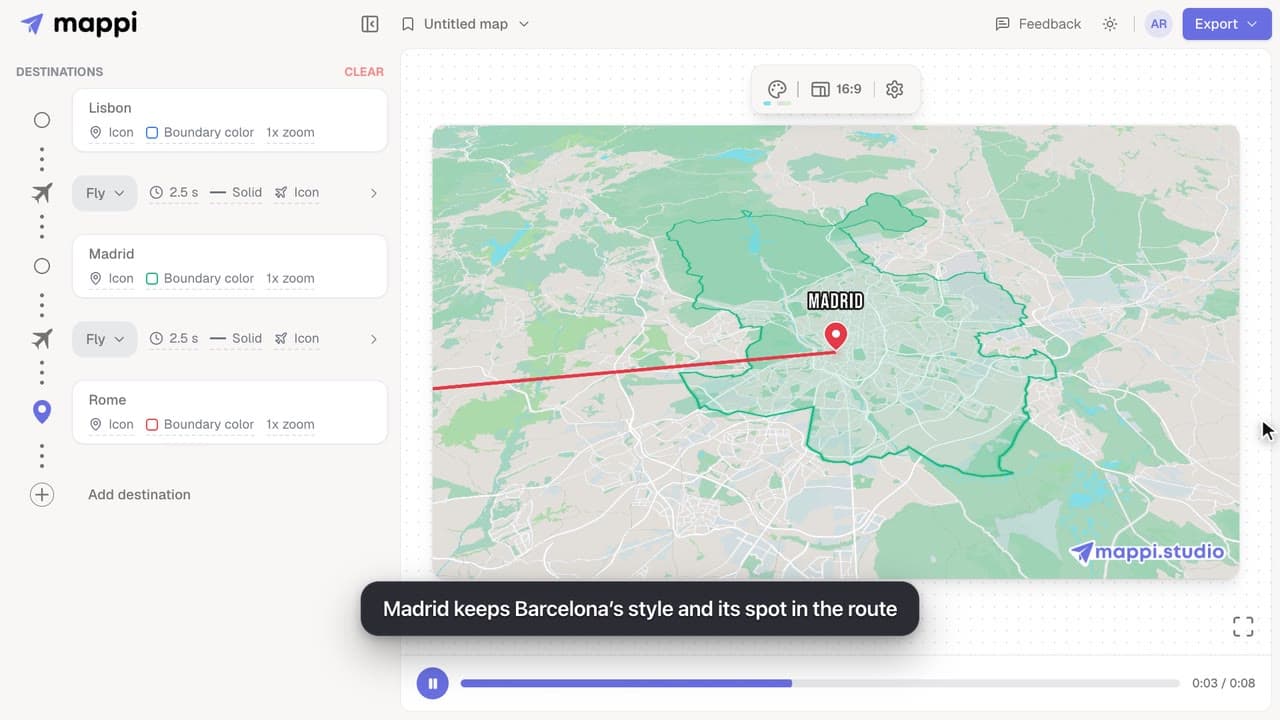
Replace a stop with a different place without deleting it: the new destination keeps its colors, icon and position in the route. Undo is one click away.
 0:37
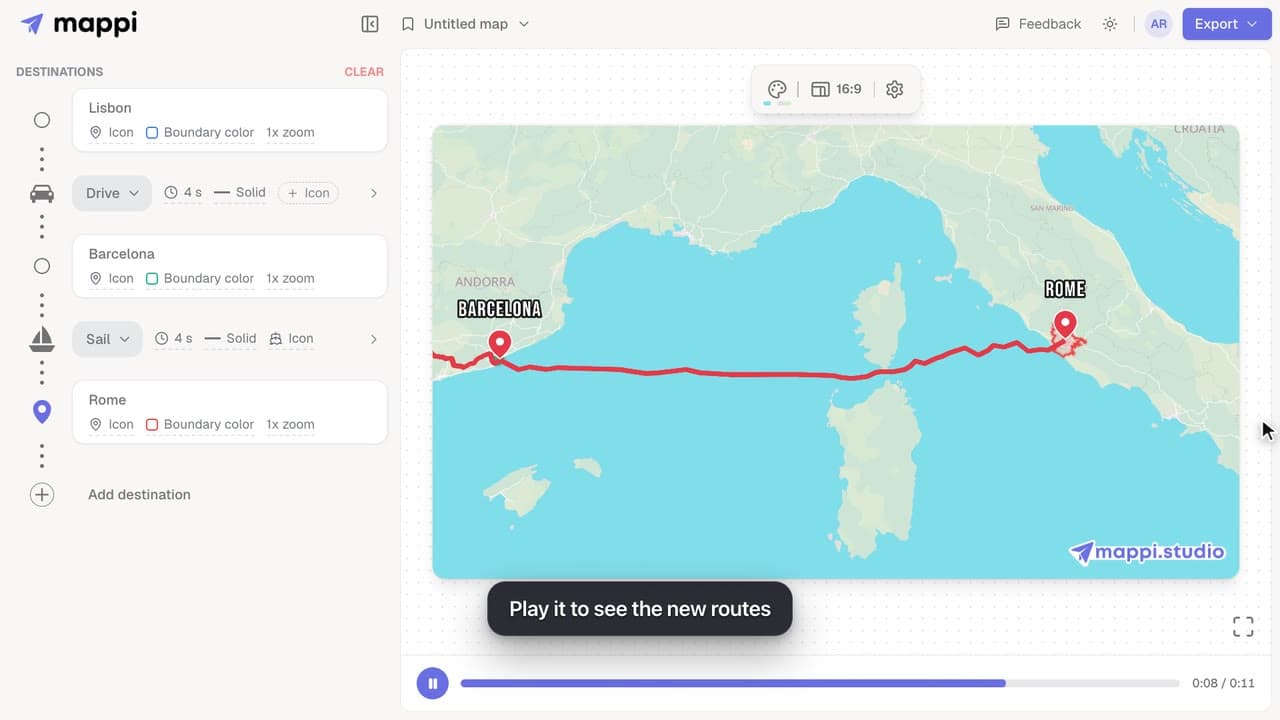
Make a route follow real roads, walking paths, shipping lanes or public transit instead of a flight arc. Mix travel modes in one map animation.
 0:33
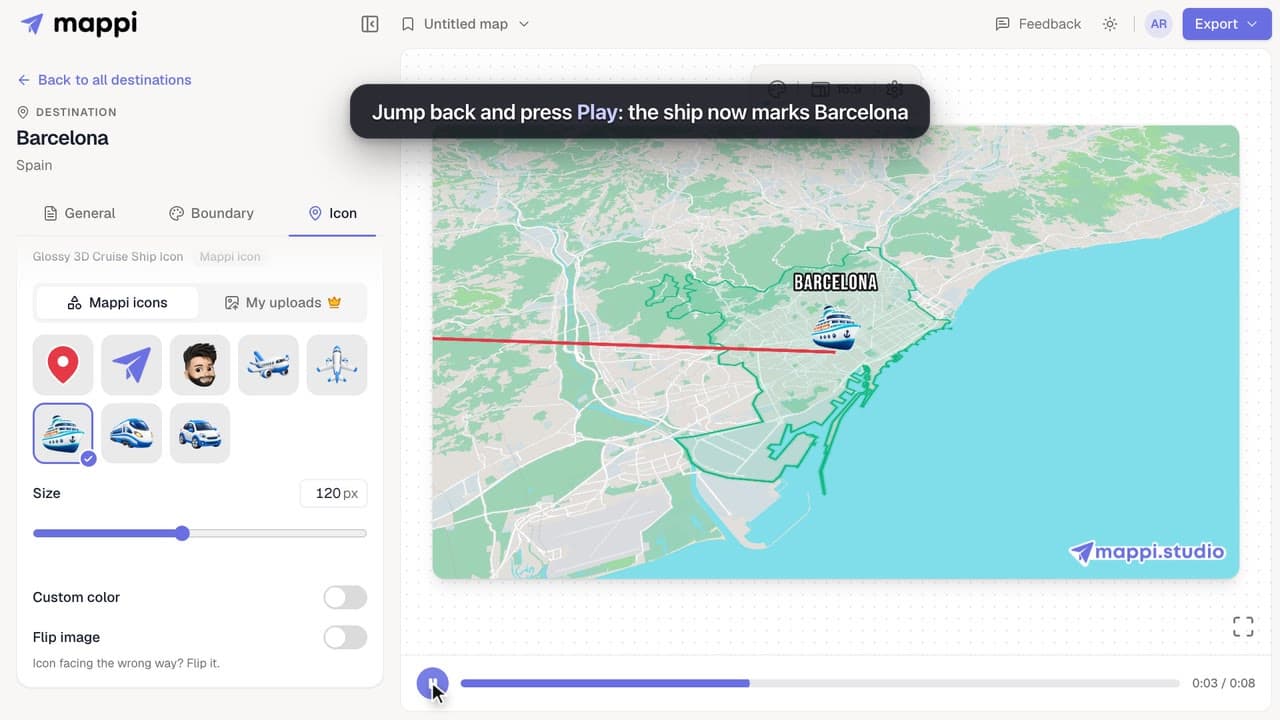
Replace a destination’s classic map pin with an icon, resize it, recolor it, flip it, or hide the marker. Works for every stop on your map animation.
 0:40Pro
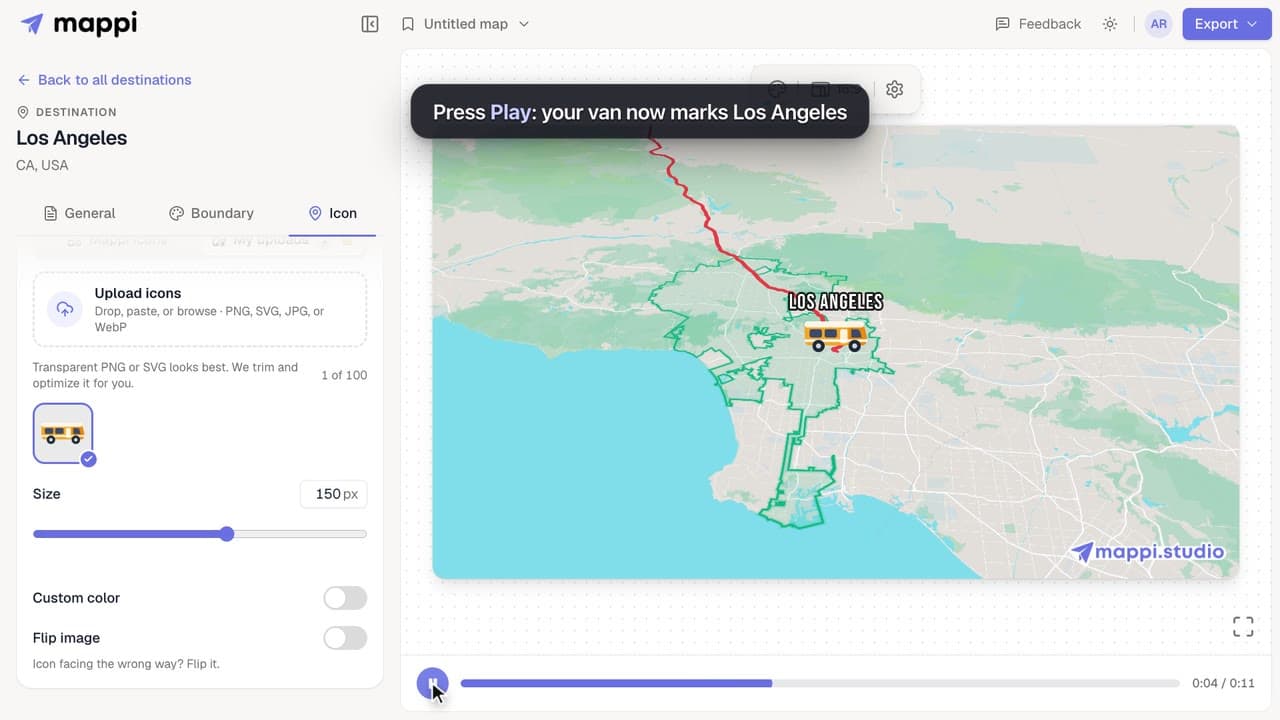
Upload a logo, vehicle or mascot and use it as a destination pin or a moving route icon. Supported files, size limits and how to delete uploads.
 0:33
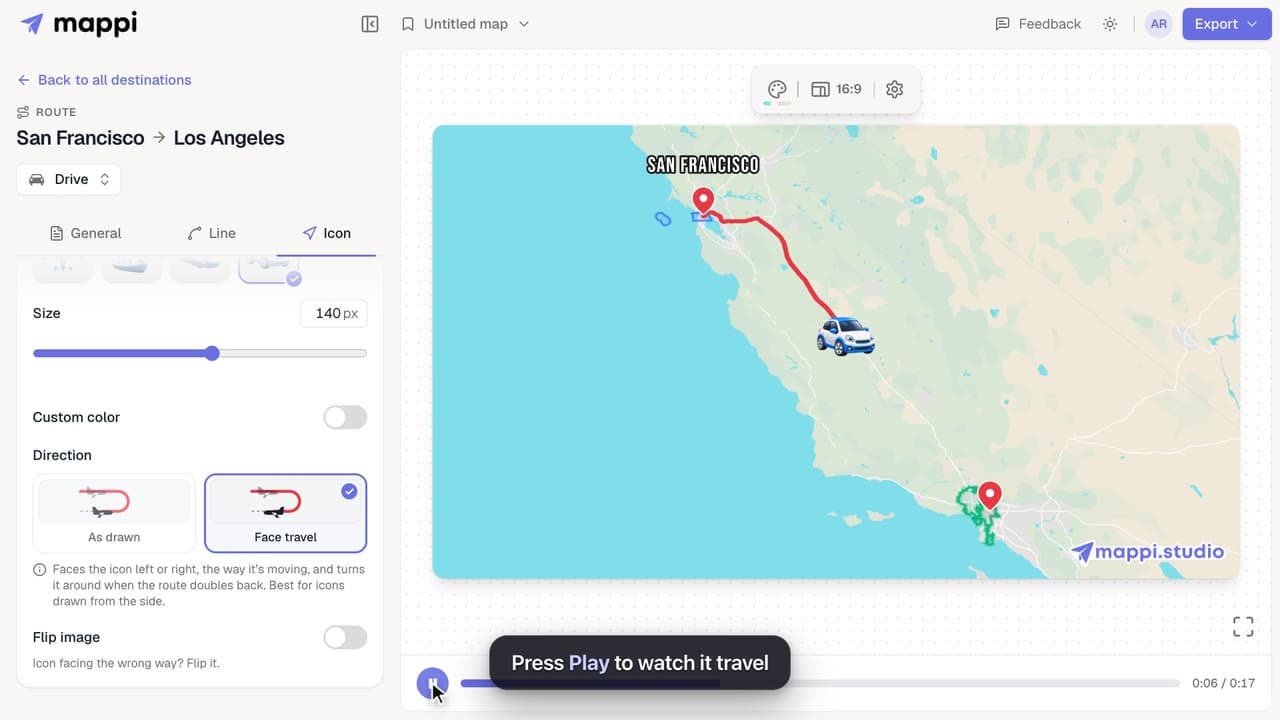
Send a car, plane, ship or your own icon along a route line in your map animation, and choose whether it turns with the path or faces the way it moves.
 0:41
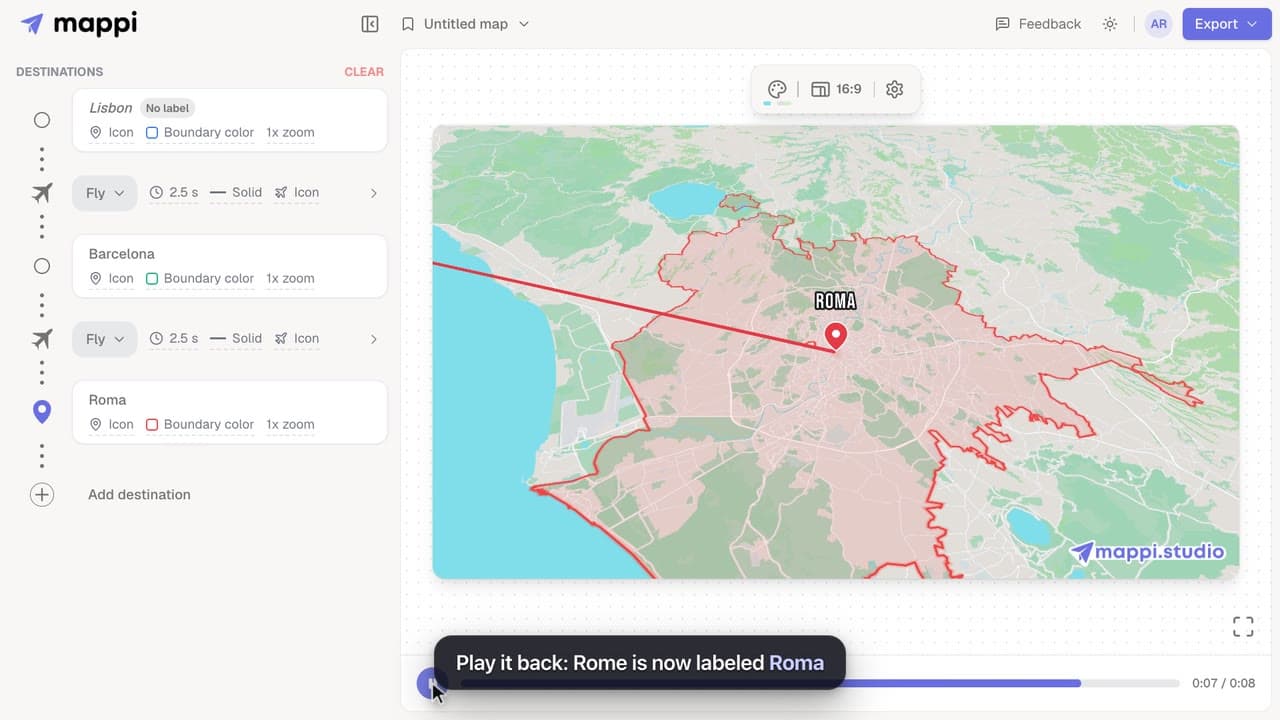
Change the text a destination shows on your animated map, shorten long place names, or hide a label completely without removing the stop.
 0:42
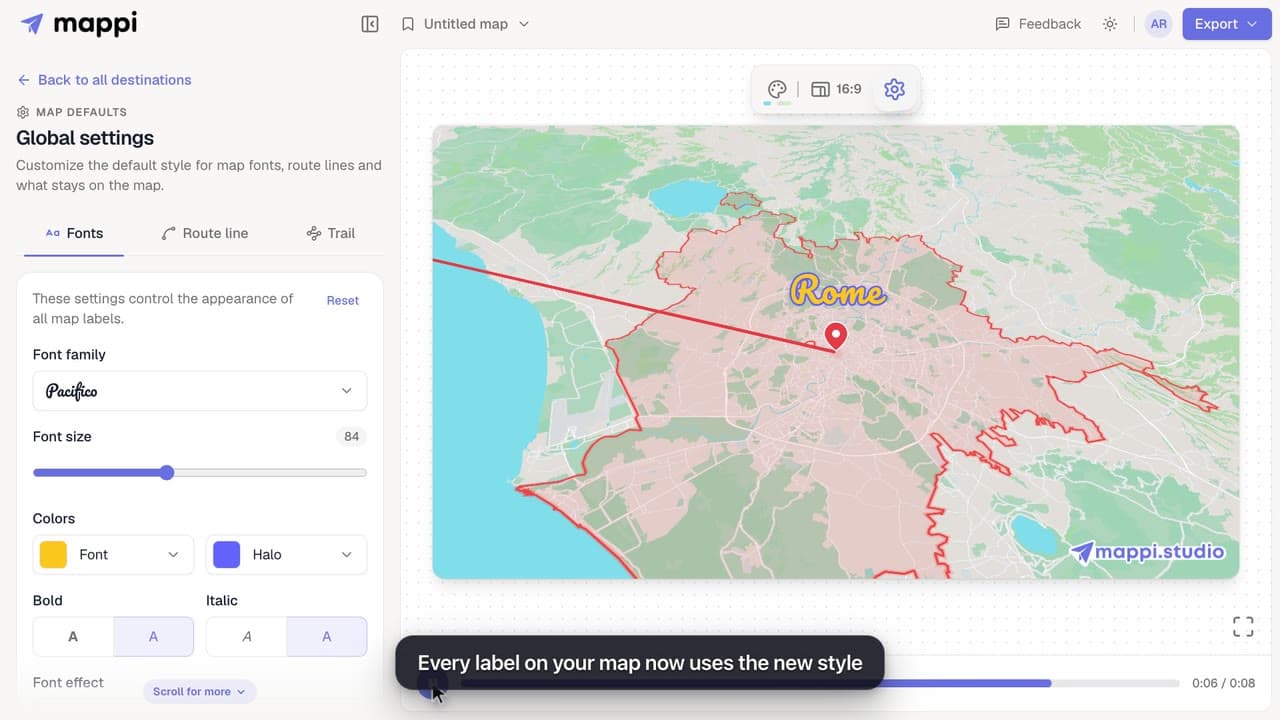
Style every destination label on your map animation: choose from 25 fonts, set the font size, text and halo colors, bold, italic and font effects.
 0:33
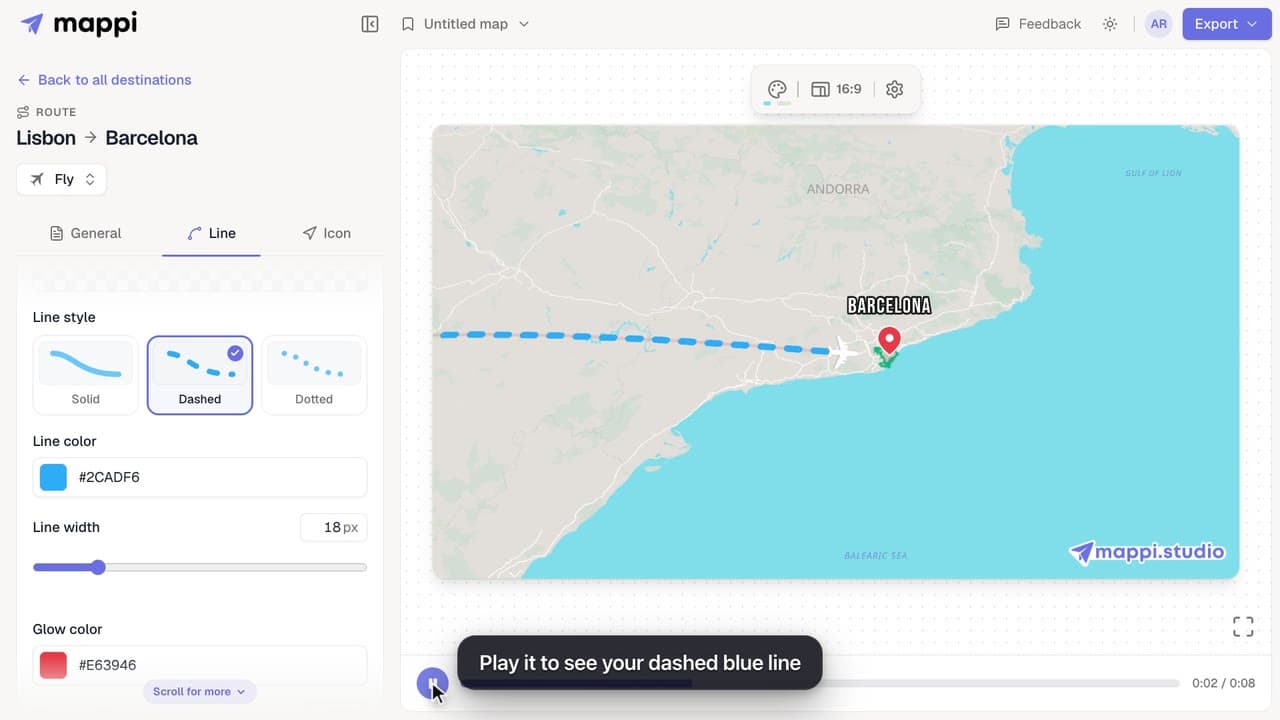
Make a route line solid, dashed or dotted, change its color and width, and add a glow. Style one route, or set the default for every route at once.
 0:34
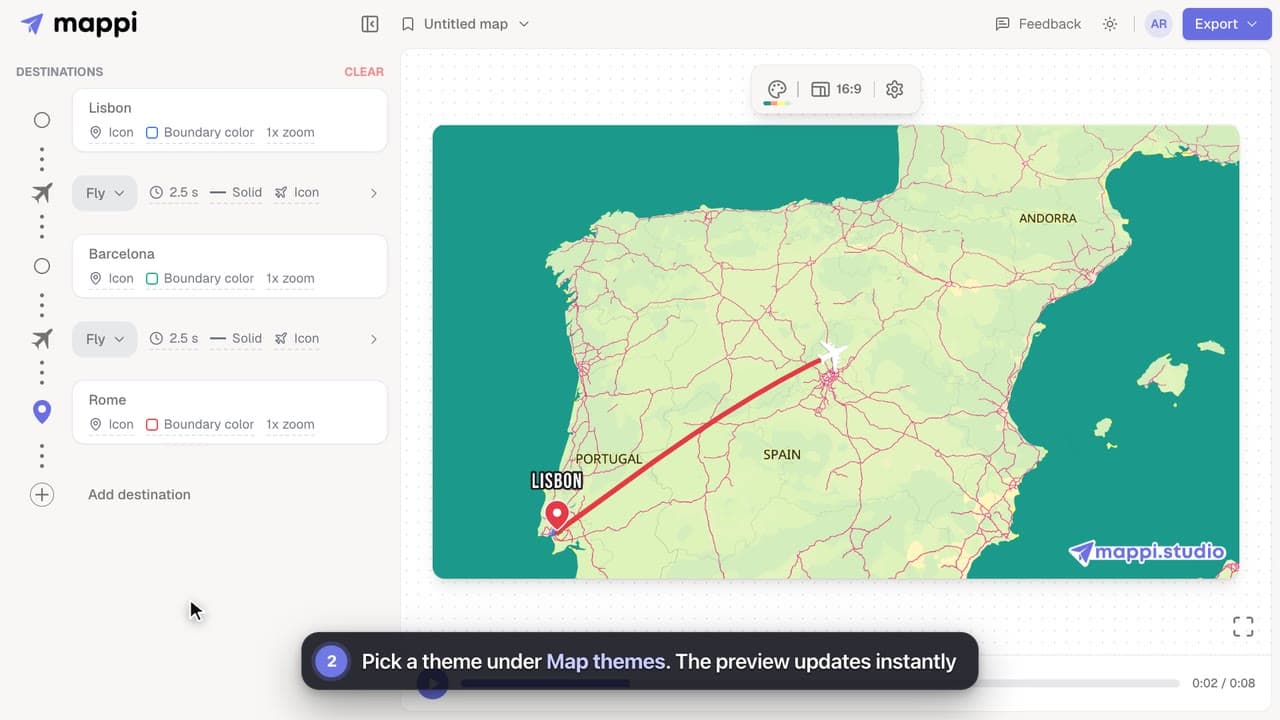
Restyle your whole map animation in one click: switch between Light, Dark, Retro, Ocean Sunset, Pastel Dream and the other built-in Mappi map themes.
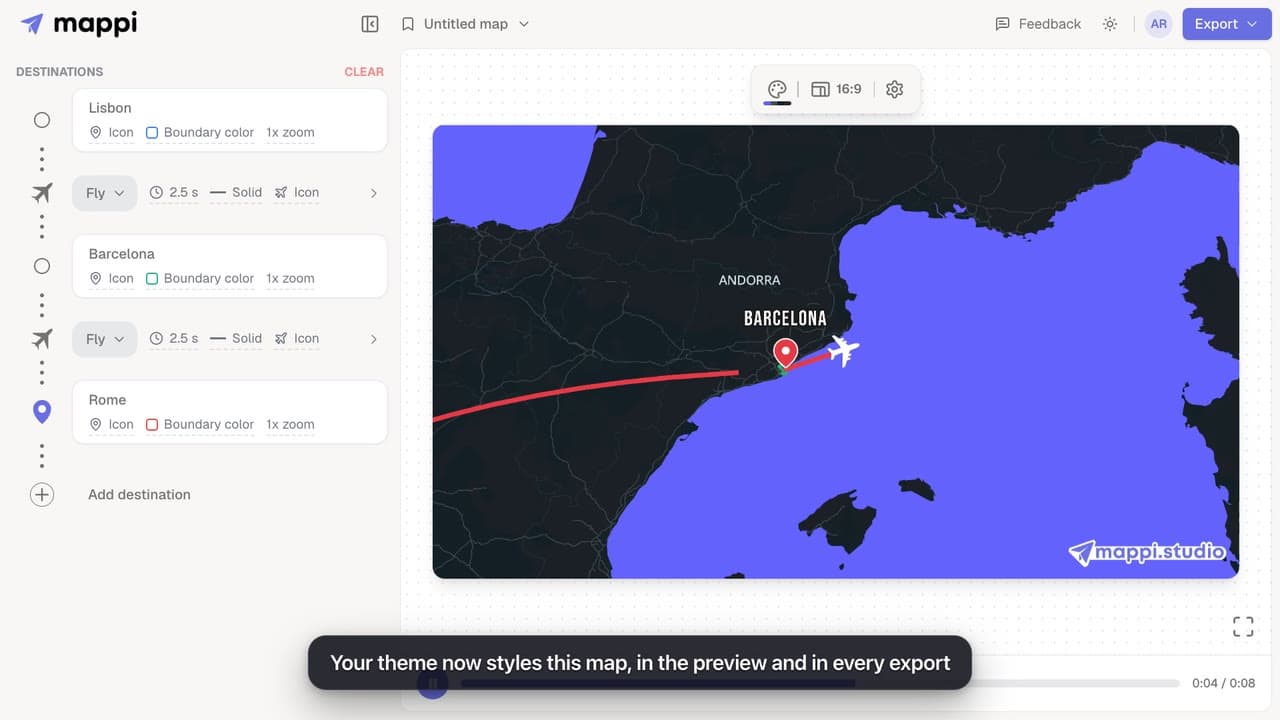 0:51Pro
Design your own map theme: pick colors for land, water, parks, roads, borders and labels, shuffle new palettes, set the detail level, and save it.
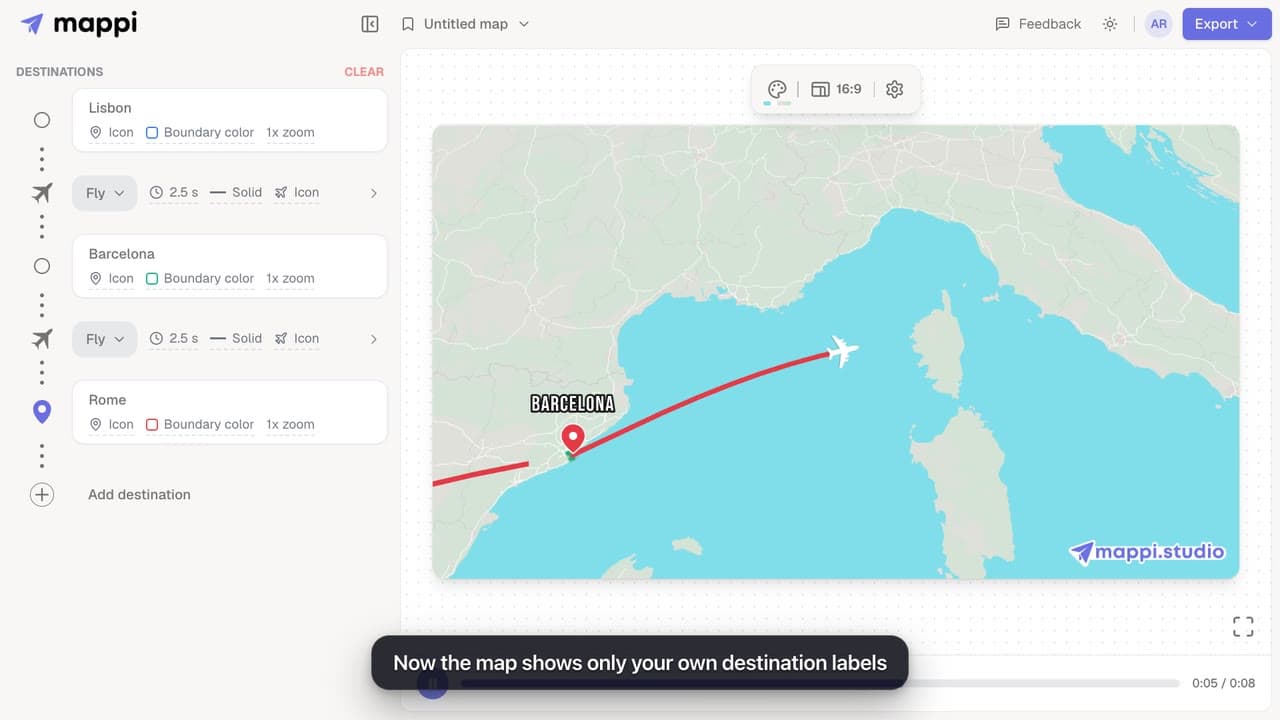 0:39Pro
Turn the country, ocean and road names on the base map on or off with a custom map theme. Your own destination labels always stay on the map.
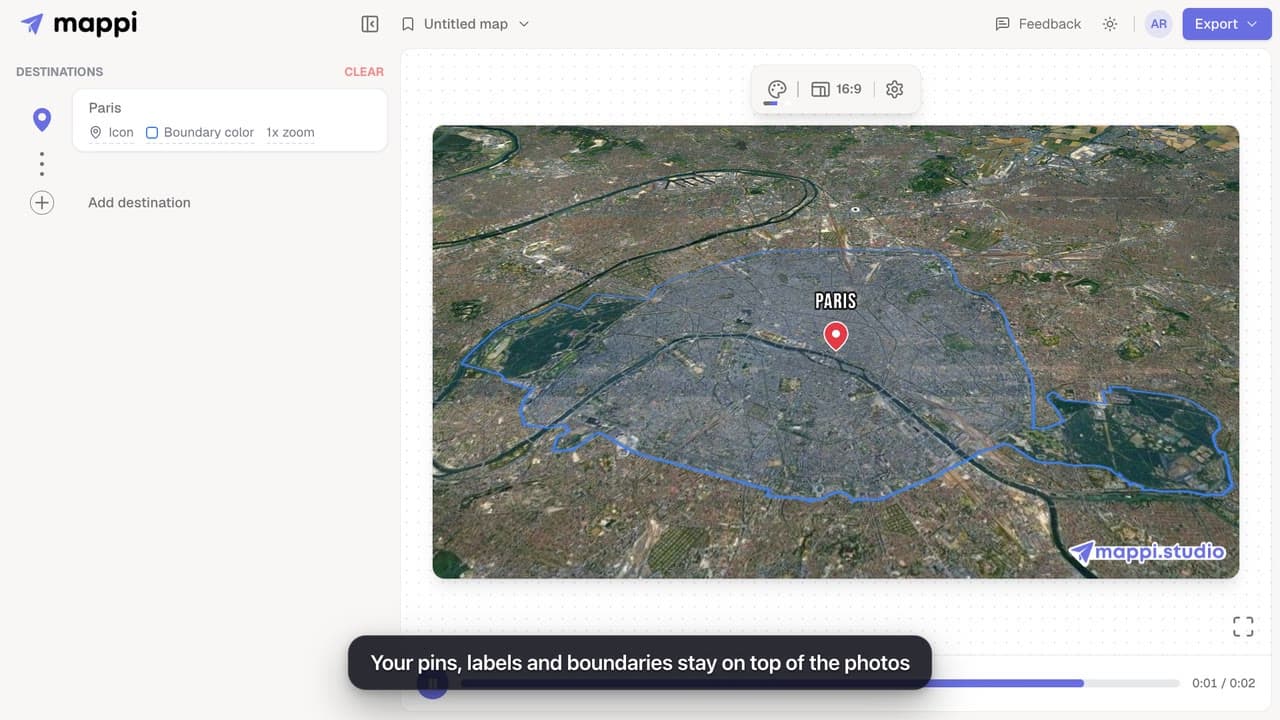 0:32Pro
Swap the drawn map for real satellite imagery in your map animation. Routes, pins and labels stay on top. The Satellite theme is a Mappi Pro feature.
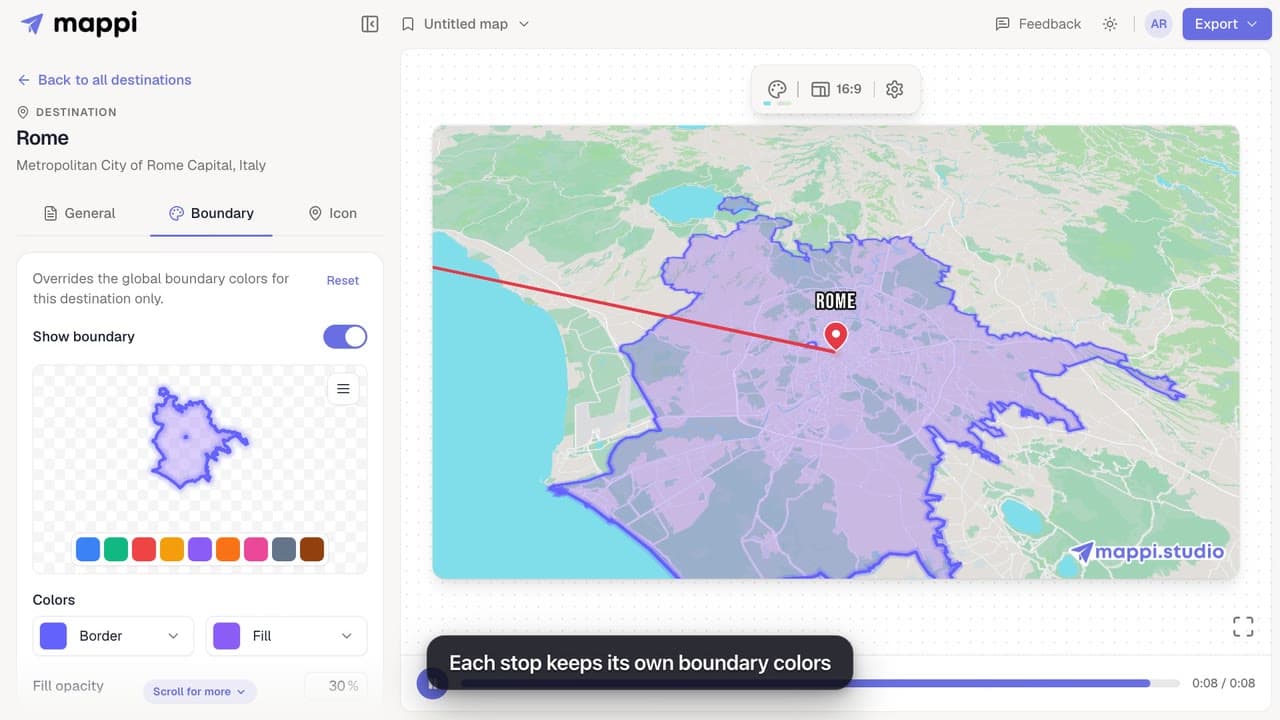 0:39
Outline a country, state or city on your map animation and style it: pick a preset color, set border and fill colors, fill opacity and border width.
 0:43
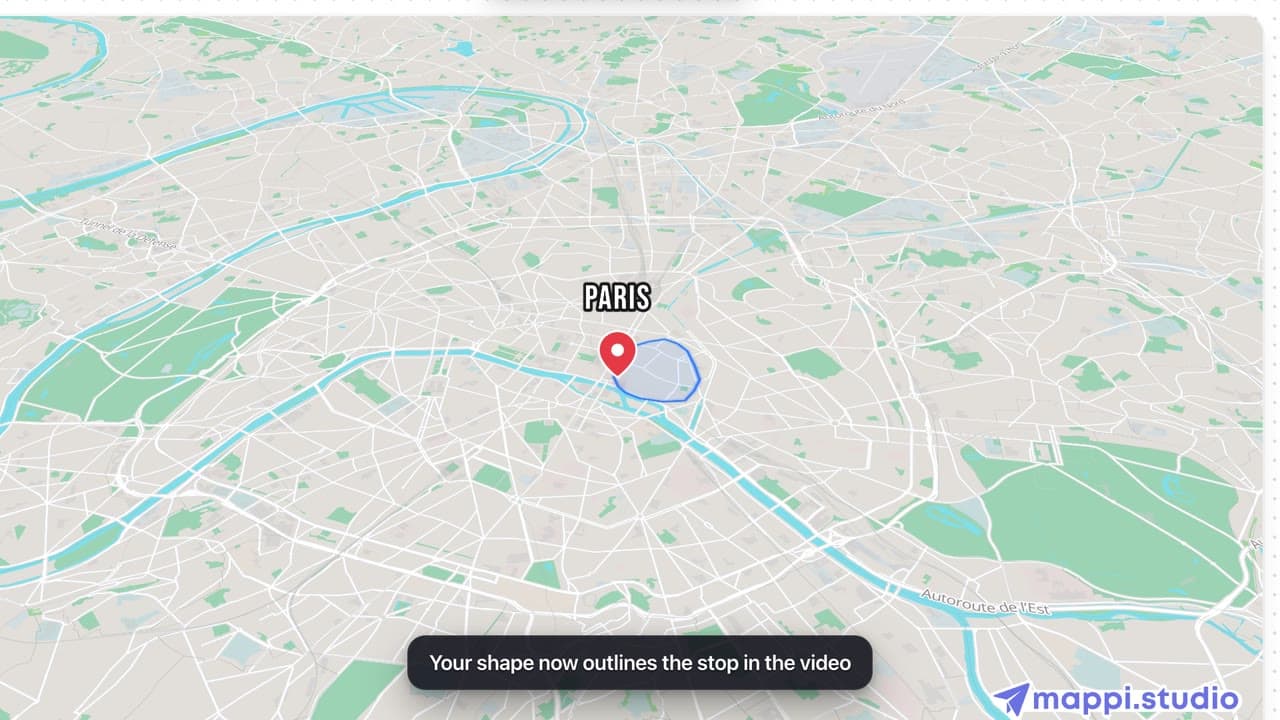
Draw any shape around a stop on your map animation: upload a GeoJSON polygon of a district, park, delivery zone or region and review it before applying.
 0:37
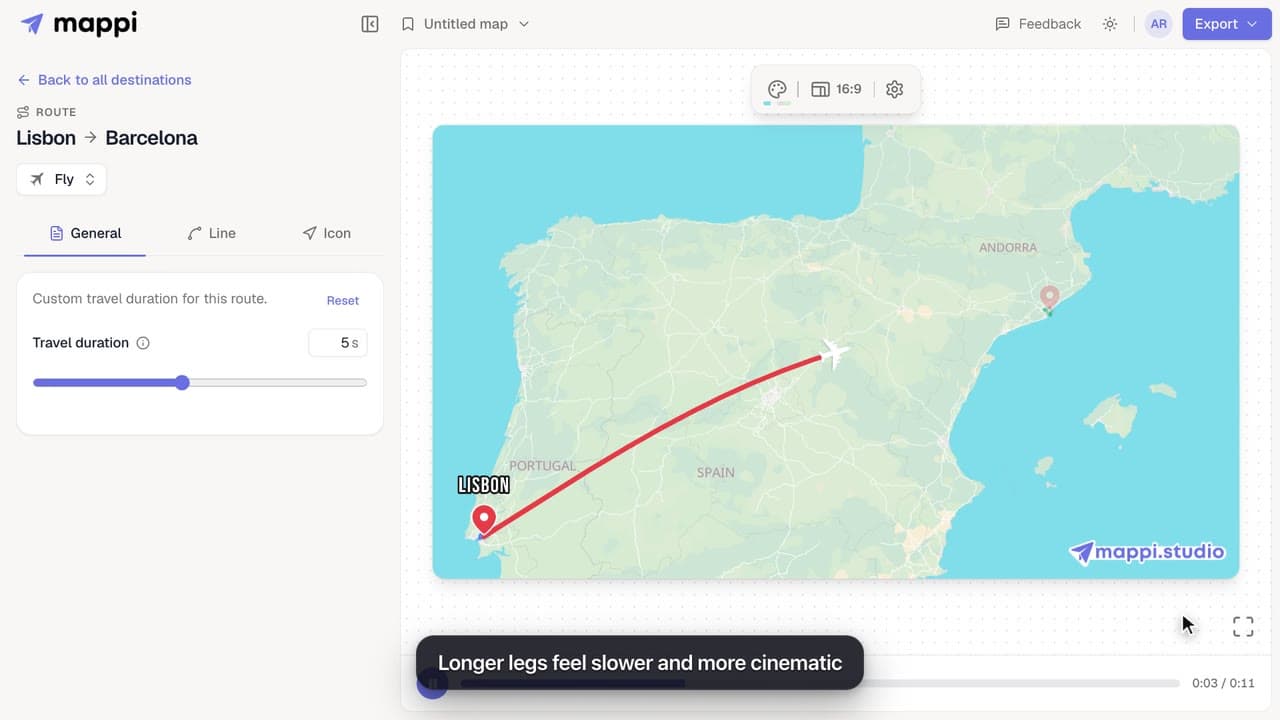
Control the camera speed of your map animation: set how many seconds each route takes on screen, from a quick 1 second hop to a slow 10 second journey.
 0:34
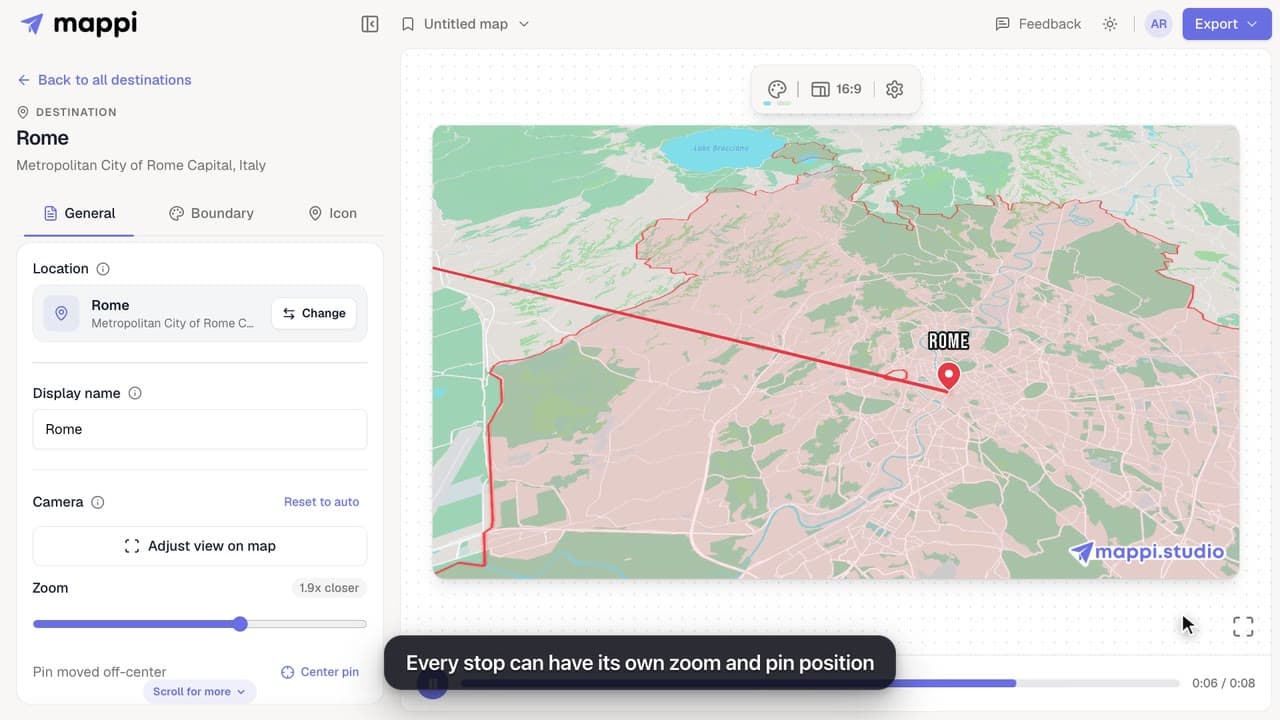
Frame each stop of your map animation: zoom the camera closer or wider and move the pin off-center with Adjust view, then save the framing for that stop.
 0:41
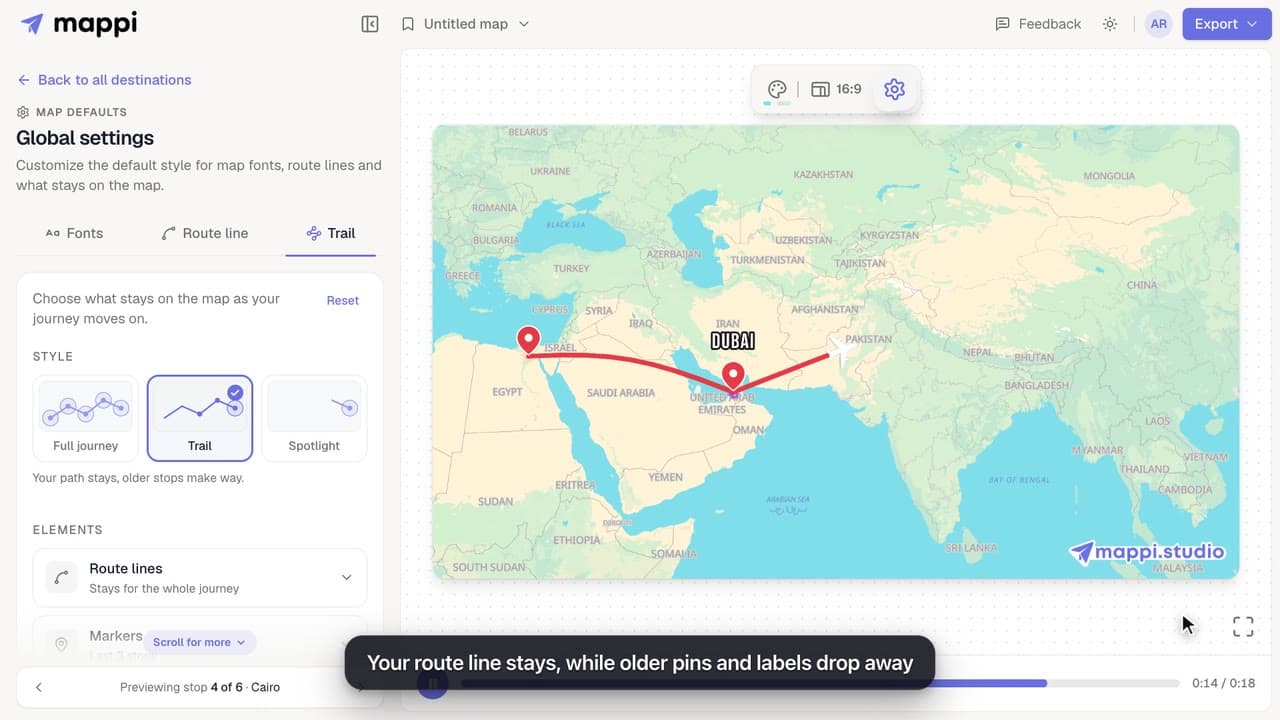
Keep the whole journey on screen, leave a trail, or spotlight only the current stop. Set how long route lines, markers, labels and boundaries stay visible.
 0:34
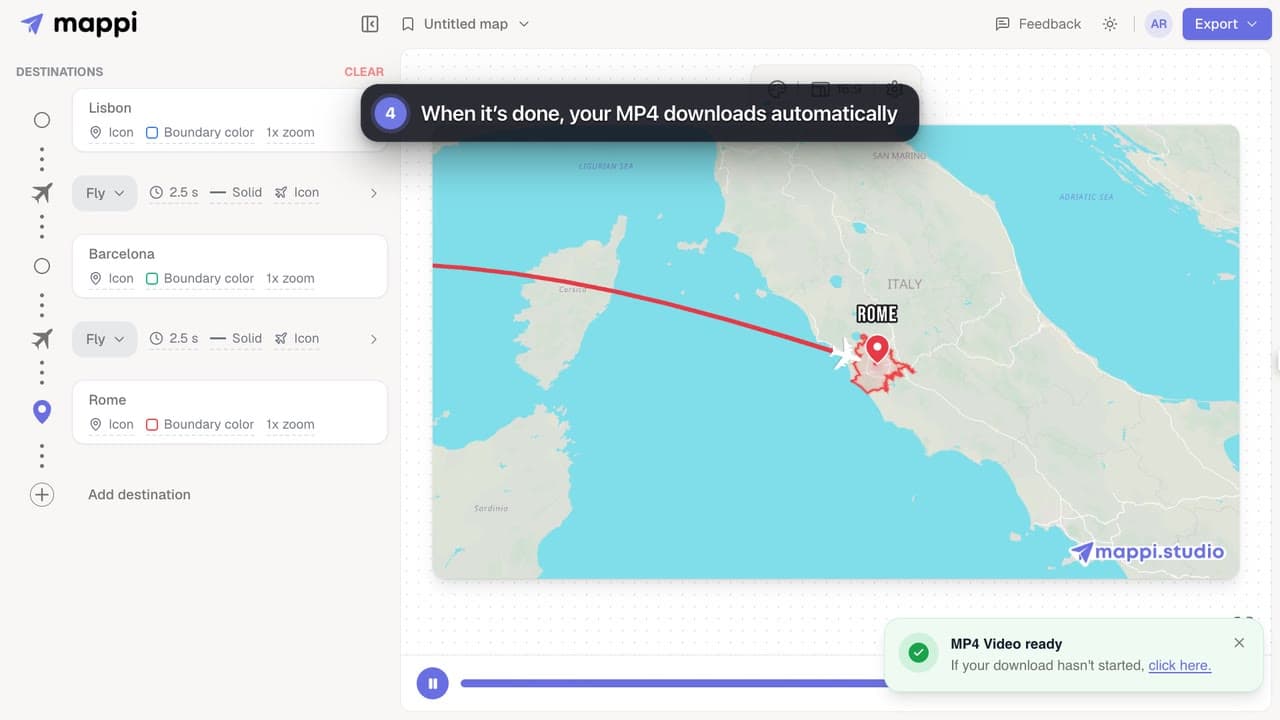
Export your Mappi map animation as an MP4 video: open Export, choose the quality and frame rate, and click Download. It renders right in your browser.
 0:35
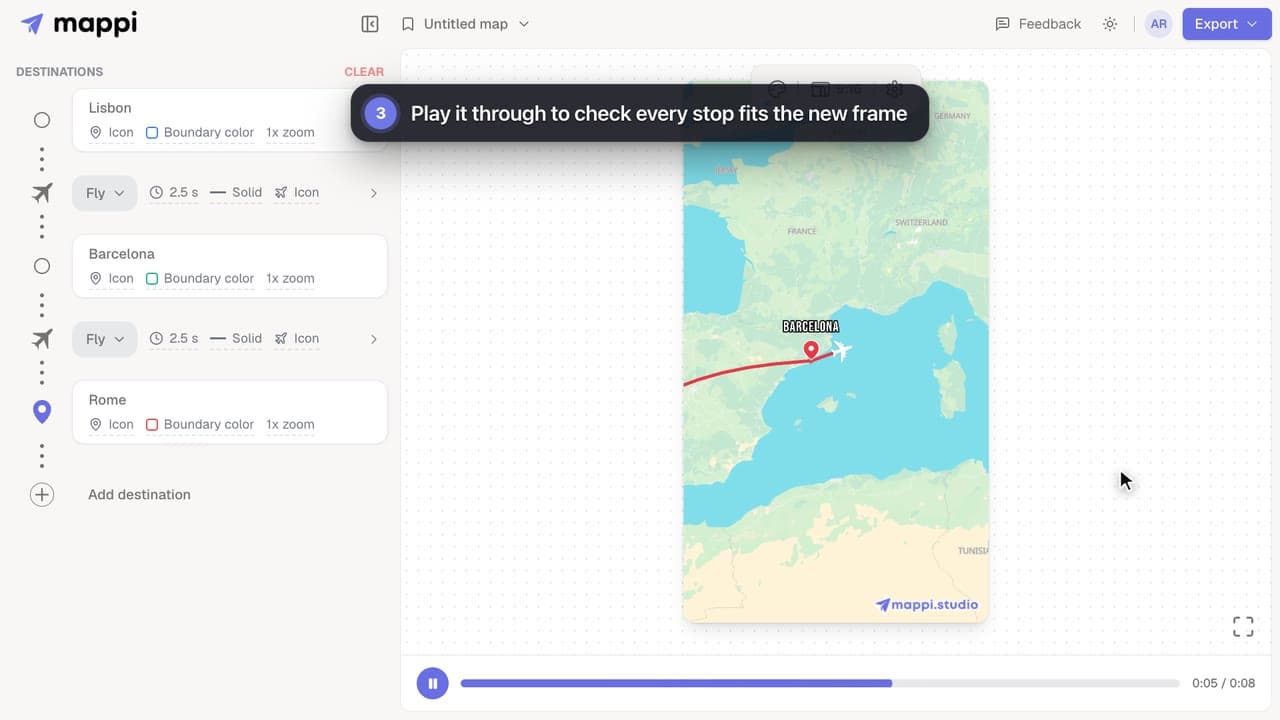
Size your map animation for TikTok, Instagram Reels, YouTube Shorts or YouTube: switch between vertical 9:16, portrait 4:5, landscape 16:9 and square 1:1.
 0:33Pro
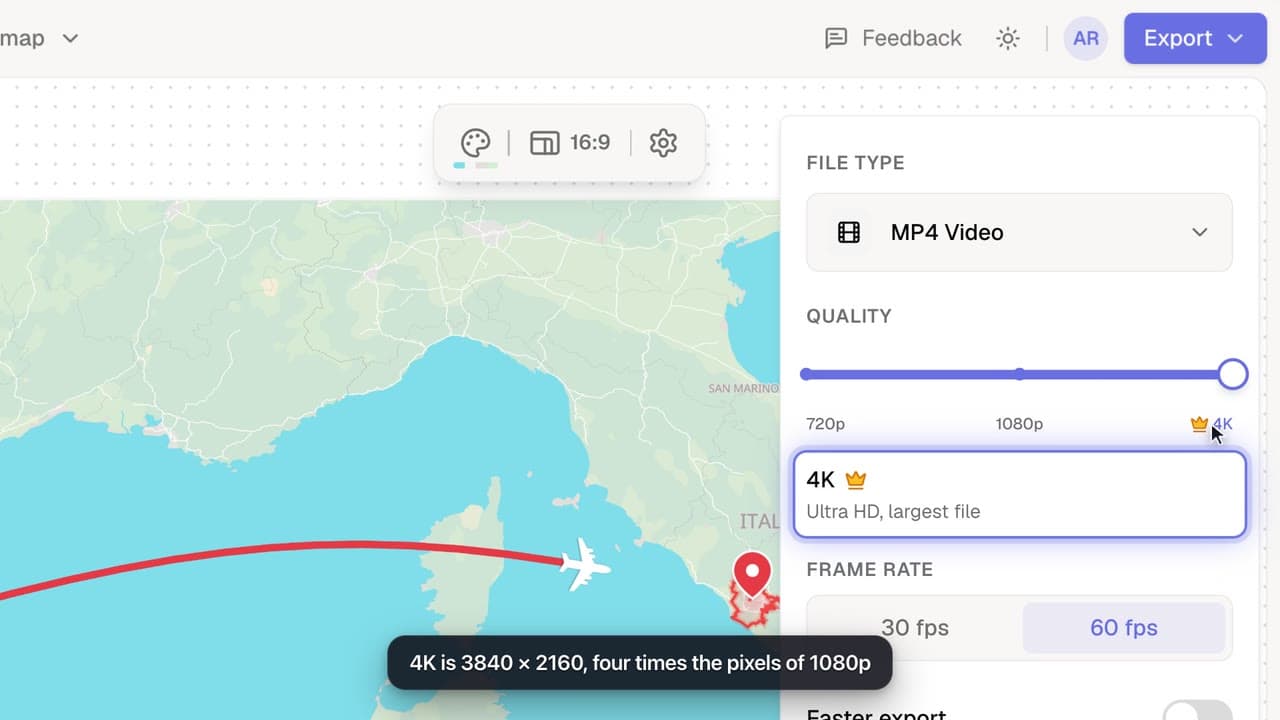
Export your map animation in 4K (3840 × 2160 for landscape) with Mappi Pro: set Quality to 4K in the Export options and download an ultra-sharp MP4.
 0:32Pro
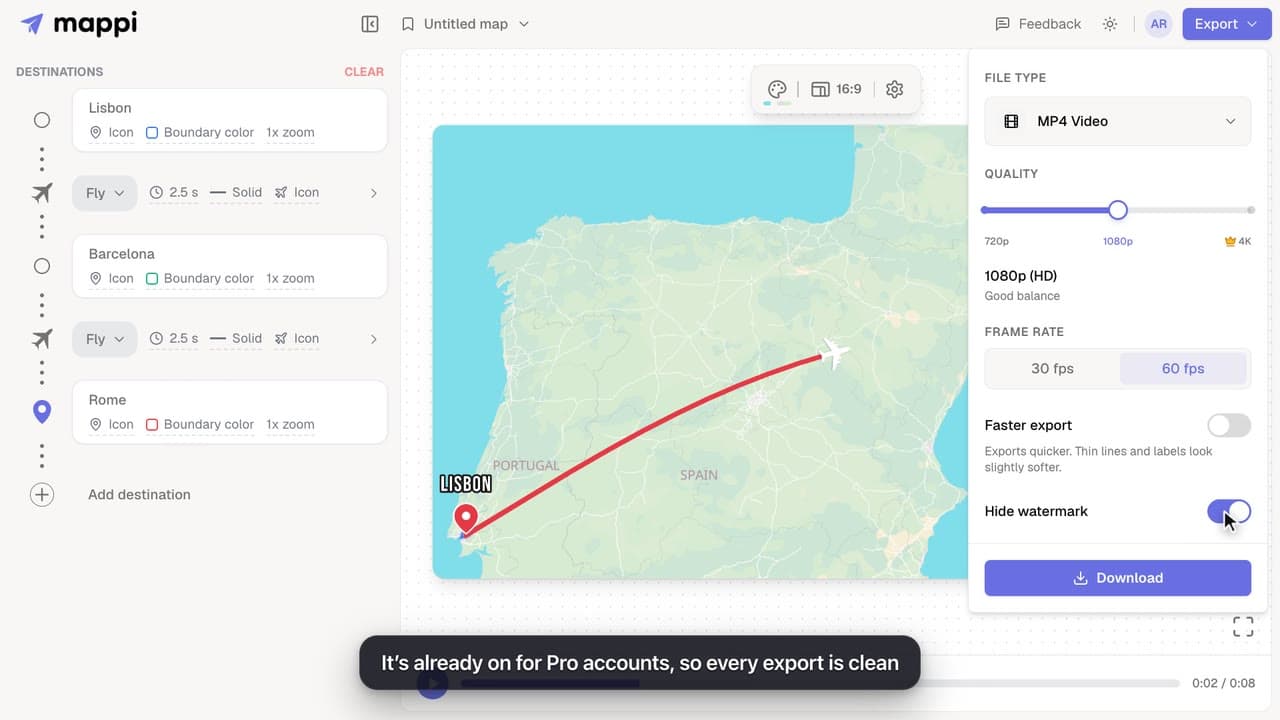
Export map animations without the mappi.studio watermark: with Mappi Pro, turn on Hide watermark in the Export options before you download.
 0:32
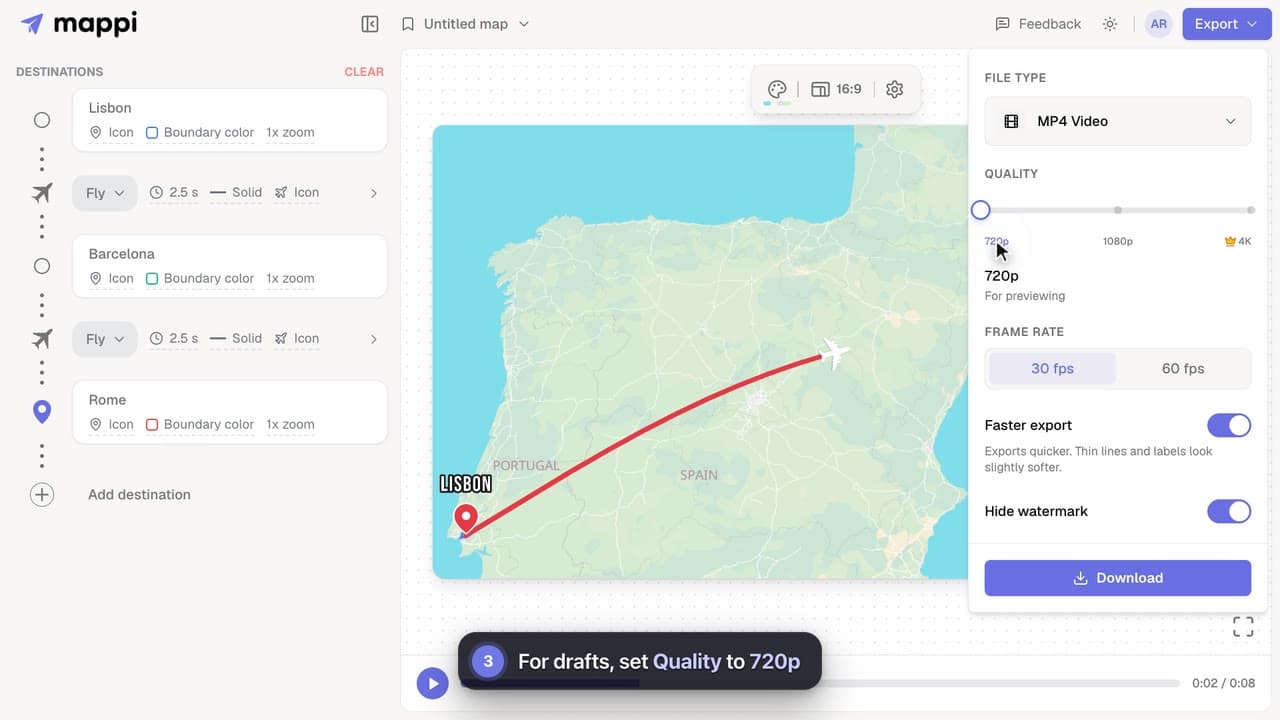
Cut map video export time on slower computers: turn on Faster export, render at 30 fps, use 720p for drafts, and keep the editor tab in front.
Written guides for the questions a video can’t answer as quickly, like billing, plan limits and fixing an export.
Mappi saves maps in your browser, not your account. Learn why a saved map can be missing on another device or after clearing browser data, and how to keep it.
Getting started
Keyboard shortcuts in the Mappi editor: play and scrub the preview, shuffle theme colors, move a dropped pin, and frame the camera without the mouse.
Getting started
Free and guest maps hold up to 5 destinations; Mappi Pro maps hold as many as you need. Learn what counts toward the limit and what to do when you reach it.
Destinations & routes
Get a GeoJSON polygon for any country, state, city, neighborhood or custom area: draw one free, download open boundary data, or convert KML and Shapefiles.
Map styles & themes
Every message Mappi shows when a GeoJSON boundary upload fails, what it means, and how to fix the file: wrong format, coordinates, size or geometry.
Map styles & themes
What every Mappi export option does: 720p, 1080p and 4K video sizes for each aspect ratio, 30 vs 60 fps, Faster export, the watermark and the MP4 format.
Export & formats
Map video export stuck at a percentage or taking forever? Why exports slow down, how long they should take, and what to do to get your MP4 faster.
Rendering & troubleshooting
Fix a failed Mappi export: why you see “Your device couldn’t handle this export”, and how lower quality, Faster export, 30 fps or a desktop browser help.
Rendering & troubleshooting
Fix a blurry, soft or choppy map animation: pick the right export quality and frame rate, turn off Faster export for the final cut, and avoid re-compression.
Rendering & troubleshooting
Fix a blank map preview or the “WebGL is not supported” message in Mappi: turn on hardware acceleration, update your browser, or try another browser.
Rendering & troubleshooting
Why a driving, walking, transit or sailing route can’t be found between two stops, what each message means, and how to fix it or switch travel mode.
Rendering & troubleshooting
Use Mappi on your phone or tablet: how the mobile editor works, why phone exports are lighter, and tips to export map videos without errors on mobile.
Rendering & troubleshooting
Mappi runs in up-to-date Chrome, Edge, Firefox and Safari on computers, phones and tablets. Firefox on Android can’t export videos yet. What your browser needs.
Rendering & troubleshooting
Compare Mappi plans: Free includes unlimited 1080p map video exports with a watermark; Pro adds 4K, no watermark, satellite, custom themes and your own icons.
Account & billing
Upgrade your Mappi account to Pro: sign in, open the pricing page, choose monthly or yearly billing, click Get Pro and pay securely with Stripe.
Account & billing
Cancel your Mappi Pro subscription or change billing details: open your account menu, choose Settings, then Manage your payment preferences in Stripe.
Account & billing
Find and download your Mappi Pro invoices and receipts: open Settings from your account menu, then Manage your payment preferences to see billing history.
Account & billing
Change the card or payment method for your Mappi Pro subscription in Stripe’s billing portal: Settings, then Manage your payment preferences.
Account & billing
Mappi offers a 3-day money-back guarantee on Pro if you haven’t exported a video yet. Who qualifies, and how to request a refund by email.
Account & billing
Students get 50% off Mappi Pro. Email us from your school address to get a discount code, then enter it at checkout when you upgrade.
Account & billing
Create a free Mappi account or sign in with Google, Apple, Facebook or email, right from the editor. Your current map stays put while you sign in.
Account & billing
Get help from the Mappi team: send feedback with screenshots from the editor, use the share feedback page, or email support. Typical reply in under 24 hours.
Account & billing
Quick answers to the questions we hear most. Each one links to the full guide when there is more to show.
Yes. You can make unlimited map animations and export them at up to 1080p for free, with a small mappi.studio watermark. Mappi Pro adds 4K exports, watermark-free videos, the Satellite theme, custom map themes, your own icons and as many destinations as you need.
Free vs ProNo. Open the editor and start adding destinations right away; you can export without signing in. You need an account to upgrade to Pro and to save Pro items like custom themes and uploaded icons.
Create an account and sign inClick Export in the top-right corner of the editor, pick a quality and frame rate, and click Download. The video renders in your browser and downloads as an MP4 file.
Export your map animationYes, with Mappi Pro. Set Quality to 4K in the Export options; a landscape video renders at 3840 × 2160. Free and guest exports go up to 1080p.
Export in 4KUp to 5 on a free or guest map, and as many as you need with Mappi Pro. Only stops count, not the routes between them.
Destination limitYes. Drop a custom pin: type a name, choose Can’t find it? Drop a pin under the results (or Drop a pin instead if nothing matches), and drag the map until the pin sits on the exact spot. You can also paste GPS coordinates in the pin picker.
Drop a custom pinClick the route’s travel mode (Fly by default) and choose Drive. Walk, Sail and Transit follow walking paths, shipping lanes and public transit the same way.
Choose a travel modeEach route has a travel duration from 1 to 10 seconds. Click the route’s duration chip (2.5 s for flights by default) and set a longer time to slow the camera down, or a shorter one to speed it up.
Speed up or slow down a routeSaved maps are stored in the browser where you saved them, not in your account. Open the same browser on the same device to find them, and avoid clearing site data for mappi.studio.
Where saved maps are storedYes. Open a stop’s Boundary tab, open the Boundary options menu (the three-line button at the top-right of the boundary preview) and choose Upload your own boundary to use any GeoJSON polygon, such as a district, park or delivery zone. Draw one for free at geojson.io.
Upload your own boundaryExports render on your device, so speed depends on your computer and the video’s size. Keep the tab in front, choose 30 fps and turn on Faster export for the quickest render. Phones, tablets and other touchscreen devices don’t show that switch: their exports are already lighter.
Make exports fasterYes. Videos you export can be used on monetized YouTube channels, social media, client work and ads. The map data in them keeps its own license, so credit “© OpenStreetMap contributors” in your video or its description, as our Terms explain. Pro removes the Mappi watermark, which most commercial projects prefer.
Remove the watermark$9 a month billed monthly, or $84 a year billed yearly, which works out to $7 a month. Both include every Pro feature.
Free vs ProClick your avatar in the editor, choose Settings, then Manage your payment preferences, and cancel your plan in Stripe’s billing portal. You keep Pro until the end of the period you paid for.
Cancel or manage your subscriptionYes, within 3 days of your first Pro charge if you haven’t exported a video yet. Renewals aren’t covered, and refunds are limited to one per account. Email support@mappi.studio with the subject “Refund request”.
Refund policyBring your routes, places, and stories to life with frame-perfect map animations. No editing skills required.
Mappi is the simplest way to create stunning animated maps. Perfect for YouTubers, journalists, and storytellers.
 Stripe Climate member
© 2026 Mappi. All rights reserved.