


How to zoom the camera in or out on a destination
Click the stop’s zoom chip (1x zoom) to open its camera settings, click Adjust view on map, then drag the pin and scroll to zoom on the preview. Click Save to keep the framing for that stop.
Step by step
Open the camera settings
In your destination list, click the stop’s zoom chip, here 1x zoom. Its settings open on the General tab with Camera highlighted.
Adjust the view on the map
Click Adjust view on map. On the preview, drag to move the pin within the frame and scroll to zoom in or out. You can also use Center the pin in the toolbar (in its More menu when the preview is narrow). On a computer, the toolbar also has Zoom in and Zoom out when the preview is wide enough to show them.
Save the view
Click Save in the toolbar, or press Enter. Playback carries on from this stop, so drag the timeline back to just before it and play from there to watch the camera arrive at the new framing.
More camera options
- On a computer, you can also drag the Zoom slider in the Camera field, from wider to closer. The value reads Auto, or an amount such as 2x closer or 1.4x wider. Moving it opens the same editor on the preview as Adjust view on map and holds the video on this stop. Click Save to keep the new zoom, or Cancel to discard it.
- Moved the pin off-center? Center pin puts it back in the middle.
- Reset to auto returns to the framing Mappi picks automatically from the place’s size.
- While adjusting, use the arrow keys to move the pin (hold Shift for bigger steps) and + or - to zoom. Esc cancels.
Video transcript
Show the transcriptHide the transcript
- 0:04Click a stop’s zoom, here 1x zoom on Rome
- 0:10Click Adjust view on map, then drag the pin and scroll to zoom
- 0:19Click Save when the frame looks right
- 0:23Jump back on the timeline and press Play to see Rome’s new view
- 0:29Every stop can have its own zoom and pin position
Was this guide helpful?
Try it in the editor
Mappi is a map animation maker that runs in your browser. No download, and no account needed to start.
Open MappiRelated guides
 0:37
Animation & camera
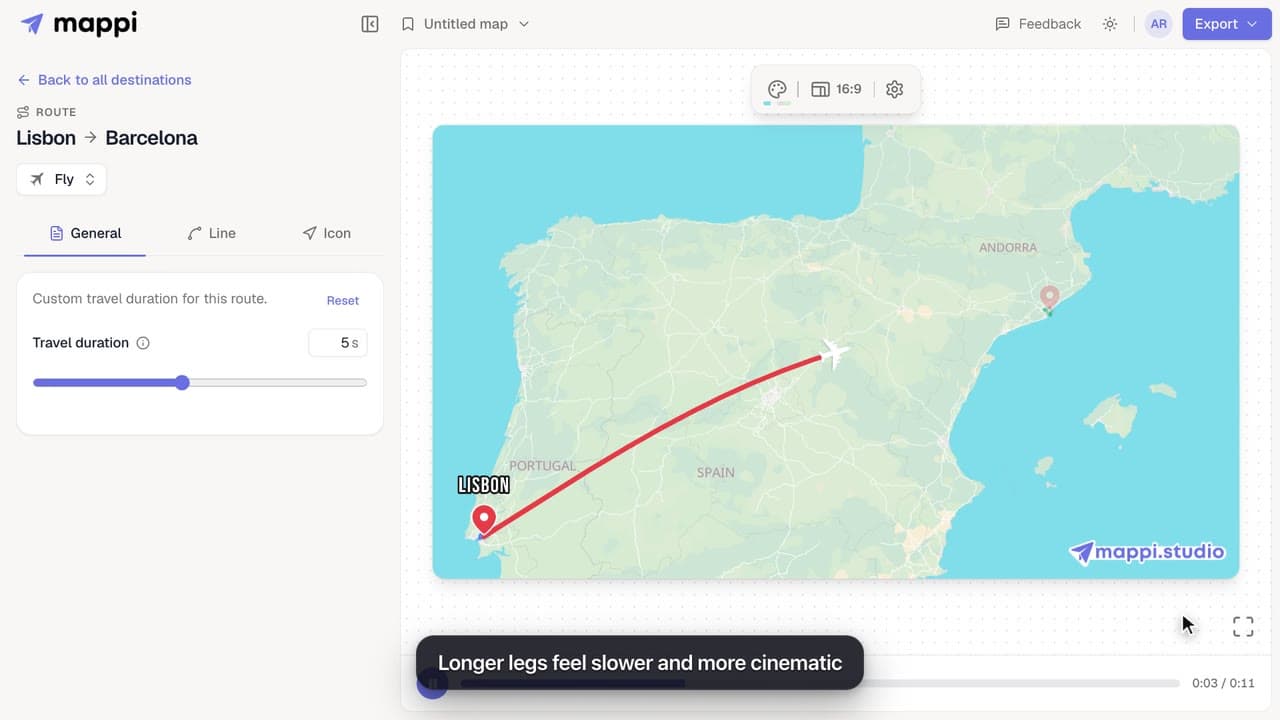
How to speed up or slow down a route
Control the camera speed of your map animation: set how many seconds each route takes on screen, from a quick 1 second hop to a slow 10 second journey.
 0:41
Animation & camera
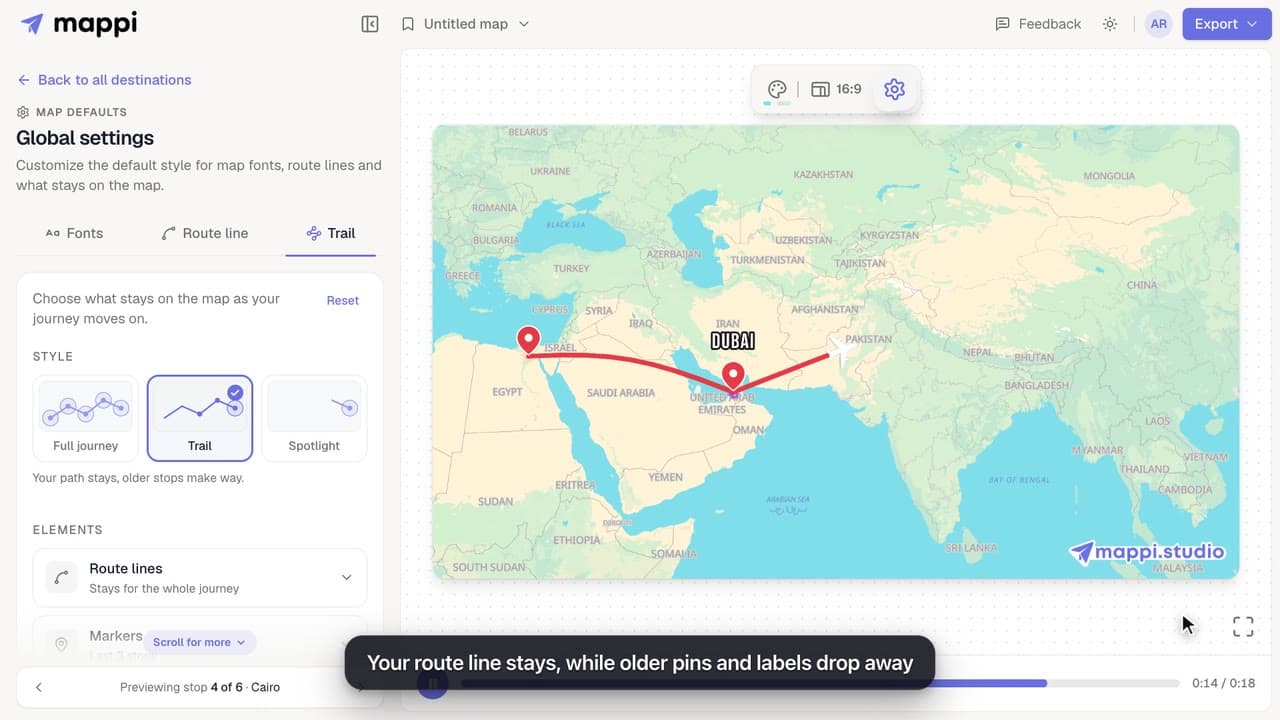
How to choose what stays on the map as the journey moves on
Keep the whole journey on screen, leave a trail, or spotlight only the current stop. Set how long route lines, markers, labels and boundaries stay visible.
 0:41
Destinations & routes
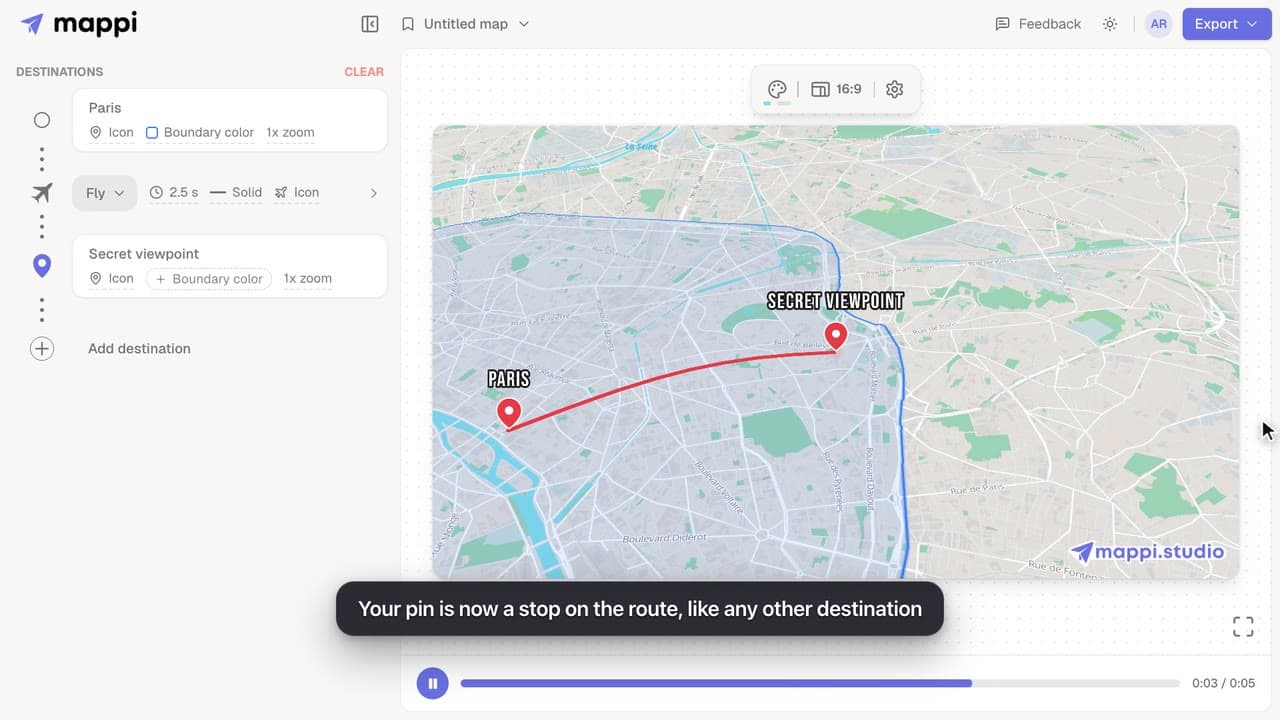
How to drop a custom pin on your map
Add a destination search can’t find: drop a custom pin anywhere on the map, set the exact spot and zoom, name it, and add it to your animated route.
