


Export settings explained: quality, frame rate and file size
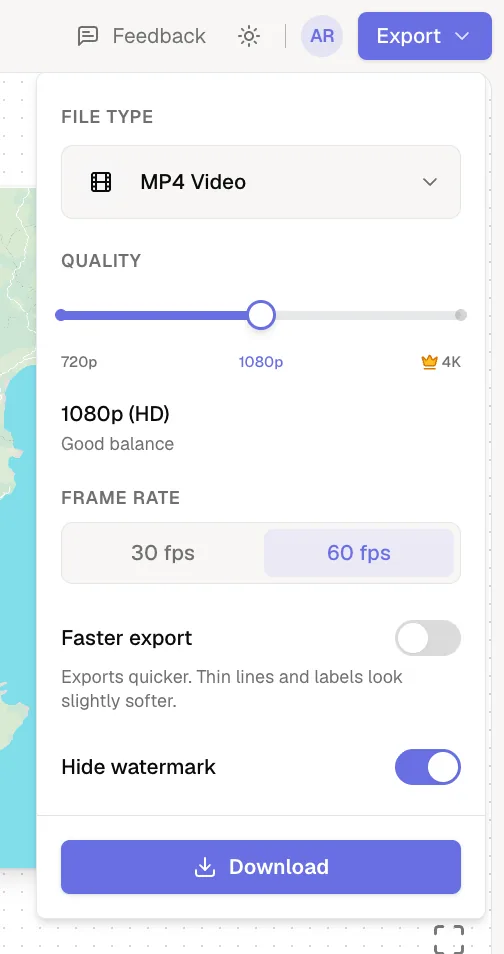
Mappi exports MP4 videos (H.264) in 720p, 1080p or 4K (Pro), at 30 or 60 fps. The aspect ratio you set in the editor decides the exact size. Faster export trades a little sharpness on thin lines for speed, and Pro accounts can hide the watermark.
Step by step
Set the aspect ratio in the editor
The video’s shape comes from the ratio button in the toolbar above the preview. See change the aspect ratio.
Choose the export options
Click Export and set Quality, Frame rate, Faster export and Hide watermark. Options reset to their defaults each time you open Export.
Video sizes
| Aspect ratio | 720p | 1080p | 4K (Pro) |
|---|---|---|---|
| 16:9 Landscape | 1280 × 720 | 1920 × 1080 | 3840 × 2160 |
| 9:16 Vertical | 720 × 1280 | 1080 × 1920 | 2160 × 3840 |
| 4:5 Portrait | 720 × 900 | 1080 × 1350 | 2160 × 2700 |
| 1:1 Square | 720 × 720 | 1080 × 1080 | 2160 × 2160 |
Every export option
| Option | What it does |
|---|---|
| File type | MP4 Video (H.264), which plays everywhere and imports into any editor. Videos have no audio track. |
| Quality | 720p for previews, 1080p (HD) for most videos (the default), 4K for the sharpest result (Pro). |
| Frame rate | 60 fps looks smoother; 30 fps renders about twice as fast. Timing is identical at both. |
| Faster export | Draws the map at a lower internal resolution. Exports quicker; thin lines and labels look slightly softer. On by default on slower computers. Not shown on phones, tablets or touch-screen computers, whose exports already use a lower internal resolution. |
| Hide watermark | Removes the mappi.studio logo. Pro only, and on by default for Pro. |
Was this guide helpful?
Try it in the editor
Mappi is a map animation maker that runs in your browser. No download, and no account needed to start.
Open MappiRelated guides
 0:34
Export & formats
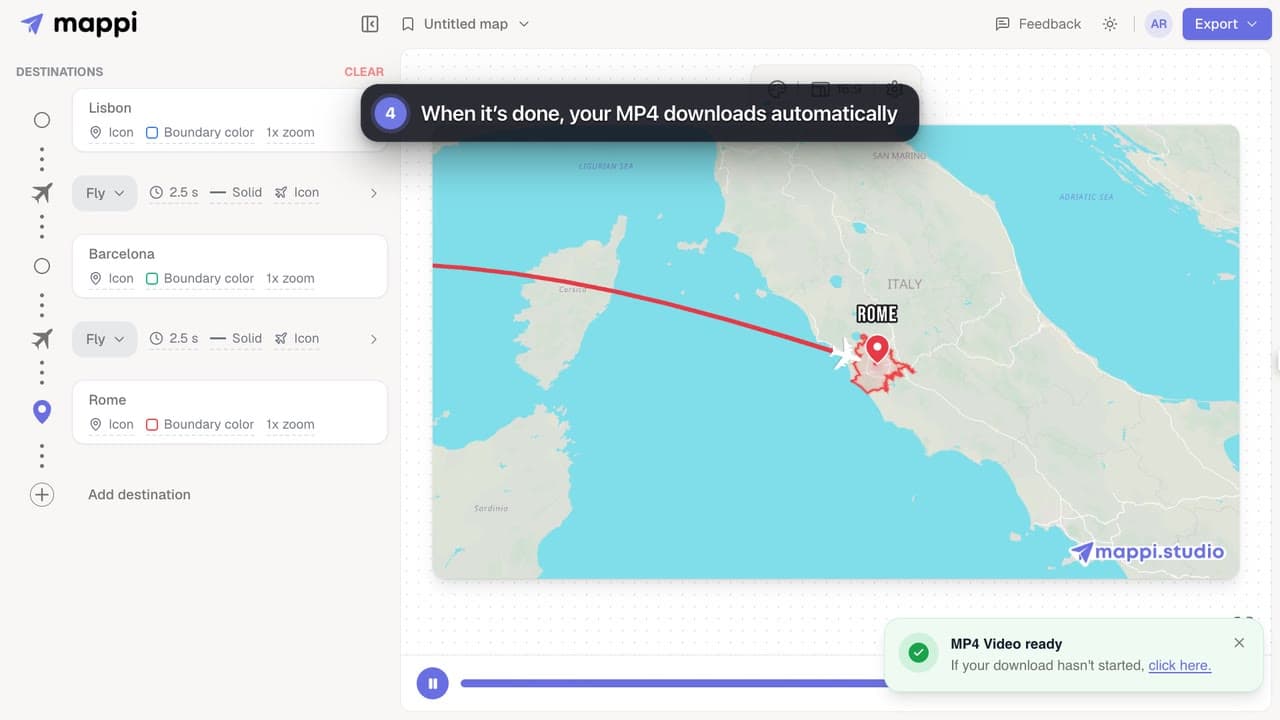
How to export your map animation as a video
Export your Mappi map animation as an MP4 video: open Export, choose the quality and frame rate, and click Download. It renders right in your browser.
 0:33
Export & formats
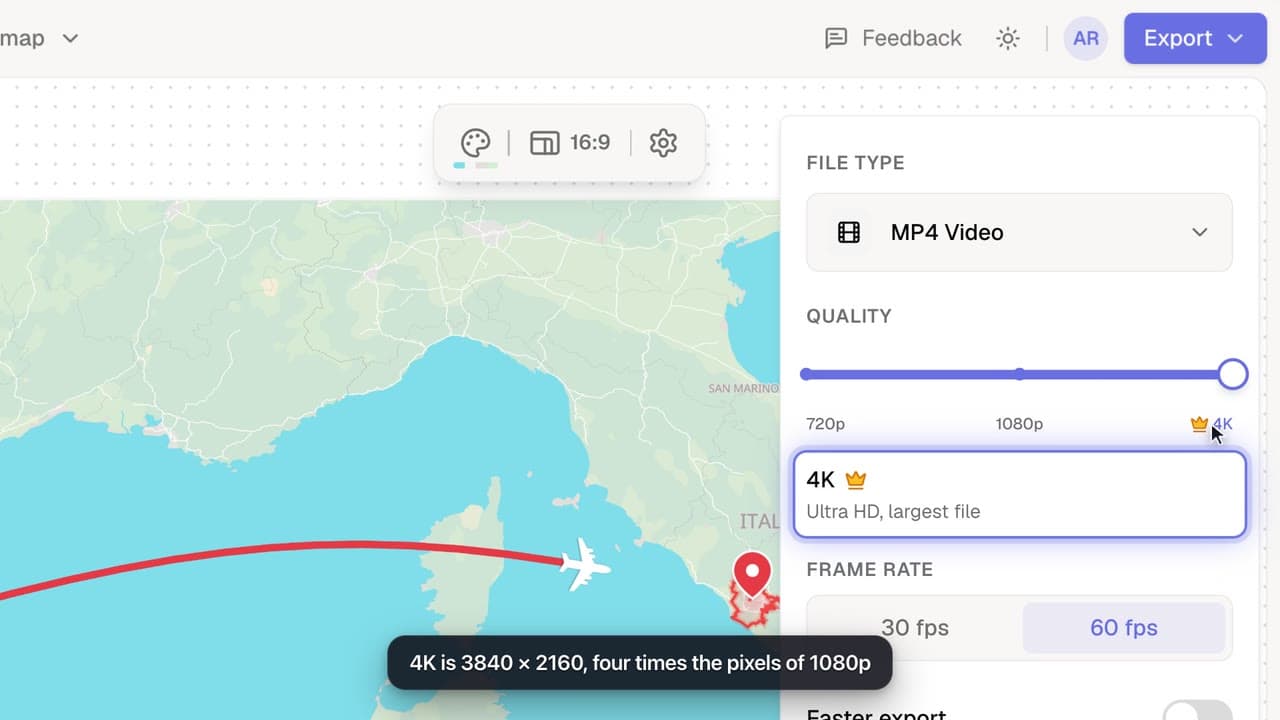
How to export a map animation in 4K
Export your map animation in 4K (3840 × 2160 for landscape) with Mappi Pro: set Quality to 4K in the Export options and download an ultra-sharp MP4.
Pro
 0:32
Rendering & troubleshooting
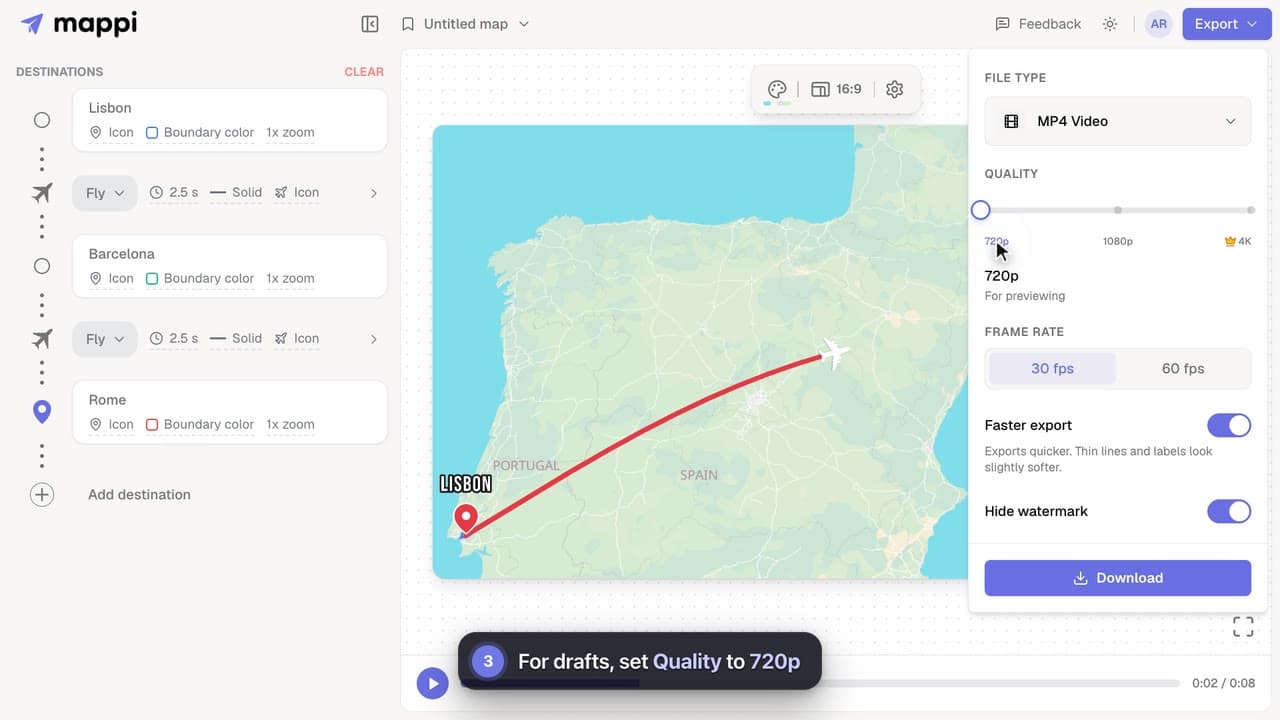
How to make exports faster
Cut map video export time on slower computers: turn on Faster export, render at 30 fps, use 720p for drafts, and keep the editor tab in front.
 0:35
Export & formats
How to change the aspect ratio for TikTok, Reels or YouTube
Size your map animation for TikTok, Instagram Reels, YouTube Shorts or YouTube: switch between vertical 9:16, portrait 4:5, landscape 16:9 and square 1:1.
