 0:37
How to speed up or slow down a route
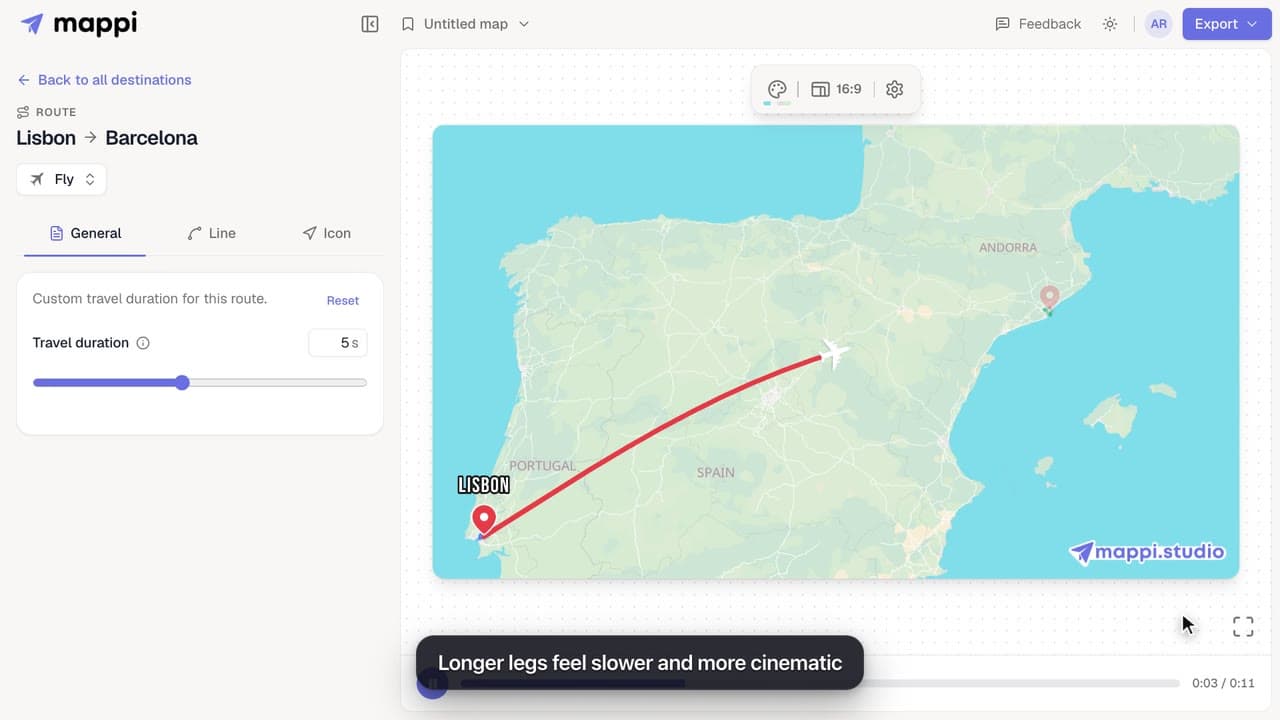
Control the camera speed of your map animation: set how many seconds each route takes on screen, from a quick 1 second hop to a slow 10 second journey.



Mappi moves the camera for you, and these settings let you direct it. Speed up or slow down each route, set how close the camera gets to each stop, and decide which lines, pins and labels stay on screen as the journey continues.
3 video guides · 0 articles · Updated
0:37Control the camera speed of your map animation: set how many seconds each route takes on screen, from a quick 1 second hop to a slow 10 second journey.
 0:34
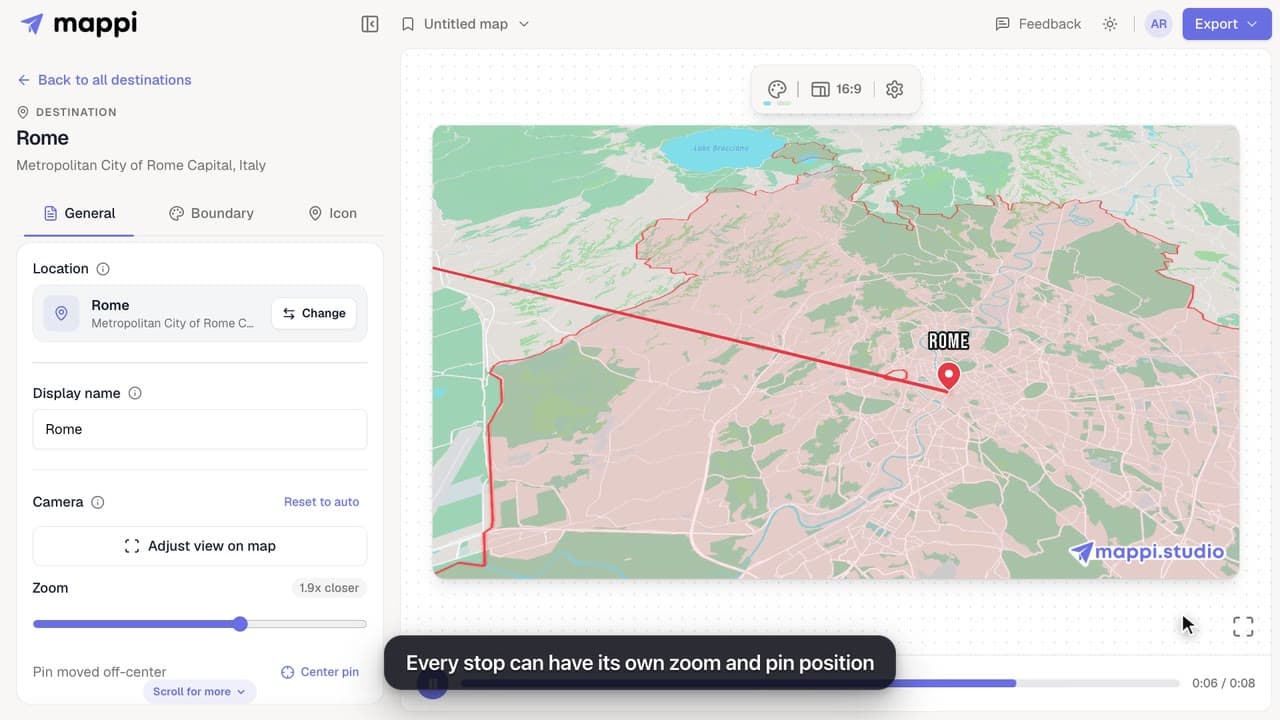
Frame each stop of your map animation: zoom the camera closer or wider and move the pin off-center with Adjust view, then save the framing for that stop.
 0:41
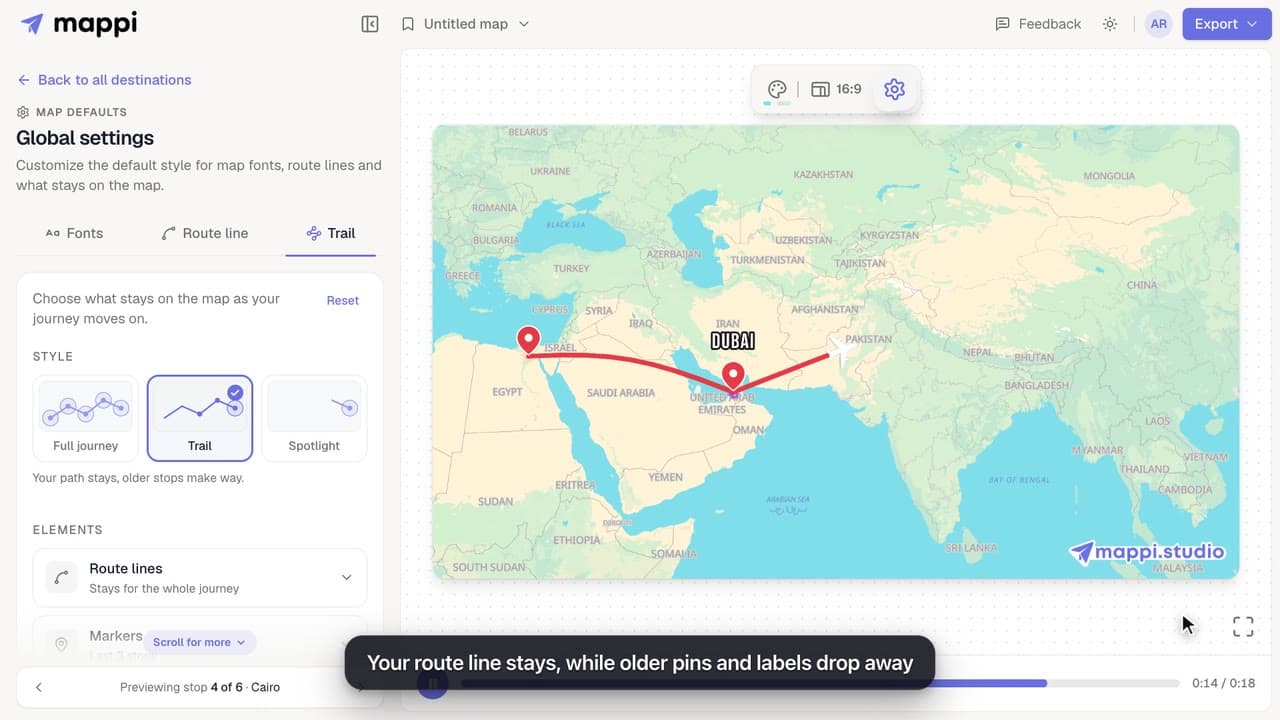
Keep the whole journey on screen, leave a trail, or spotlight only the current stop. Set how long route lines, markers, labels and boundaries stay visible.
Each route has a travel duration from 1 to 10 seconds. Click the route’s duration chip (2.5 s for flights by default) and set a longer time to slow the camera down, or a shorter one to speed it up.
Speed up or slow down a routeBring your routes, places, and stories to life with frame-perfect map animations. No editing skills required.
Mappi is the simplest way to create stunning animated maps. Perfect for YouTubers, journalists, and storytellers.
 Stripe Climate member
© 2026 Mappi. All rights reserved.