


How to speed up or slow down a route
Click the route’s duration chip (2.5 s for flights by default) to open its General tab, then drag Travel duration or type a number of seconds (1 to 10) and press Enter. A longer duration makes the camera move more slowly.
Step by step
Open the travel duration
In your destination list, click the route’s duration chip, here 2.5 s. The route’s settings open on the General tab with Travel duration highlighted.
Set a new duration
Drag the Travel duration slider and release, or type a value in seconds and press Enter. The hint under the slider changes to Updated when it’s applied.
Preview the new pace
The preview jumps to the start of this route, so you can watch it at its new speed right away. If the preview is paused, press Play. Adjust until the camera, the line and the moving icon feel right. Adjust until the camera, the line and the moving icon feel right.
How travel duration works
- Travel duration is screen time, not real-world travel time: how long the video takes to get from one stop to the next while the camera moves, the line draws and the icon travels.
- Each route has its own duration, from 1 to 10 seconds. Flights start at 2.5 seconds and every other travel mode at 4 seconds.
- Click Reset on the tab to go back to the default for the route’s travel mode.
- The total video length is the sum of every route, plus a short pause at each stop and a moment at the end.
Video transcript
Show the transcriptHide the transcript
- 0:04Click the route’s duration, here 2.5 s
- 0:10Drag Travel duration, or type seconds and press Enter
- 0:22Play the preview to check the new pace
- 0:26Longer legs feel slower and more cinematic
Was this guide helpful?
Try it in the editor
Mappi is a map animation maker that runs in your browser. No download, and no account needed to start.
Open MappiRelated guides
 0:34
Animation & camera
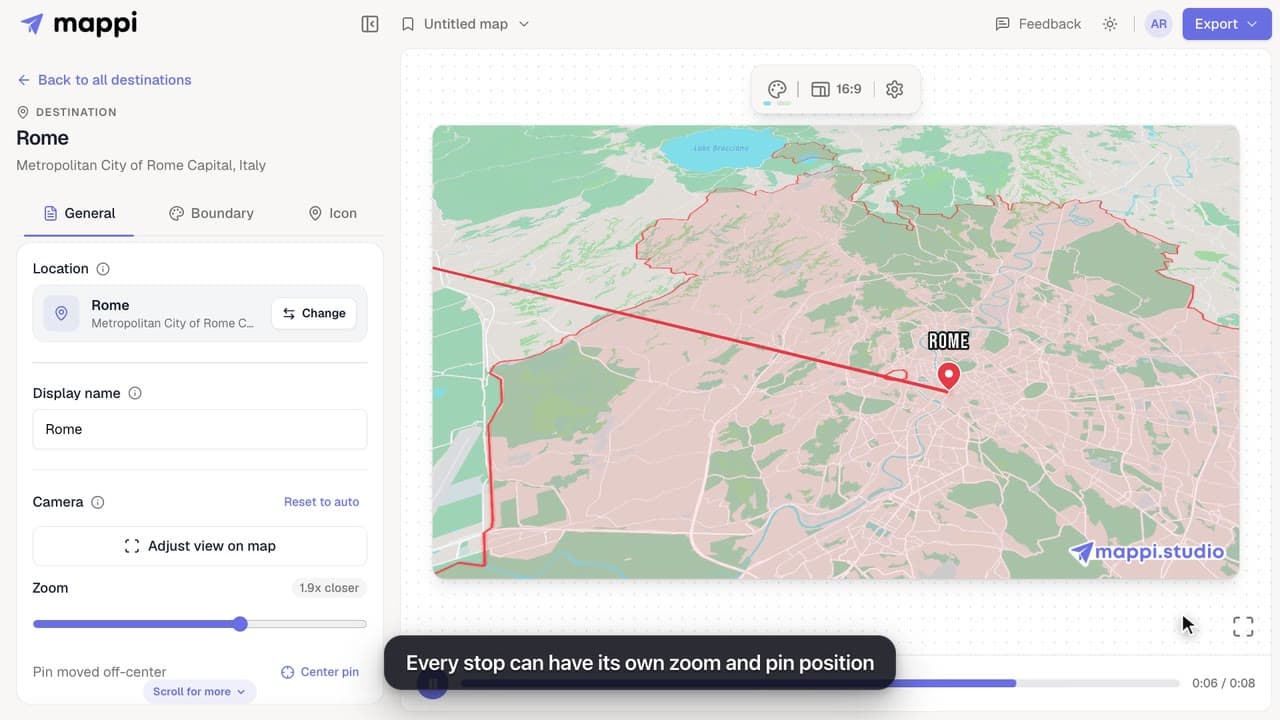
How to zoom the camera in or out on a destination
Frame each stop of your map animation: zoom the camera closer or wider and move the pin off-center with Adjust view, then save the framing for that stop.
 0:37
Destinations & routes
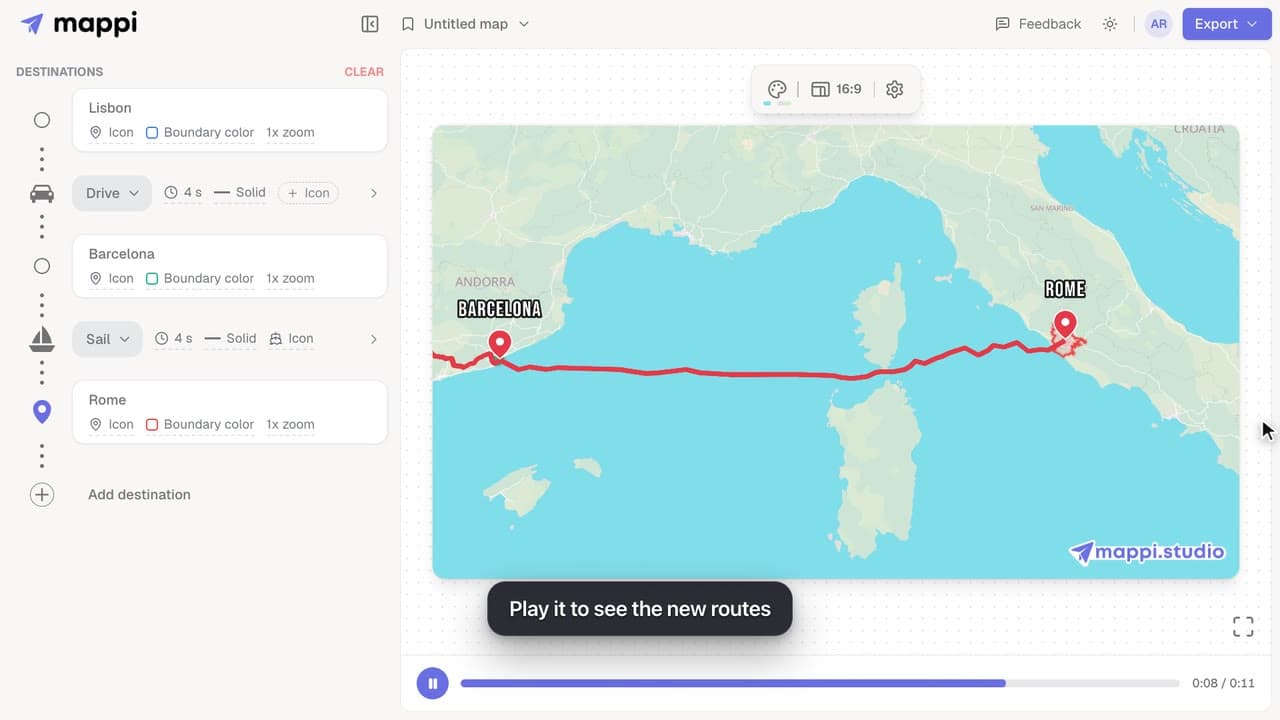
How to choose how each route travels: fly, drive, walk, sail or transit
Make a route follow real roads, walking paths, shipping lanes or public transit instead of a flight arc. Mix travel modes in one map animation.
 0:41
Animation & camera
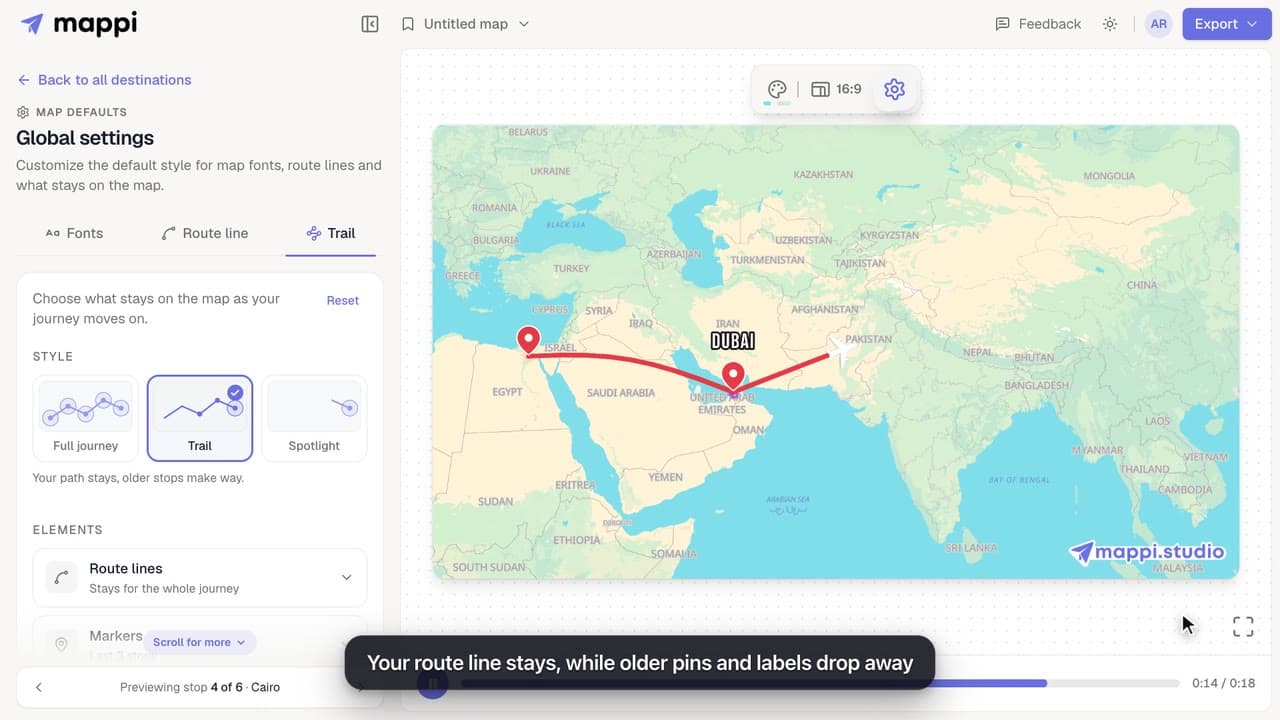
How to choose what stays on the map as the journey moves on
Keep the whole journey on screen, leave a trail, or spotlight only the current stop. Set how long route lines, markers, labels and boundaries stay visible.
 0:39
Getting started
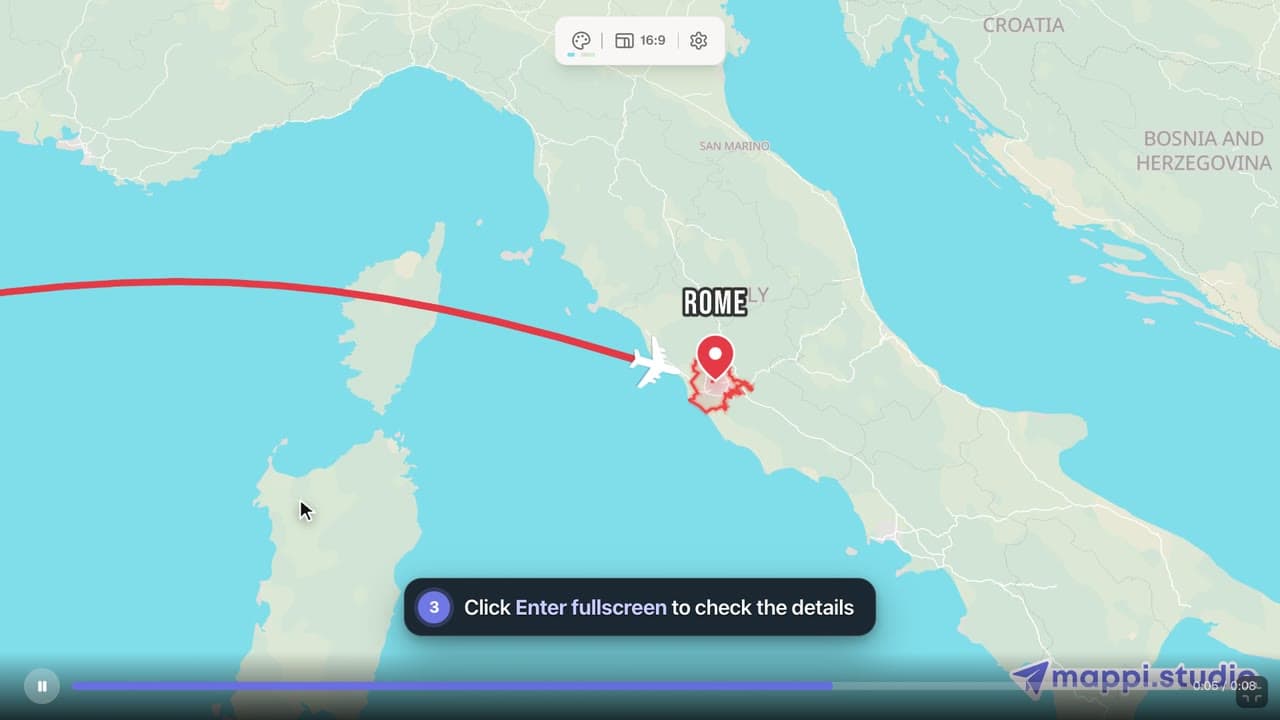
How to preview your map animation
Play, pause and scrub your map animation in the editor preview, use keyboard shortcuts, and check the details in fullscreen before you export it.
