


How to upload your own icon
Open a stop’s or route’s Icon tab, switch to My uploads, and drop, paste or browse for an image (PNG, SVG, JPG or WebP). Mappi trims and optimizes it, applies it right away, and keeps it in your library for every map. Uploading needs Mappi Pro.
Step by step
Open My uploads
Click a stop’s Icon chip (or a route’s Icon chip) and switch to the My uploads tab.
Upload your image
Drop an image on the upload area, paste it, or click to browse. You’ll see Optimizing…, then an upload percentage (such as Uploading 40%), then Saving… while it’s processed.
Use it on the map
A single upload is applied to the stop or route you opened. It’s saved in your account, so it appears under My uploads in every map, for pins and route icons alike.
Which files can I upload?
| Requirement | Details |
|---|---|
| Formats | PNG, JPG, WebP, SVG, AVIF and GIF (the first frame is used). HEIC photos aren’t supported: export them as PNG or JPG first. |
| File size | Up to 10 MB per file. You can upload several files at once. |
| Library | Up to 100 uploaded icons per account. |
| Best results | A transparent PNG or an SVG. Mappi trims empty edges and optimizes the image for you. |
Delete an uploaded icon
In My uploads, hover the icon and click the trash button, then confirm Delete icon. In the map you have open, stops and routes that used it switch back to their default icon. Other saved maps that use it stop showing it, though not always right away: routes there show no icon, and stops show the pin. Deleting can’t be undone.
Video transcript
Show the transcriptHide the transcript
- 0:04Open a stop’s Icon tab and switch to My uploads
- 0:10Drop, paste or browse for an image: PNG, SVG, JPG or WebP
- 0:17It’s applied right away and saved for all your maps
- 0:22Make it stand out: set Size and press Enter
- 0:28Press Play: your van now marks Los Angeles
Was this guide helpful?
Try it in the editor
Mappi is a map animation maker that runs in your browser. No download, and no account needed to start.
Open MappiRelated guides
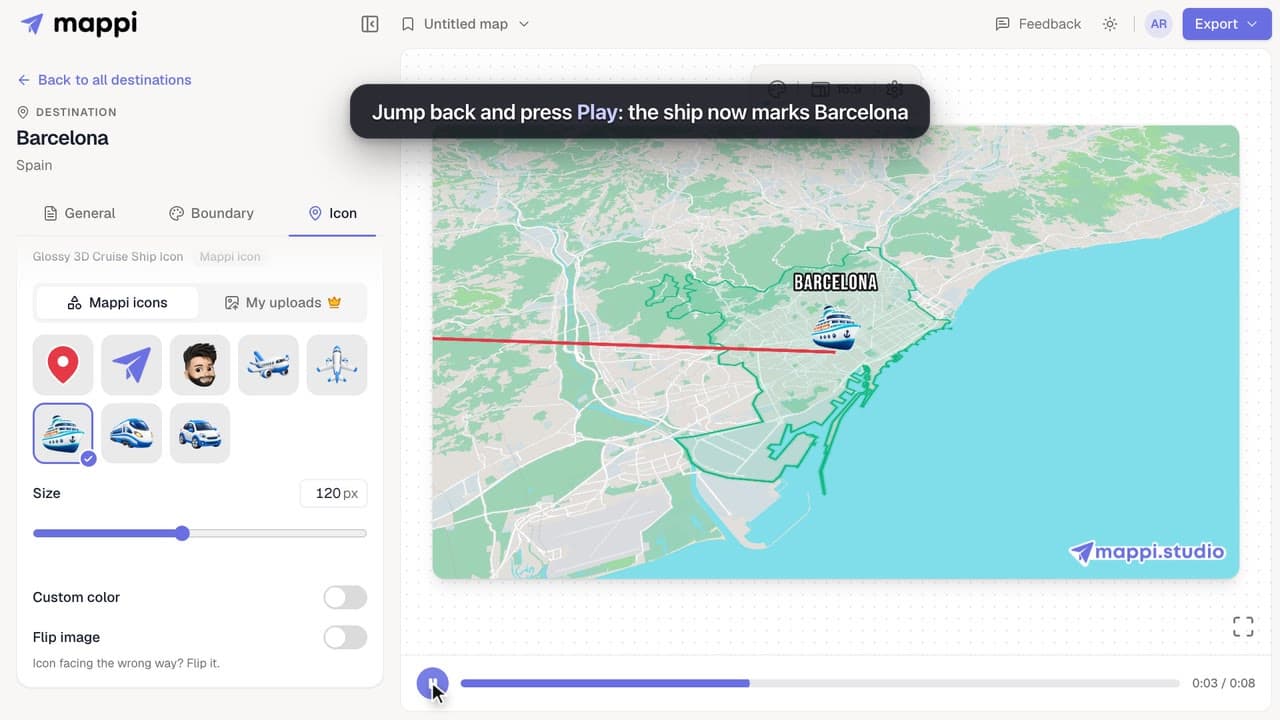 0:33
Pins, labels & icons
How to change a destination’s pin or icon
Replace a destination’s classic map pin with an icon, resize it, recolor it, flip it, or hide the marker. Works for every stop on your map animation.
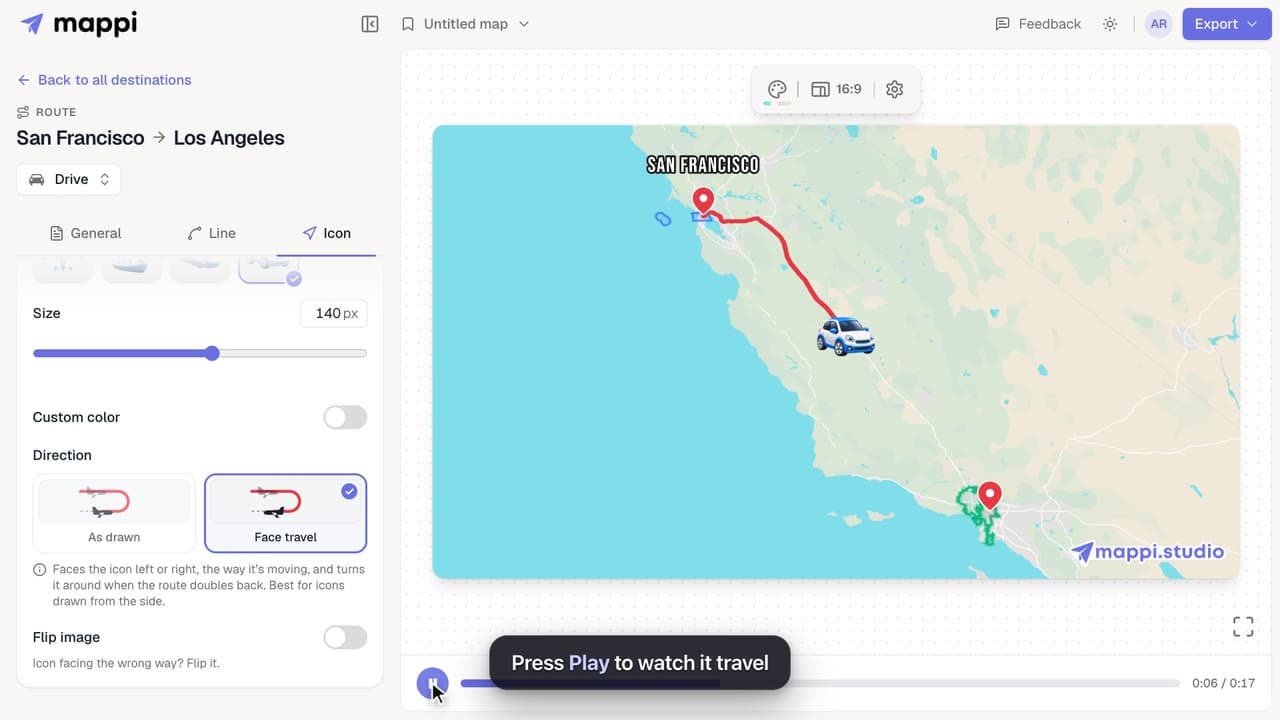 0:33
Pins, labels & icons
How to add a moving icon to a route
Send a car, plane, ship or your own icon along a route line in your map animation, and choose whether it turns with the path or faces the way it moves.
Mappi Free vs Pro: what’s included in each plan?
Compare Mappi plans: Free includes unlimited 1080p map video exports with a watermark; Pro adds 4K, no watermark, satellite, custom themes and your own icons.
Account & billing
