


How to choose what stays on the map as the journey moves on
Click the Settings gear in the map toolbar, open the Trail tab, and pick a style: Full journey keeps everything, Trail keeps the path while older stops make way, and Spotlight shows only the current stop.
Step by step
Open Global settings
Hover the toolbar above the preview and click the Settings gear. Global settings opens in the side panel.
Open the Trail tab
Click the Trail tab, which reads “Choose what stays on the map as your journey moves on.”
Pick a style
Hover a style card to preview it on the map, then click one. With 2 or more stops, use the arrow buttons on either side of Previewing stop at the bottom of the panel to check how the map looks at each stop.
Which style should I pick?
| Style | What stays on the map | Best for |
|---|---|---|
| Full journey | Everything stays. | A few stops that are far apart |
| Trail | Your path stays; older pins, labels and boundaries make way. | Road trips and tours with many stops |
| Spotlight | Only the current stop. | Many stops close together |
For finer control, open any card under Elements (Route lines, Markers, Labels, Boundaries) and set Keep on map to Whole journey, Recent (the last few stops) or Current stop. In the same card, Always show some stops lets you pick stops that keep that element for the whole journey (in Markers, their markers), even when Keep on map is Recent or Current stop. Each card has its own list, so to keep a stop’s marker, label and boundary, pick it in all three cards.
Video transcript
Show the transcriptHide the transcript
- 0:04Click the Settings gear in the map toolbar
- 0:09Open the Trail tab
- 0:14Pick Trail or Spotlight to clear older stops as you go
- 0:22Use Previous stop and Next stop to check each stop
- 0:28Press Play to watch older stops make way
- 0:32Your route line stays, while older pins and labels drop away
Was this guide helpful?
Try it in the editor
Mappi is a map animation maker that runs in your browser. No download, and no account needed to start.
Open MappiRelated guides
 0:37
Animation & camera
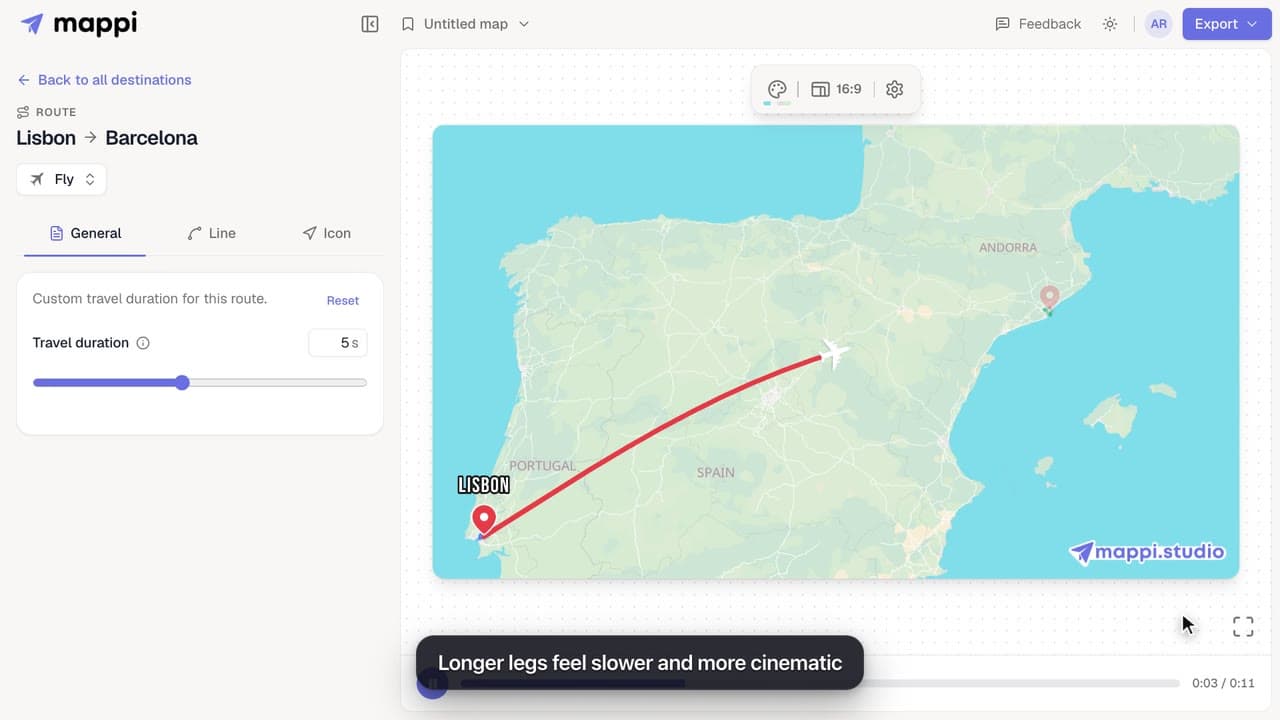
How to speed up or slow down a route
Control the camera speed of your map animation: set how many seconds each route takes on screen, from a quick 1 second hop to a slow 10 second journey.
 0:33
Pins, labels & icons
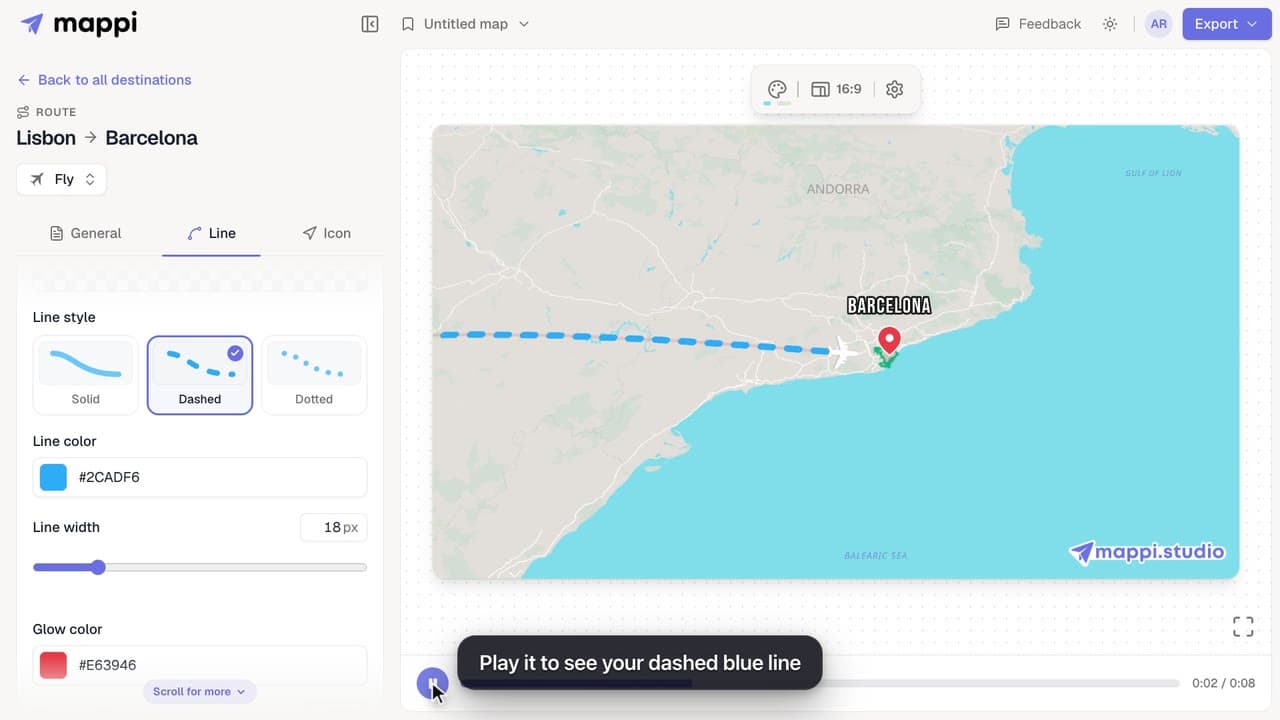
How to style a route line
Make a route line solid, dashed or dotted, change its color and width, and add a glow. Style one route, or set the default for every route at once.
How many destinations can a map have?
Free and guest maps hold up to 5 destinations; Mappi Pro maps hold as many as you need. Learn what counts toward the limit and what to do when you reach it.
Destinations & routes
