


How to swap a destination for another place
Hover the stop and click Change destination (the search icon), search for the new place and pick it. The stop keeps its styling and its place in the route, and the notice that appears lets you Undo.
Step by step
Choose Change destination
Hover the stop in your list and click Change destination. You’ll also find it in the stop’s More actions menu, and as Change in the stop’s Location field.
Pick the new place
The row turns into a search field, and the results are headed “Replacing” and the stop’s name. Type the new place, hover the right result and click it (or its Replace chip).
Undo if you need to
A notice confirms the swap, for example “Replaced Barcelona with Madrid”. Click Undo within a few seconds to put the old place back.
What stays the same?
- The stop’s position in the journey, its icon and its boundary colors.
- Driving, walking, sailing and transit routes to and from the stop are recalculated for the new place. If a route can’t be found, it switches to Fly and a notice explains why.
- Press Esc or click away to cancel without changing anything.
Video transcript
Show the transcriptHide the transcript
- 0:04Hover a stop and click Change destination
- 0:08Search for the new place and pick it
- 0:15Changed your mind? Click Undo on the notice
- 0:21Madrid keeps Barcelona’s style and its spot in the route
Was this guide helpful?
Try it in the editor
Mappi is a map animation maker that runs in your browser. No download, and no account needed to start.
Open MappiRelated guides
 0:41
Getting started
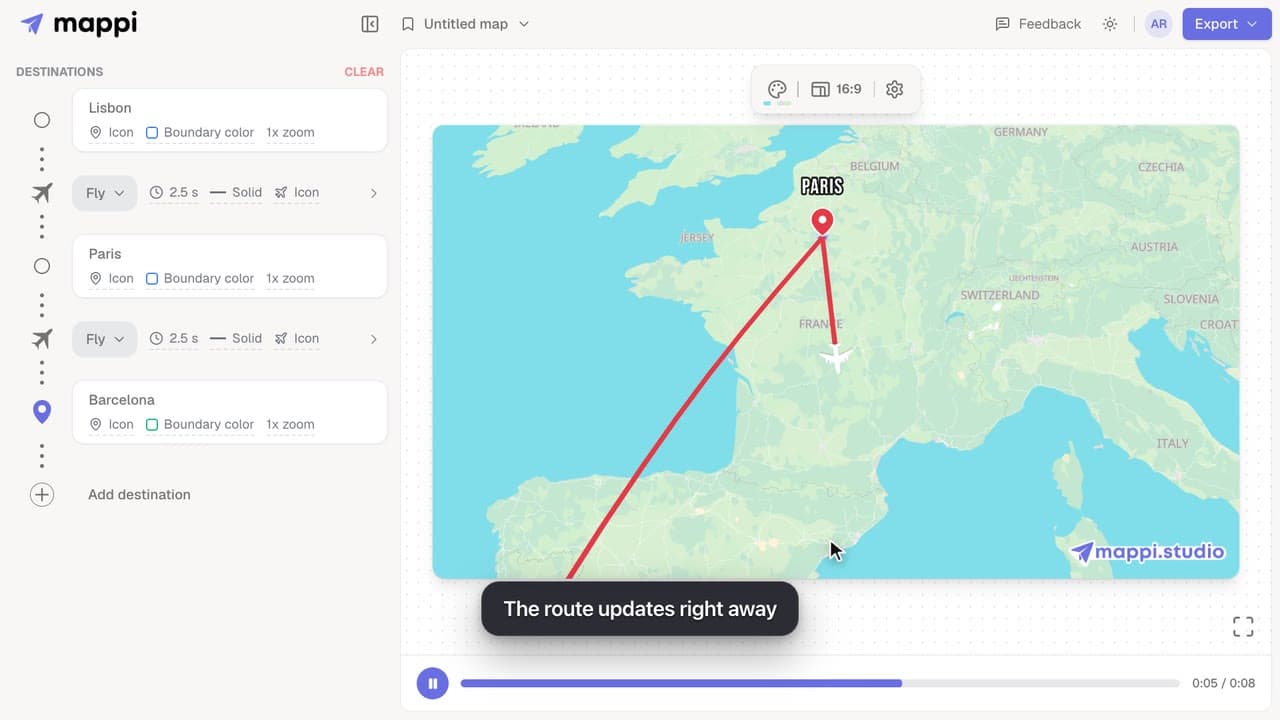
How to add, reorder and remove destinations
Add destinations to your map animation, drag stops into a new order, and delete the ones you don’t need. The routes between them update automatically.
 0:41
Destinations & routes
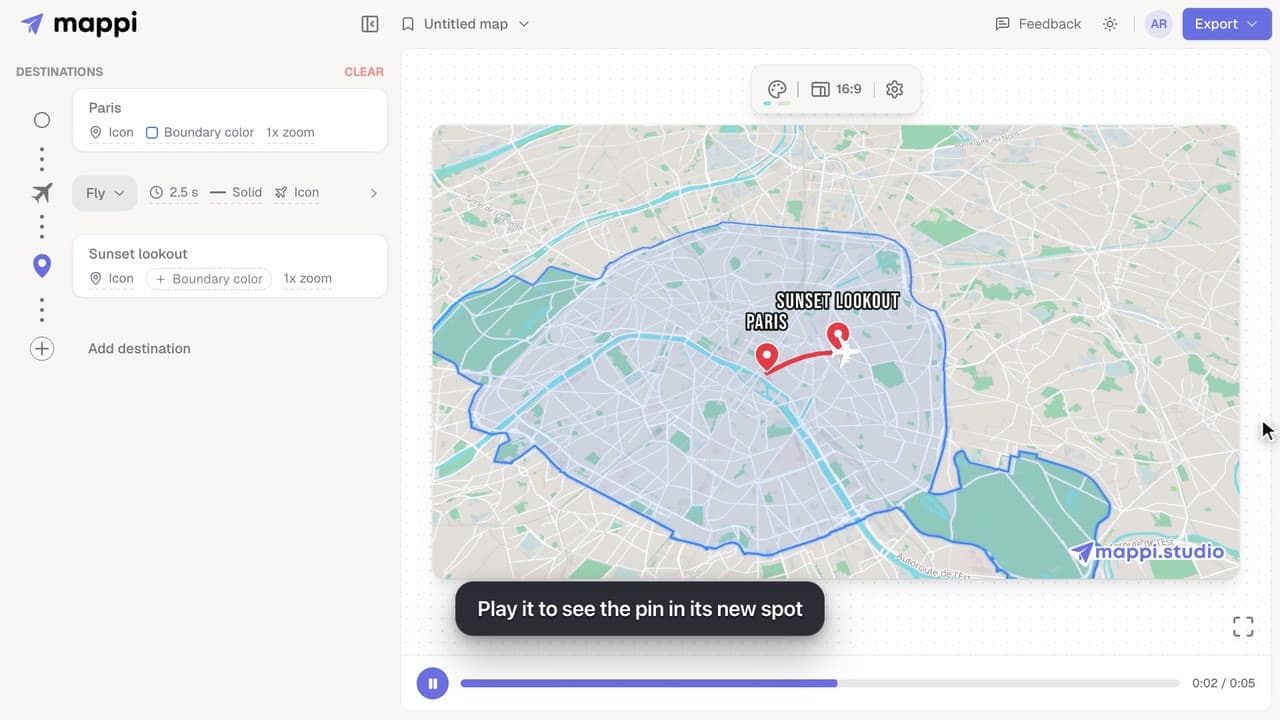
How to move or rename a dropped pin
Edit a custom pin after you add it: move it to a new spot, rename its label, or swap it for a place from search. Moves and swaps can be undone in one click.
 0:37
Destinations & routes
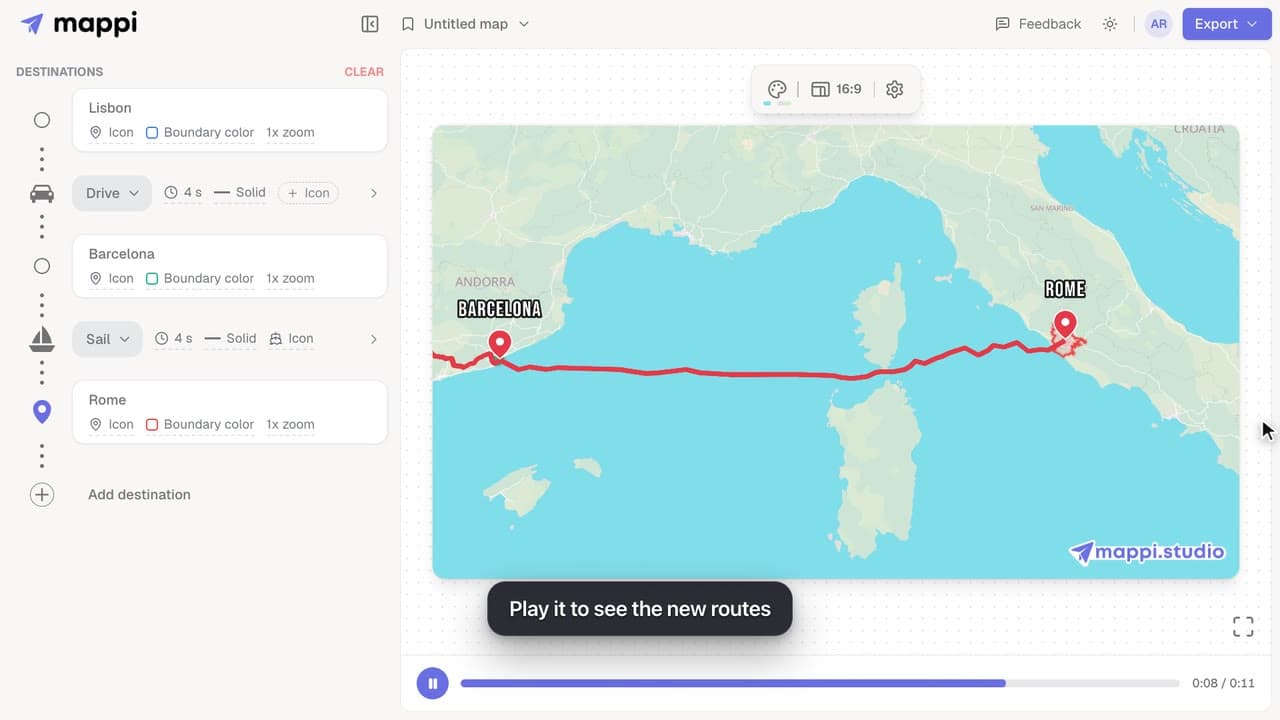
How to choose how each route travels: fly, drive, walk, sail or transit
Make a route follow real roads, walking paths, shipping lanes or public transit instead of a flight arc. Mix travel modes in one map animation.
