


Route couldn’t be found: “No route found” or “Route failed”
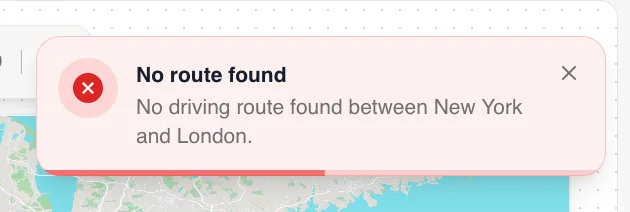
“No route found” means there’s no road, path, transit line or shipping lane between the two stops, like driving across an ocean. Switch that route to Fly, add a stop in between, or move the stop to a reachable spot. “Route failed” is a temporary error: try again in a moment.
Step by step
Read the notice
When a route can’t be calculated, a notice names the travel mode and the two stops, for example “No driving route found between New York and London.” If you were switching the route to a new travel mode, it keeps the mode it had. If the route was being redrawn because you reordered or deleted a stop, or used Change destination or Move pin, it switches to Fly.
Pick a mode that can make the trip
Switch the route to Fly for trips across water, or to Sail for sea crossings. See choose how each route travels.
Or adjust the stops
Add a stop in between (for example the ferry port), or swap a stop that sits off the road network, like a mountaintop or an island, for a reachable place nearby with Change destination (see swap a destination). If the stop is a dropped pin, you can also choose Move pin and put it on a reachable spot (see move a dropped pin).
Route messages
| Message | Meaning | What to do |
|---|---|---|
| No route found | There is no driving, walking, transit or sea route between the stops. | Use Fly or Sail, or add a stop in between. |
| Route failed | The route request didn’t go through. | Try again in a moment, and check your connection. |
| Route service outage | Google’s route servers are having an outage. | Wait and try again later. Fly routes still work. |
- Transit only works where public transit data exists, mostly in and between cities.
- Sail needs the stops to be far enough apart, on or near the coast.
- Reordering stops recalculates ground routes. A route that fails after a reorder switches to Fly.
Was this guide helpful?
Try it in the editor
Mappi is a map animation maker that runs in your browser. No download, and no account needed to start.
Open MappiRelated guides
 0:37
Destinations & routes
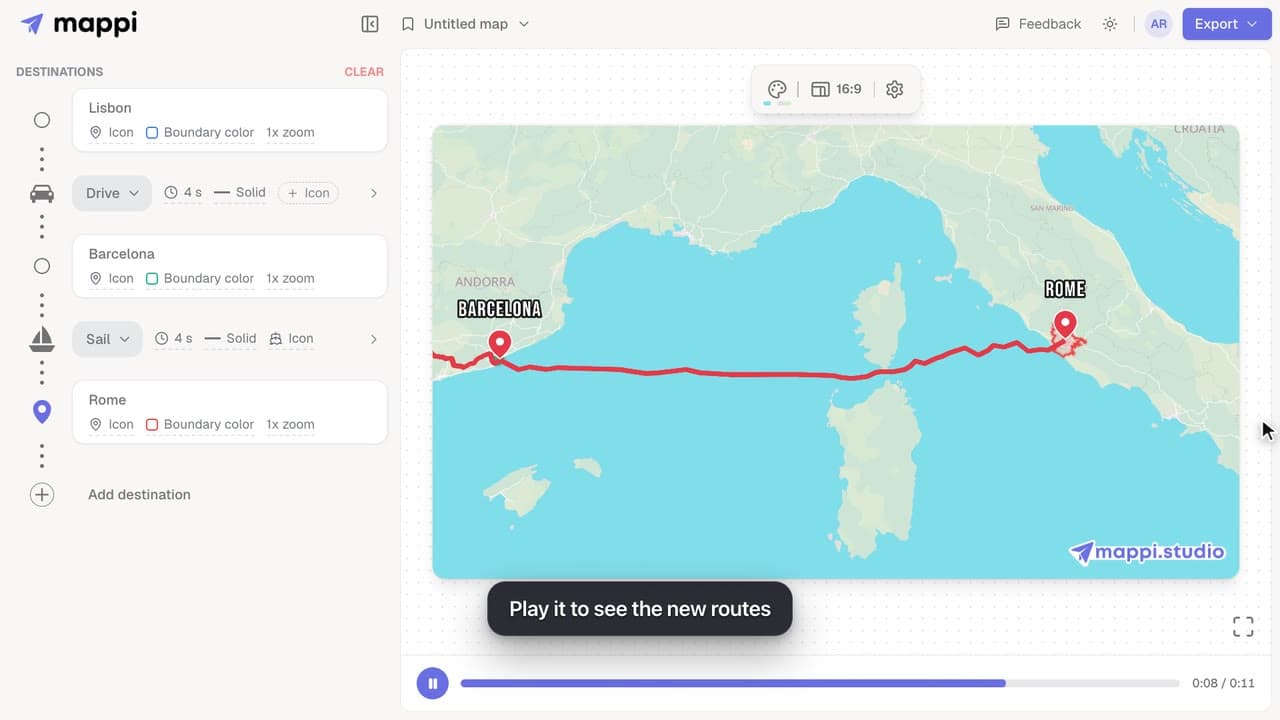
How to choose how each route travels: fly, drive, walk, sail or transit
Make a route follow real roads, walking paths, shipping lanes or public transit instead of a flight arc. Mix travel modes in one map animation.
 0:41
Getting started
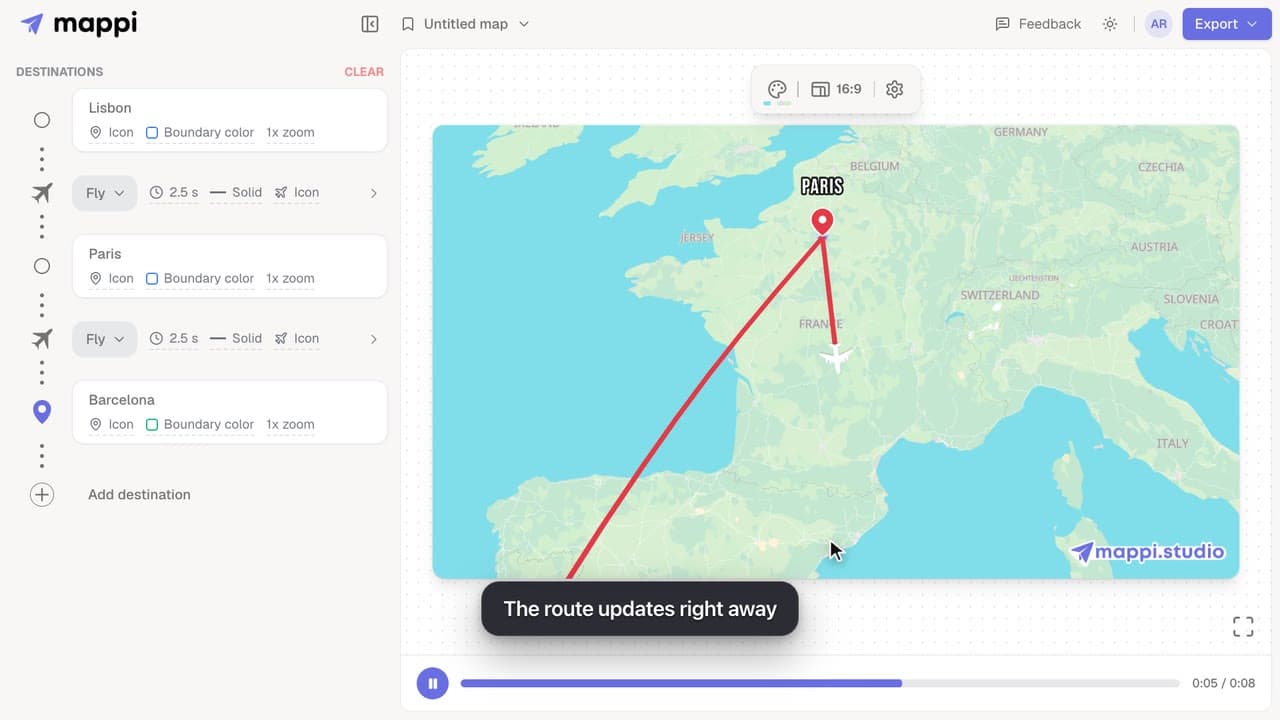
How to add, reorder and remove destinations
Add destinations to your map animation, drag stops into a new order, and delete the ones you don’t need. The routes between them update automatically.
 0:41
Destinations & routes
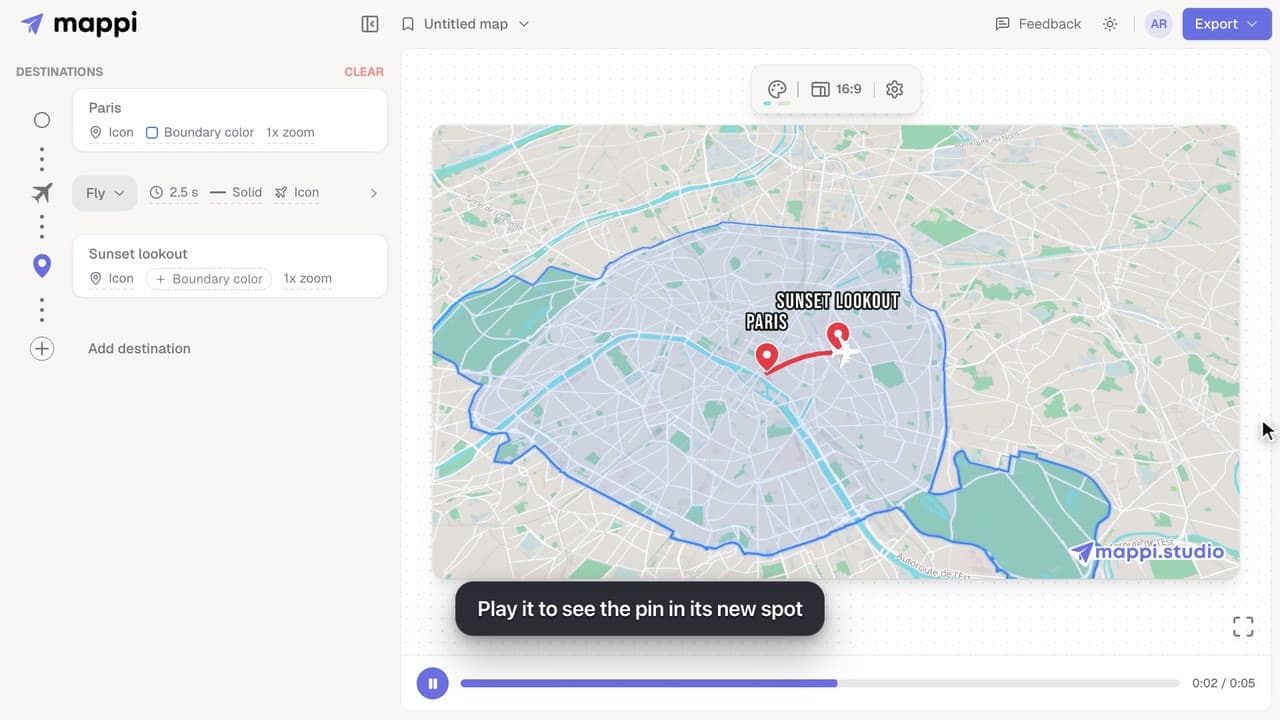
How to move or rename a dropped pin
Edit a custom pin after you add it: move it to a new spot, rename its label, or swap it for a place from search. Moves and swaps can be undone in one click.
