


How to make exports faster
Open Export, turn on Faster export, choose 30 fps and, for drafts, set Quality to 720p. Keep the editor tab in front while it renders: exports run on your device, and background tabs render more slowly.
Step by step
Turn on Faster export
Click Export and turn on Faster export (on slower computers it’s already on). It draws the map at a lower internal resolution: exports are quicker, and thin lines and labels look only slightly softer. Phones, tablets and computers with a touchscreen, including touchscreen Chromebooks, don’t show the switch, because their exports already draw the map this way.
Choose 30 fps
Under Frame rate, choose 30 fps. It renders half as many frames as 60 fps, with exactly the same timing.
Lower the quality for drafts
For a quick check, set Quality to 720p. Export the final version at 1080p or 4K when you’re happy with it.
More ways to speed things up
- Stay on the editor tab. Exports still finish in the background, just slower.
- Close other heavy tabs and apps to free up memory and graphics power.
- Shorter videos render faster: trim long travel durations.
- Plug in your laptop. Battery saver modes slow the graphics chip down.
Video transcript
Show the transcriptHide the transcript
- 0:04Open Export and turn on Faster export
- 0:13Pick 30 fps to render half as many frames
- 0:17For drafts, set Quality to 720p
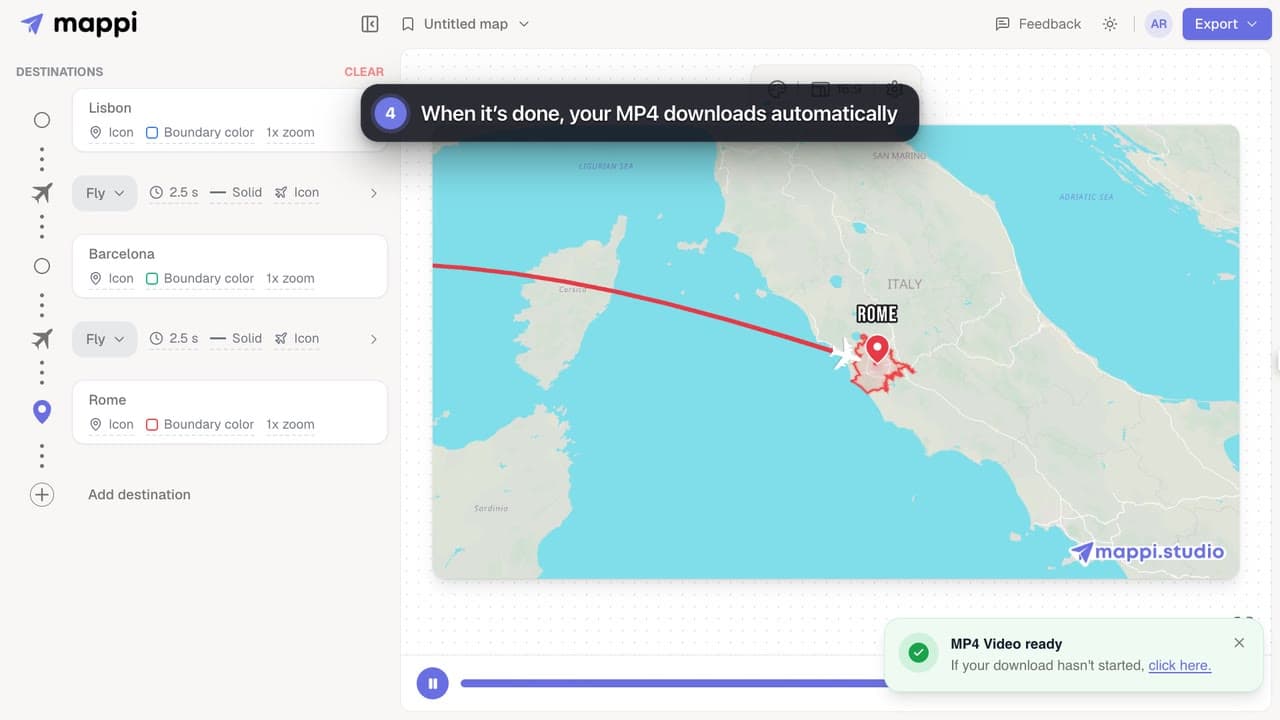
- 0:22Click Download and keep this tab in front while it renders
Was this guide helpful?
Try it in the editor
Mappi is a map animation maker that runs in your browser. No download, and no account needed to start.
Open MappiRelated guides
My export is stuck or taking too long
Map video export stuck at a percentage or taking forever? Why exports slow down, how long they should take, and what to do to get your MP4 faster.
Rendering & troubleshooting
Export failed: “Your device couldn’t handle this export”
Fix a failed Mappi export: why you see “Your device couldn’t handle this export”, and how lower quality, Faster export, 30 fps or a desktop browser help.
Rendering & troubleshooting
Export settings explained: quality, frame rate and file size
What every Mappi export option does: 720p, 1080p and 4K video sizes for each aspect ratio, 30 vs 60 fps, Faster export, the watermark and the MP4 format.
Export & formats
 0:34
Export & formats
How to export your map animation as a video
Export your Mappi map animation as an MP4 video: open Export, choose the quality and frame rate, and click Download. It renders right in your browser.
