


How to add a moving icon to a route
Click the route’s Icon chip, turn on Show icon and pick an icon, such as a car. Then choose a Direction: Face travel for icons drawn from the side, or Turn with path (Fly routes only) for icons drawn from above.
Step by step
Open the route’s Icon tab
In your destination list, click the route’s Icon chip. Driving, walking and transit routes start without an icon, so the chip shows a plus.
Pick an icon
Pick an icon from Mappi icons, such as a car. Picking one turns Show icon on for you.
Set the direction
Under Direction, choose Face travel so the icon faces the way it’s moving and turns around when the route doubles back. Mappi preselects it for icons drawn from the side. Press Play to watch it travel.
Which direction setting should I use?
| Direction | Best for |
|---|---|
| As drawn | Icons that should never rotate or flip, like a logo. |
| Face travel | Icons drawn from the side, like a car or a ship. It faces left or right as it moves. |
| Turn with path | Icons drawn from above pointing up, like a plane. Points along the flight path (Fly routes only). |
- Adjust Size (24 to 240 px) and turn on Custom color to match your brand.
- Give the route a longer travel duration so viewers can follow the icon on its way.
- Icon facing the wrong way? Turn on Flip image.
- Fly routes use an airplane and Sail routes a ship by default. Turn off Show icon to remove them.
Video transcript
Show the transcriptHide the transcript
- 0:04Click the route’s Icon chip
- 0:07Pick an icon, like a car. Show icon turns on for you
- 0:16Choose Face travel so it faces the way it moves
- 0:22Press Play to watch it travel
Was this guide helpful?
Try it in the editor
Mappi is a map animation maker that runs in your browser. No download, and no account needed to start.
Open MappiRelated guides
 0:40
Pins, labels & icons
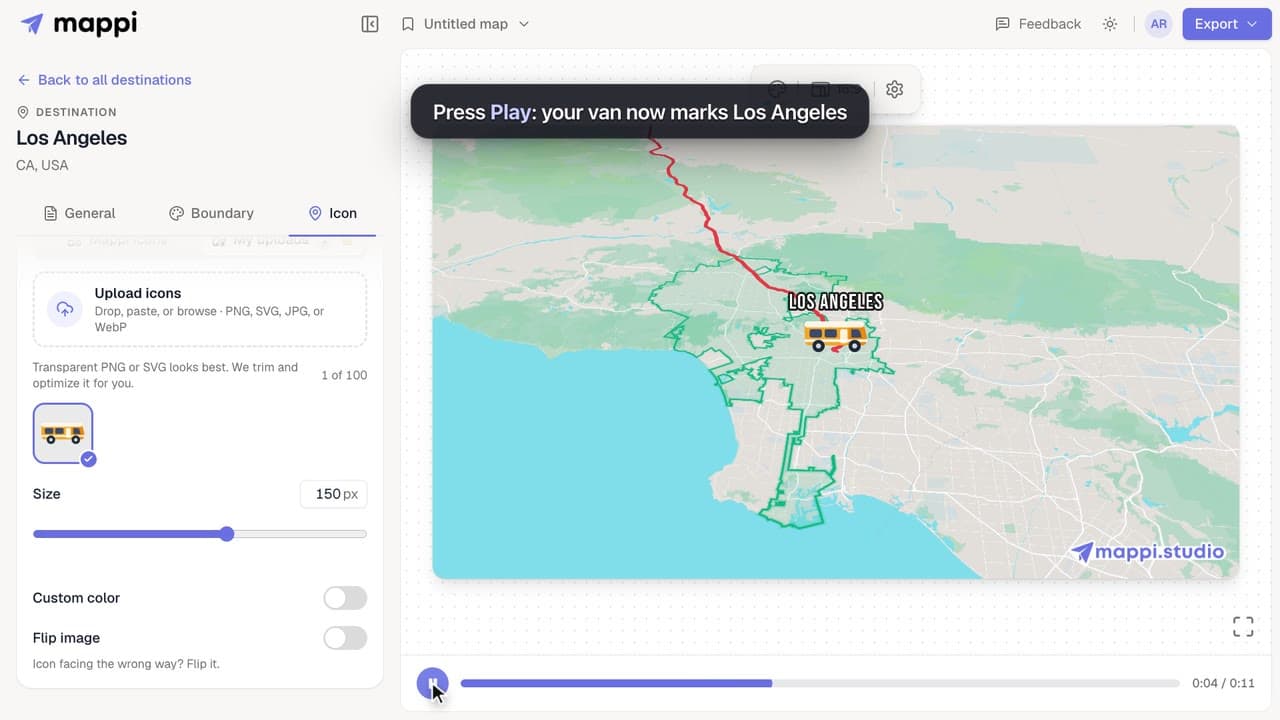
How to upload your own icon
Upload a logo, vehicle or mascot and use it as a destination pin or a moving route icon. Supported files, size limits and how to delete uploads.
Pro
 0:37
Destinations & routes
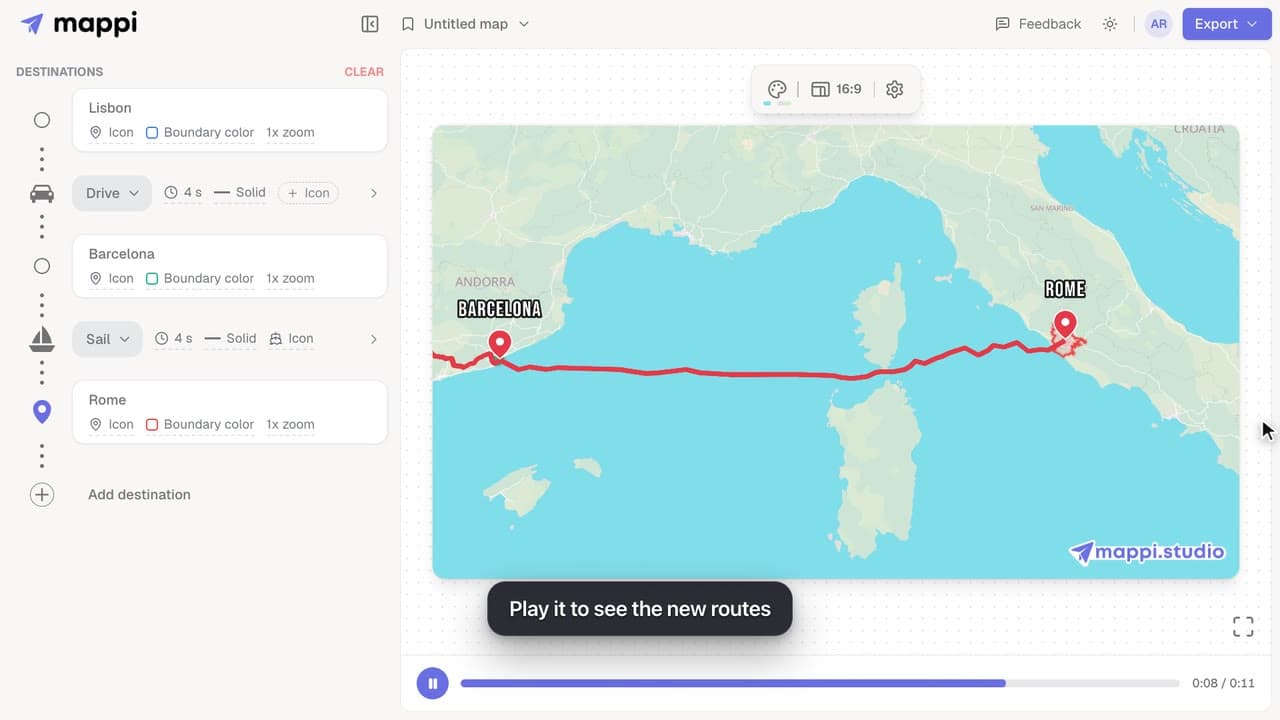
How to choose how each route travels: fly, drive, walk, sail or transit
Make a route follow real roads, walking paths, shipping lanes or public transit instead of a flight arc. Mix travel modes in one map animation.
 0:33
Pins, labels & icons
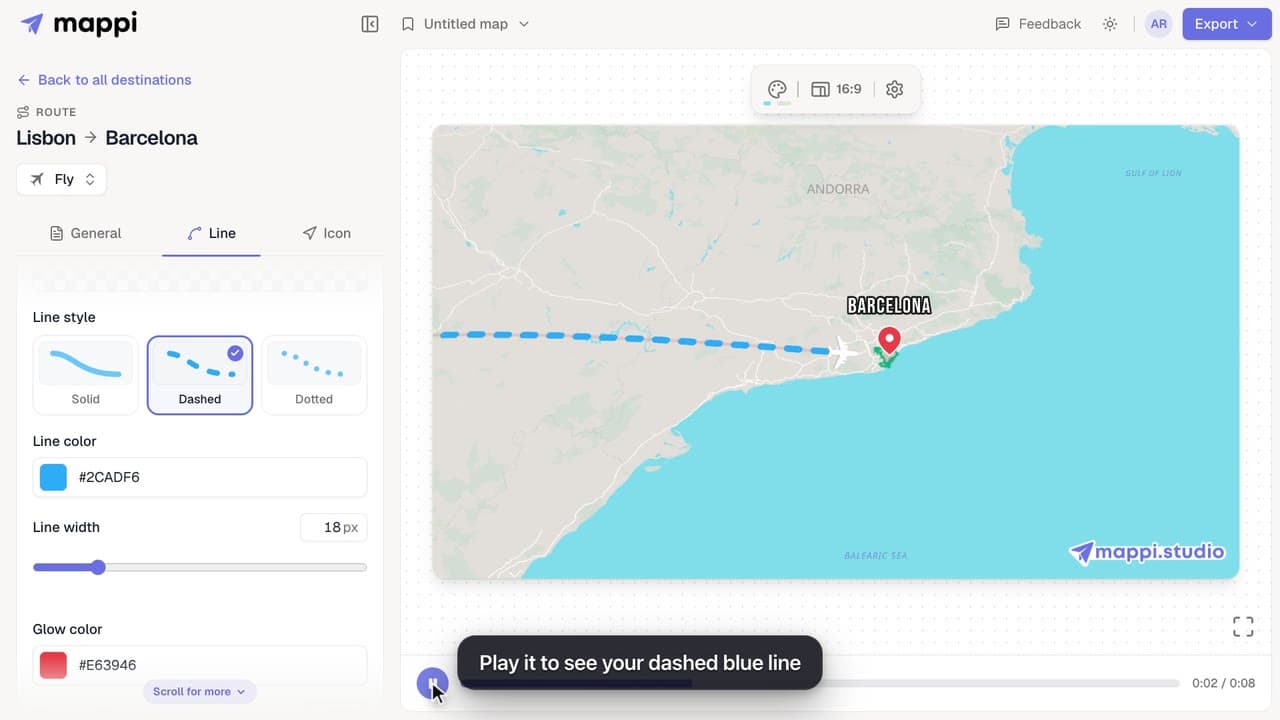
How to style a route line
Make a route line solid, dashed or dotted, change its color and width, and add a glow. Style one route, or set the default for every route at once.
 0:33
Pins, labels & icons
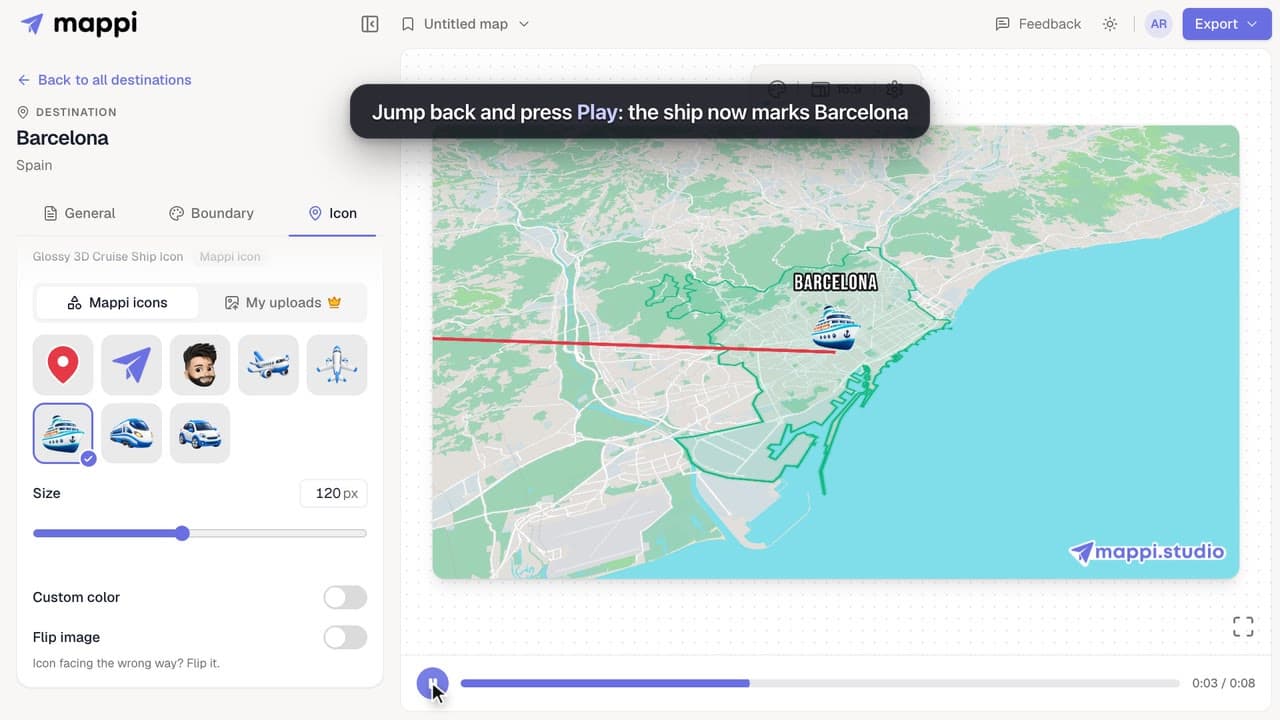
How to change a destination’s pin or icon
Replace a destination’s classic map pin with an icon, resize it, recolor it, flip it, or hide the marker. Works for every stop on your map animation.
