


How to change a destination’s pin or icon
Click the stop’s Icon chip to open its Icon tab, pick a marker from Mappi icons (or your own uploads), then adjust Size or turn on Custom color. Turn off Show icon to hide the marker.
Step by step
Open the Icon tab
In your destination list, click the stop’s Icon chip. The stop’s settings open on the Icon tab, with a live preview of its marker.
Pick an icon
Choose a marker from Mappi icons. The first tile is the Classic pin, and a Search icons box appears once the library is long. Your choice shows on the map right away.
Resize or recolor it
Drag Size (24 to 240 px), or type a value and press Enter. Turn on Custom color to pick a Pin color or Icon color. Icon facing the wrong way? Turn on Flip image.
More icon options
- Turn off Show icon to hide the marker (and its glow) for this stop only. The label still shows.
- Custom color fills every visible pixel of an icon with one color, so it works best with single-color icons and logos. On the classic pin it recolors the pin’s body only.
- Click Reset at the top of the tab to go back to the default pin.
- Want your own logo or vehicle? Upload your own icon with Mappi Pro.
Video transcript
Show the transcriptHide the transcript
- 0:04Click the stop’s Icon chip to open its icon settings
- 0:08Pick an icon from Mappi icons
- 0:15Adjust Size, or turn on Custom color
- 0:22Jump back and press Play: the ship now marks Barcelona
Was this guide helpful?
Try it in the editor
Mappi is a map animation maker that runs in your browser. No download, and no account needed to start.
Open MappiRelated guides
 0:40
Pins, labels & icons
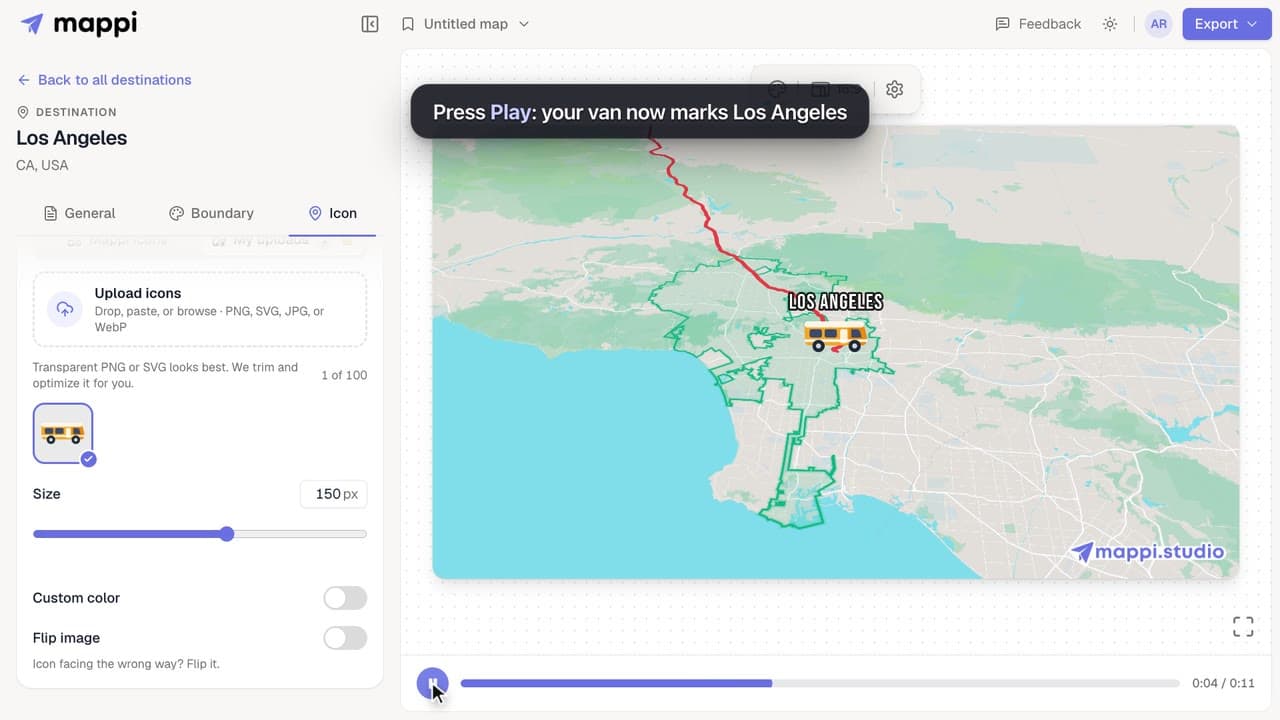
How to upload your own icon
Upload a logo, vehicle or mascot and use it as a destination pin or a moving route icon. Supported files, size limits and how to delete uploads.
Pro
 0:33
Pins, labels & icons
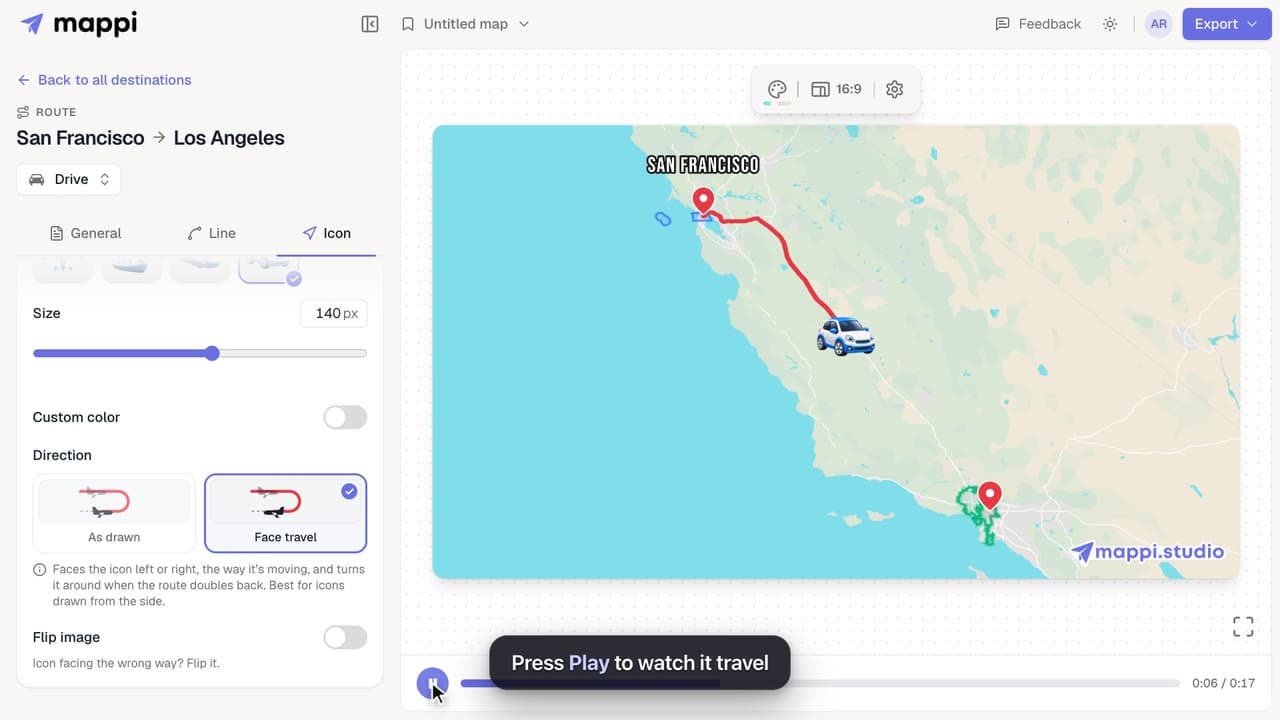
How to add a moving icon to a route
Send a car, plane, ship or your own icon along a route line in your map animation, and choose whether it turns with the path or faces the way it moves.
 0:41
Pins, labels & icons
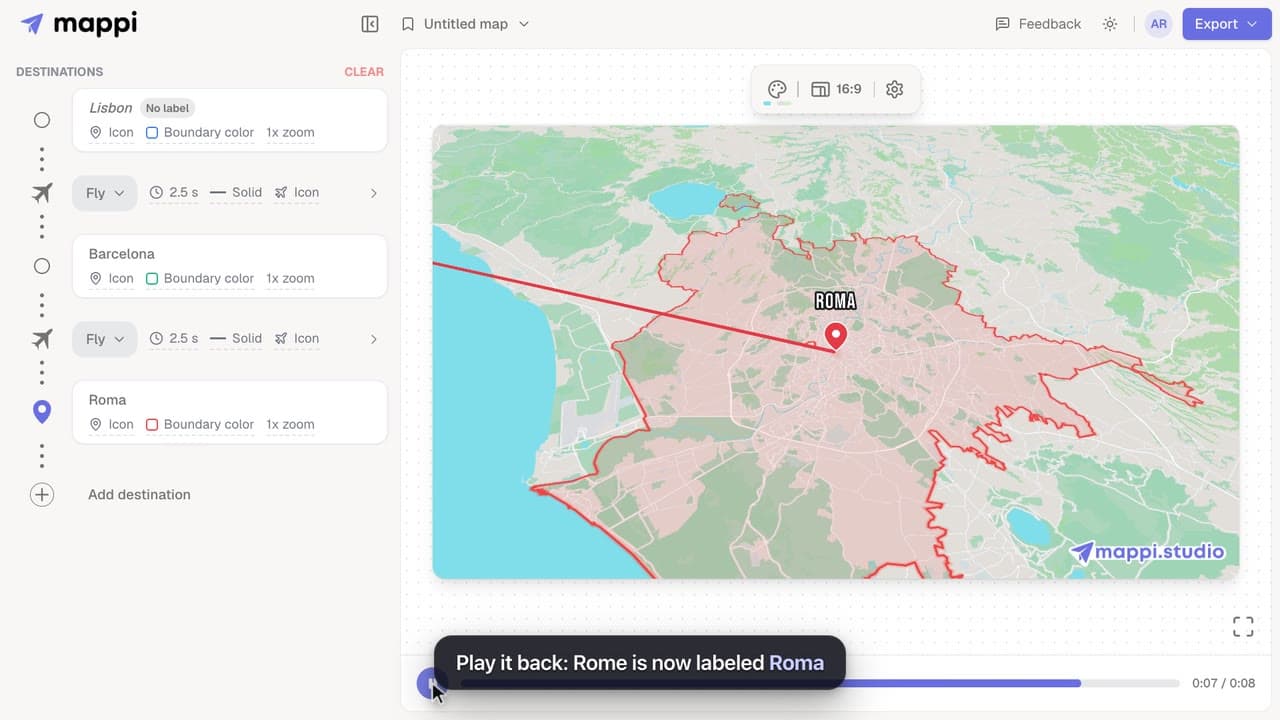
How to rename or hide a destination label
Change the text a destination shows on your animated map, shorten long place names, or hide a label completely without removing the stop.
 0:41
Destinations & routes
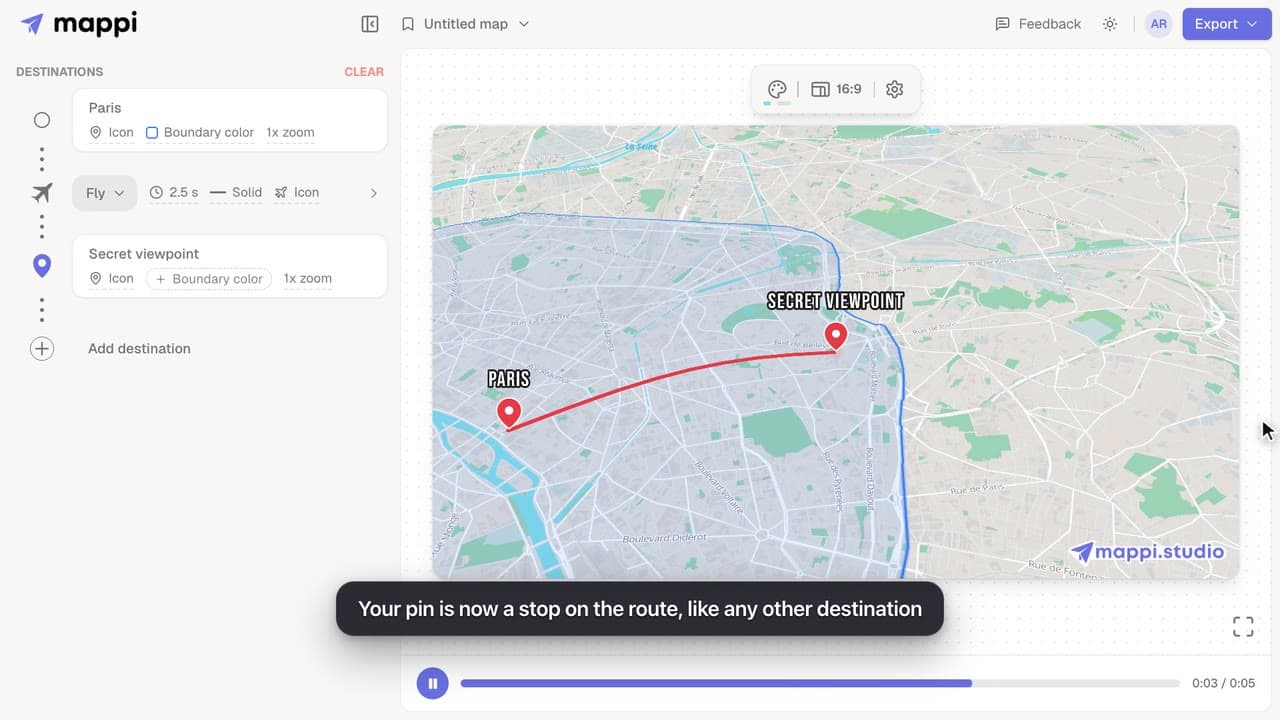
How to drop a custom pin on your map
Add a destination search can’t find: drop a custom pin anywhere on the map, set the exact spot and zoom, name it, and add it to your animated route.
