 0:34
How to change the map theme
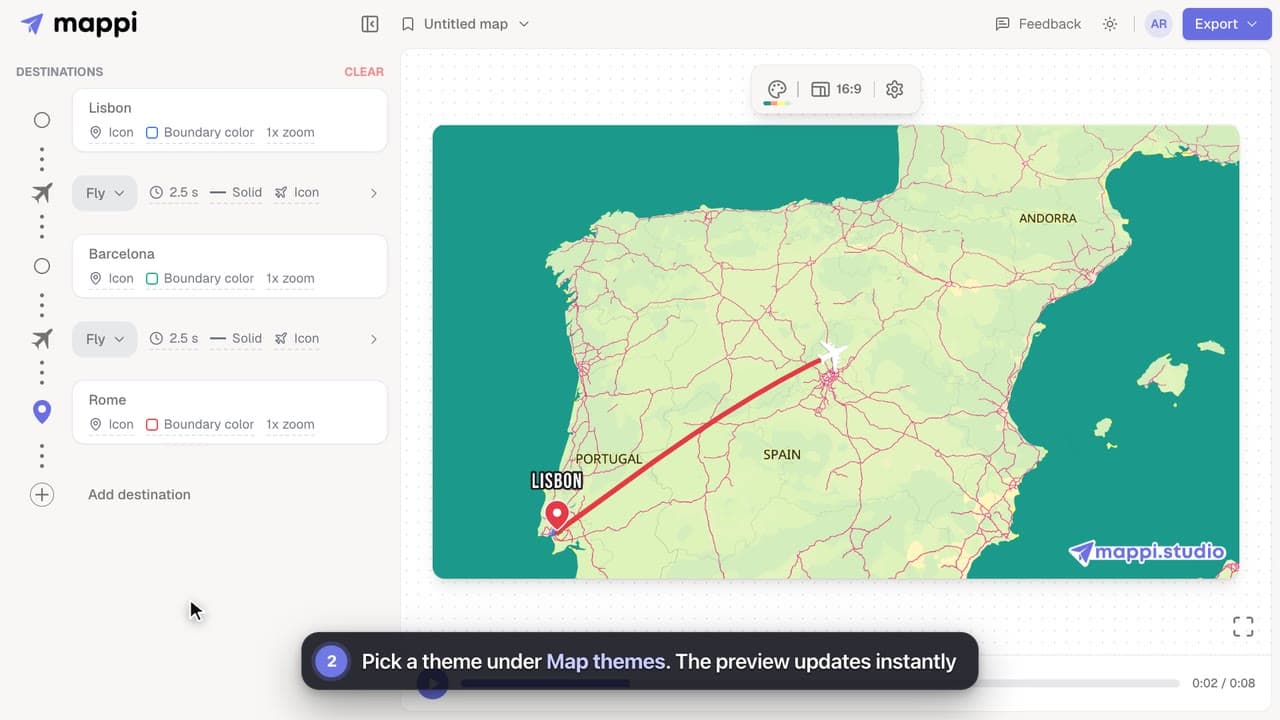
Restyle your whole map animation in one click: switch between Light, Dark, Retro, Ocean Sunset, Pastel Dream and the other built-in Mappi map themes.



The map theme sets the mood of the whole video. Pick one of the built-in themes, design your own colors with the theme editor, or switch to satellite imagery. This is also where you will find boundaries: the highlighted outline around a country, state or city, including shapes you upload yourself.
6 video guides · 2 articles · Updated
0:34Restyle your whole map animation in one click: switch between Light, Dark, Retro, Ocean Sunset, Pastel Dream and the other built-in Mappi map themes.
 0:51Pro
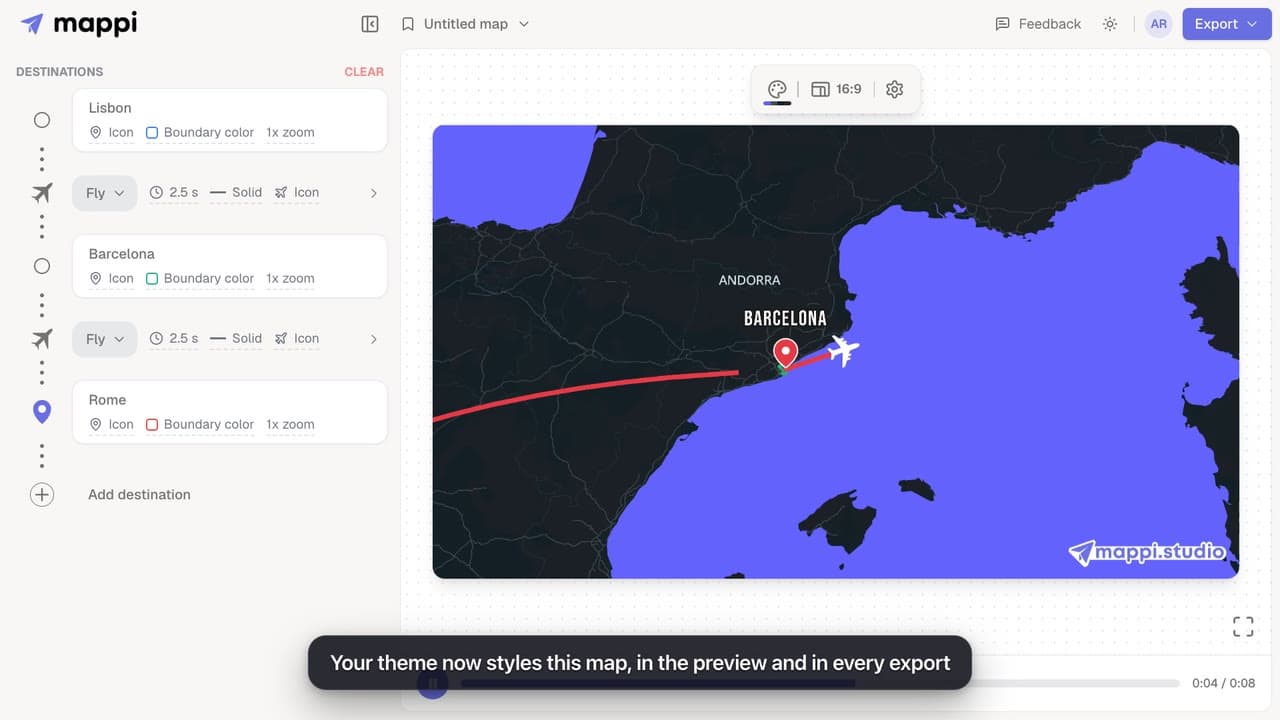
Design your own map theme: pick colors for land, water, parks, roads, borders and labels, shuffle new palettes, set the detail level, and save it.
 0:39Pro
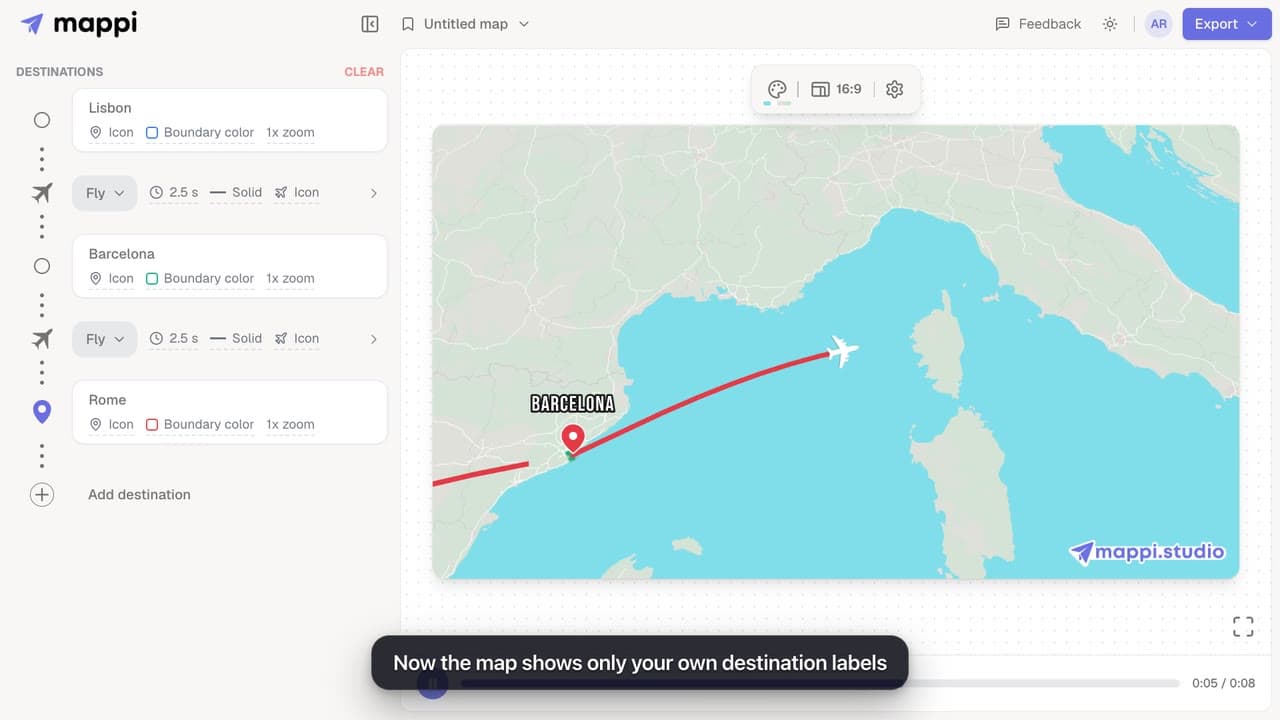
Turn the country, ocean and road names on the base map on or off with a custom map theme. Your own destination labels always stay on the map.
 0:32Pro
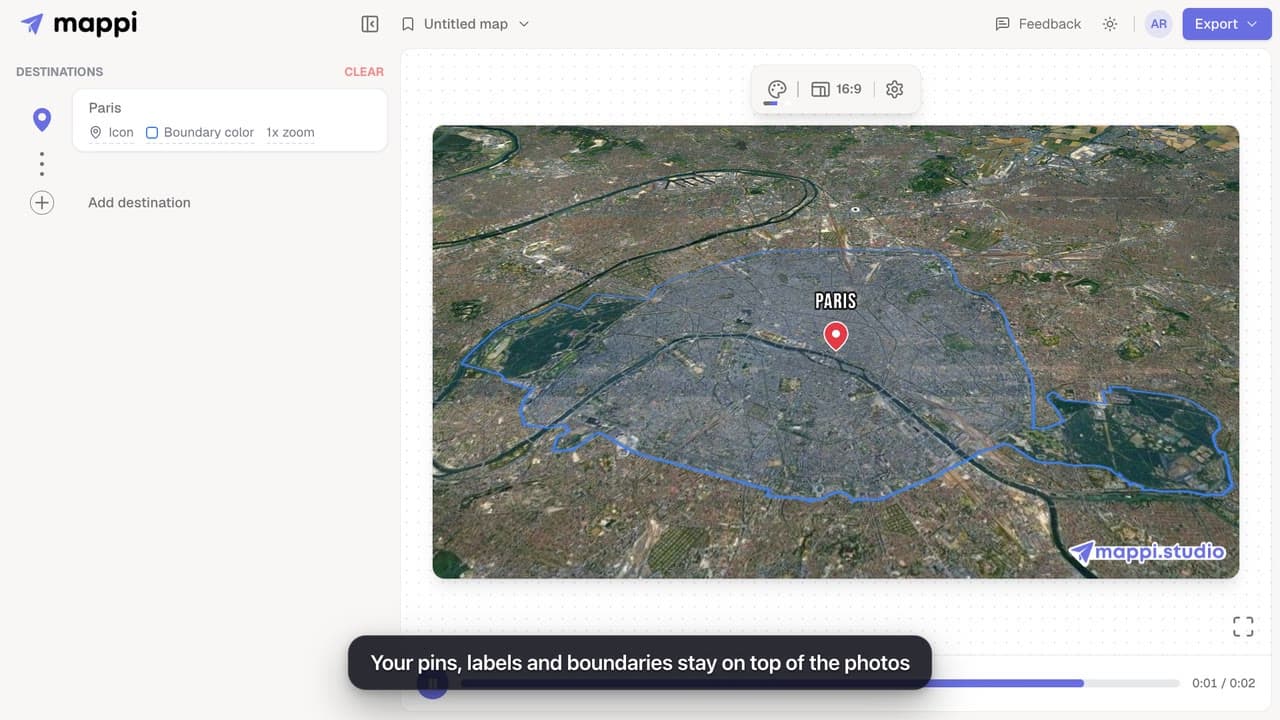
Swap the drawn map for real satellite imagery in your map animation. Routes, pins and labels stay on top. The Satellite theme is a Mappi Pro feature.
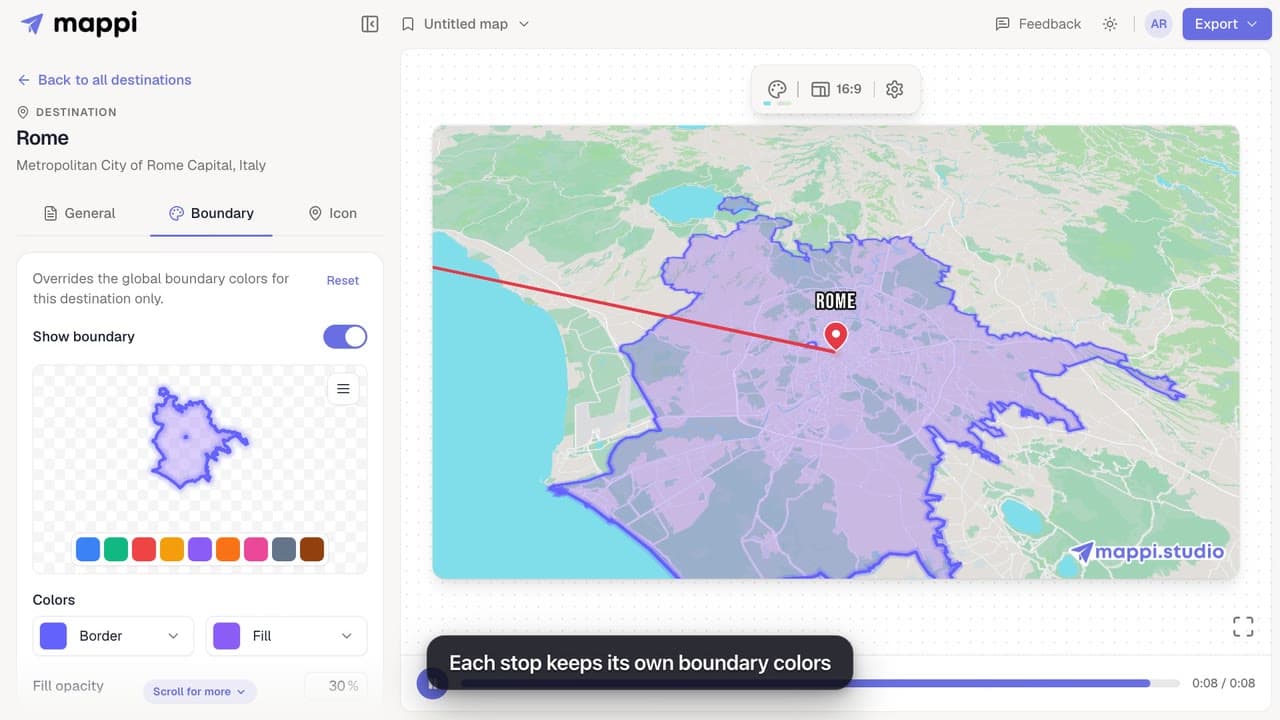 0:39
Outline a country, state or city on your map animation and style it: pick a preset color, set border and fill colors, fill opacity and border width.
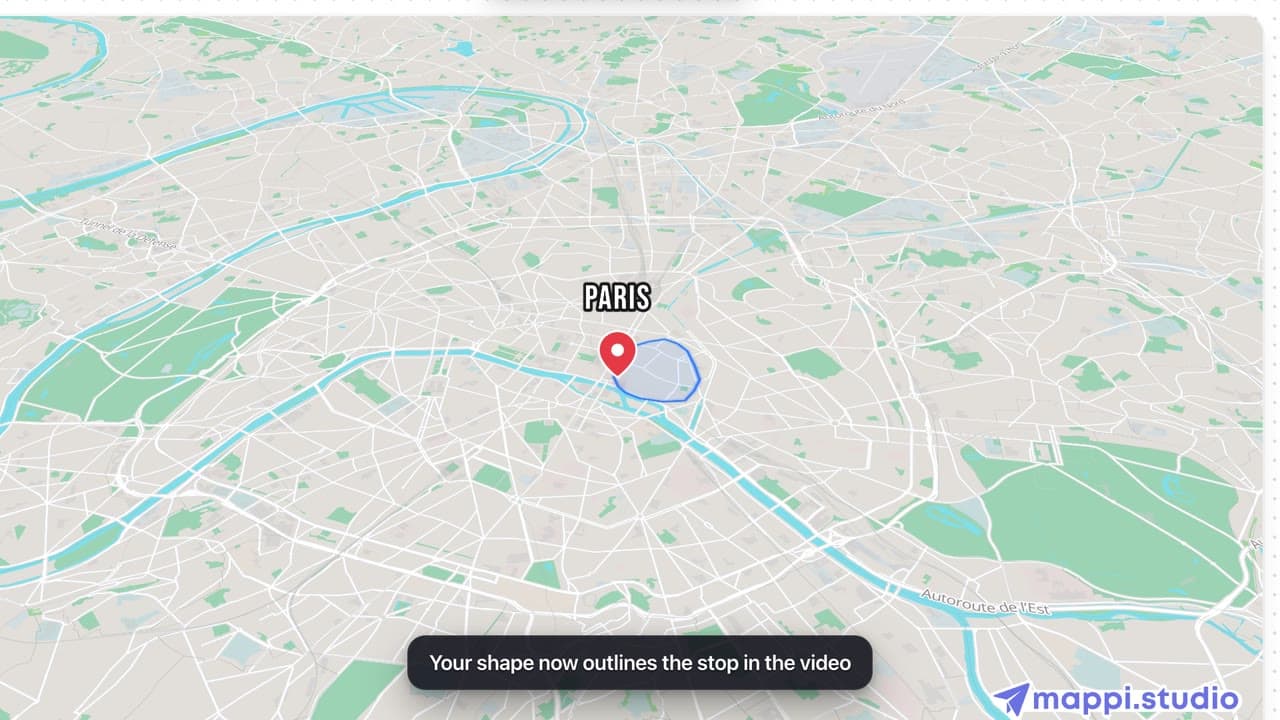 0:43
Draw any shape around a stop on your map animation: upload a GeoJSON polygon of a district, park, delivery zone or region and review it before applying.
Get a GeoJSON polygon for any country, state, city, neighborhood or custom area: draw one free, download open boundary data, or convert KML and Shapefiles.
Every message Mappi shows when a GeoJSON boundary upload fails, what it means, and how to fix the file: wrong format, coordinates, size or geometry.
Yes. Open a stop’s Boundary tab, open the Boundary options menu (the three-line button at the top-right of the boundary preview) and choose Upload your own boundary to use any GeoJSON polygon, such as a district, park or delivery zone. Draw one for free at geojson.io.
Upload your own boundaryBring your routes, places, and stories to life with frame-perfect map animations. No editing skills required.
Mappi is the simplest way to create stunning animated maps. Perfect for YouTubers, journalists, and storytellers.
 Stripe Climate member
© 2026 Mappi. All rights reserved.