


How to style a route line
Click the route’s line chip (it reads Solid by default) to open its Line tab. Choose Solid, Dashed or Dotted, then set Line color, Line width and the glow. To change every route at once, use Global settings and the Route line tab.
Step by step
Open the Line tab
In your destination list, click the route’s line chip, here Solid. The route’s settings open on the Line tab with a preview of the line.
Pick a line style
Choose Solid, Dashed or Dotted under Line style.
Change color and width
Click Line color to pick a color, or switch the picker from HSL to HEX to type a hex code. On a transit route, rides drawn in their official line colors keep them, glow included, until you turn off Use official line colors on the route’s Transit tab. For Line width, type a value and press Enter (or drag the slider and release). Adjust Glow color, Glow opacity and Glow width the same way.
Style every route at once
Click the Settings gear in the map toolbar, open the Route line tab and set the defaults there. A route’s own Line tab overrides the defaults for that route only; click Reset on the tab to follow the defaults again.
- Turn off Show route line to hide the line on that route. The camera still travels between the stops.
- Line width goes from 0 to 100 px; the default is 12.
Video transcript
Show the transcriptHide the transcript
- 0:04Click the route’s line style, here Solid
- 0:07Choose Dashed or Dotted
- 0:12Set Line color and Line width, then press Enter
- 0:22To change every route at once, use Global settings, Route line
- 0:25Play it to see your dashed blue line
Was this guide helpful?
Try it in the editor
Mappi is a map animation maker that runs in your browser. No download, and no account needed to start.
Open MappiRelated guides
 0:33
Pins, labels & icons
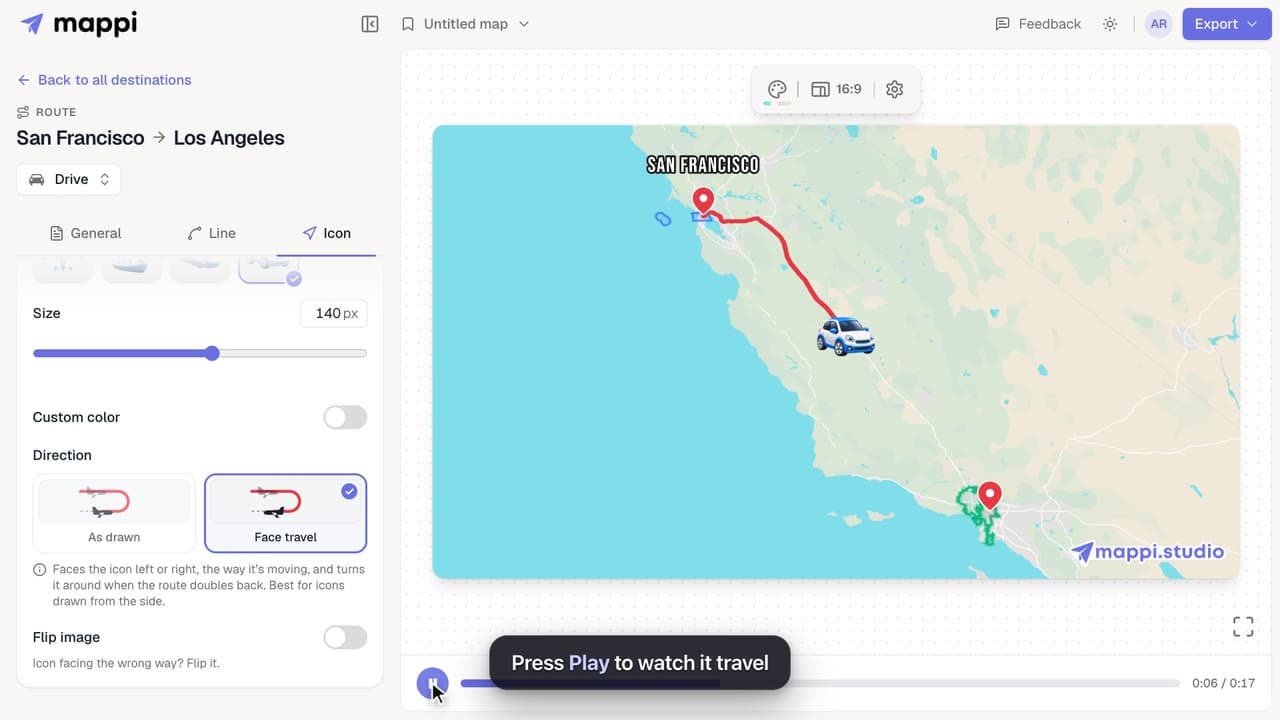
How to add a moving icon to a route
Send a car, plane, ship or your own icon along a route line in your map animation, and choose whether it turns with the path or faces the way it moves.
 0:37
Destinations & routes
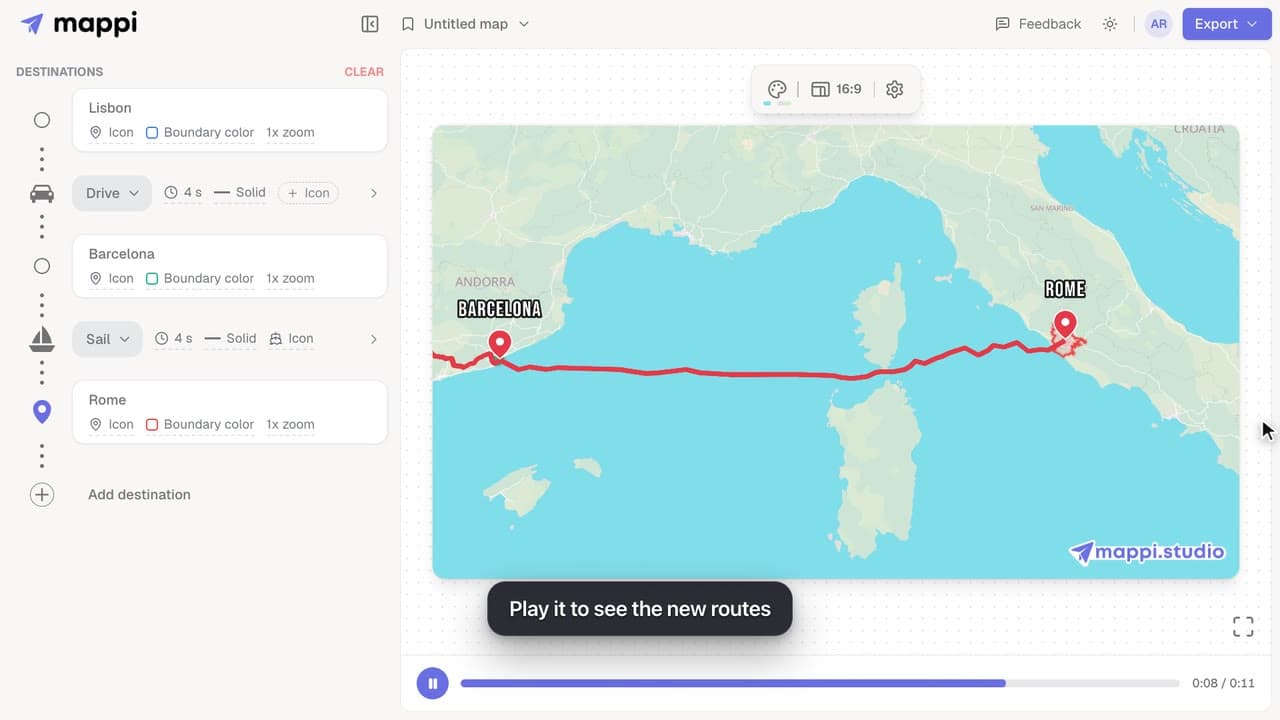
How to choose how each route travels: fly, drive, walk, sail or transit
Make a route follow real roads, walking paths, shipping lanes or public transit instead of a flight arc. Mix travel modes in one map animation.
 0:42
Pins, labels & icons
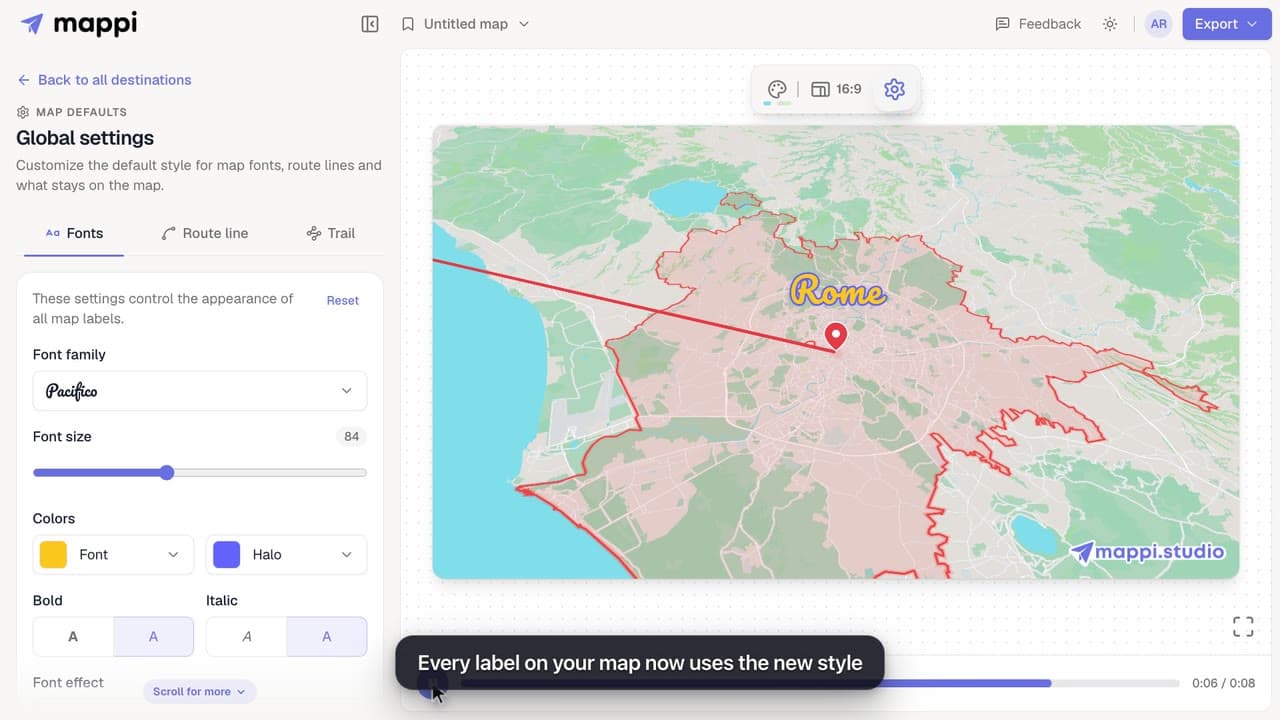
How to change label fonts, size and colors
Style every destination label on your map animation: choose from 25 fonts, set the font size, text and halo colors, bold, italic and font effects.
 0:41
Animation & camera
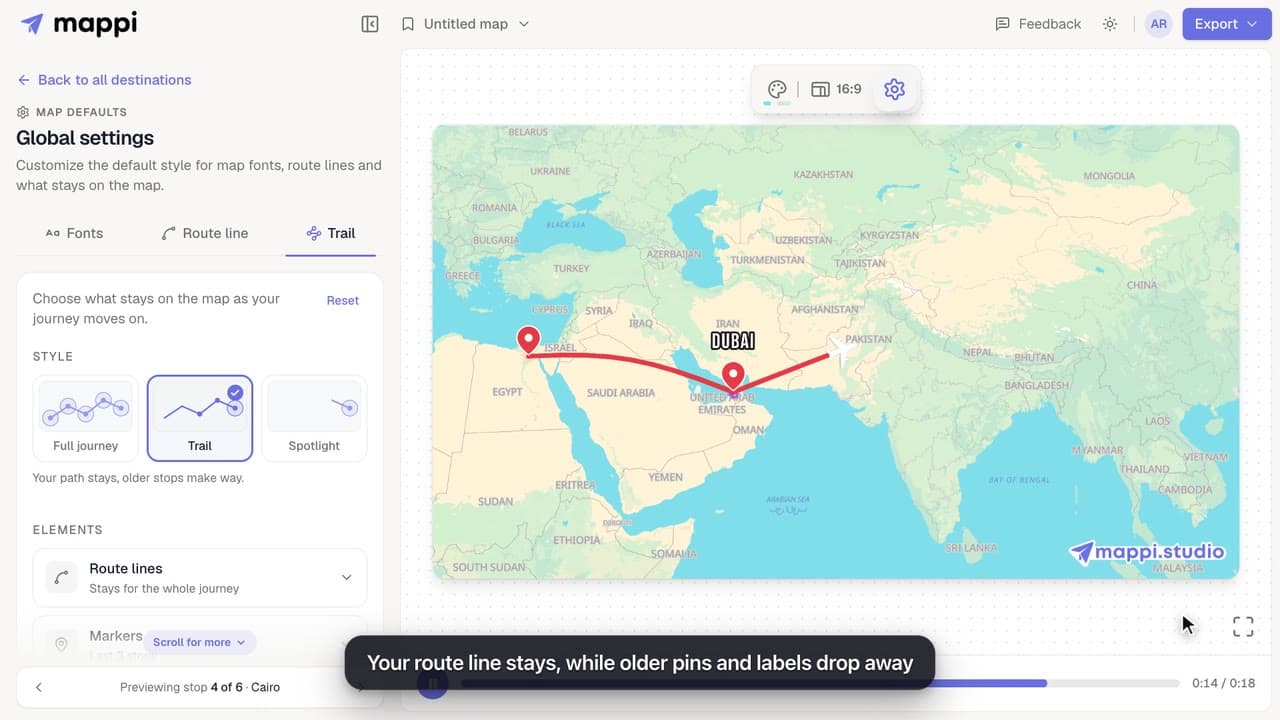
How to choose what stays on the map as the journey moves on
Keep the whole journey on screen, leave a trail, or spotlight only the current stop. Set how long route lines, markers, labels and boundaries stay visible.
