


The map won’t load or says “WebGL is not supported”
Mappi draws the map with WebGL, your browser’s graphics engine. If you see “WebGL is not supported” or a blank preview, turn on hardware acceleration in your browser settings, update the browser, and reload. If it still fails, try another browser or device.
Step by step
Turn on hardware acceleration
In Chrome, open Settings and then System (in Edge, System and performance), turn on Use graphics acceleration when available, and relaunch the browser.
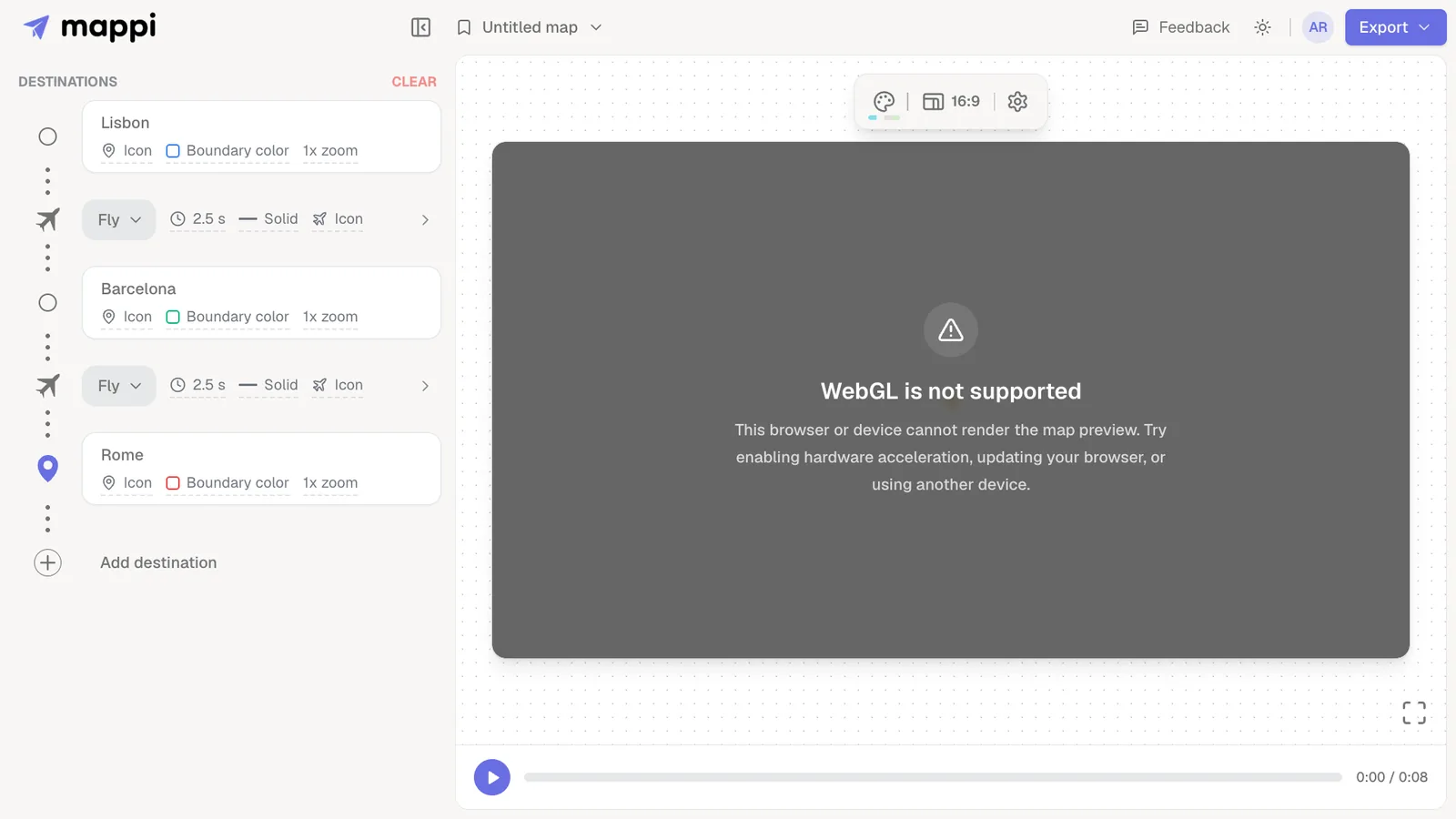
Update your browser
Install the latest version of Chrome, Edge, Firefox or Safari. Older versions can have graphics bugs that block WebGL.
Reload or try another browser
Reloading the page or relaunching the browser starts the editor over with an empty map, without a warning, so save your map first if you can. Then reload the editor, click Untitled map at the top and pick your map from the list. If the preview is still blank, open Mappi in a different browser or on another device to tell a browser problem apart from a device problem.
Other things that block the map
- Some company or school computers turn graphics features off. Ask your IT team, or use a personal device.
- Browser extensions that block scripts or canvas drawing can stop the map from rendering. Try a private window with extensions off.
- Remote desktops and virtual machines often have no graphics acceleration.
See browser requirements for what Mappi needs.
Was this guide helpful?
Try it in the editor
Mappi is a map animation maker that runs in your browser. No download, and no account needed to start.
Open MappiRelated guides
Which browsers and devices work with Mappi?
Mappi runs in up-to-date Chrome, Edge, Firefox and Safari on computers, phones and tablets. Firefox on Android can’t export videos yet. What your browser needs.
Rendering & troubleshooting
Export failed: “Your device couldn’t handle this export”
Fix a failed Mappi export: why you see “Your device couldn’t handle this export”, and how lower quality, Faster export, 30 fps or a desktop browser help.
Rendering & troubleshooting
Why does my map video look blurry or choppy?
Fix a blurry, soft or choppy map animation: pick the right export quality and frame rate, turn off Faster export for the final cut, and avoid re-compression.
Rendering & troubleshooting
