


How to preview your map animation
Press Play under the preview (or Space) to play and pause, drag the timeline to jump to any moment, and click Enter fullscreen at the bottom-right of the stage to check details up close.
Step by step
Play and pause
The preview starts playing on its own and loops, so you can watch it as many times as you like. To pause it, click Pause in the controls under the preview, or press Space. Click Play or press Space again to carry on. On a phone, the controls sit on the preview and hide while it plays: tap the preview to bring them back.
Scrub the timeline
Drag along the timeline to jump to any moment. With the timeline selected, the arrow keys move a fraction of a second and Page Up / Page Down jump 5 seconds.
Watch it fullscreen
Click Enter fullscreen at the bottom-right of the stage. Press Esc to leave fullscreen.
Does the preview match the exported video?
Yes. The timing, camera moves and styling are the same. The preview always shows the watermark, even with Pro, while Hide watermark (on by default for Pro) leaves it out of your export. The preview also draws the map at the size it’s shown on your screen to stay smooth, while exports draw it at full resolution, so the exported video can look sharper than the preview.
Video transcript
Show the transcriptHide the transcript
- 0:04Click Play, or press Space, to play and pause
- 0:16Drag the timeline to jump to any moment
- 0:23Click Enter fullscreen to check the details
- 0:31Press Esc to leave fullscreen
Was this guide helpful?
Try it in the editor
Mappi is a map animation maker that runs in your browser. No download, and no account needed to start.
Open MappiRelated guides
Keyboard shortcuts in the Mappi editor
Keyboard shortcuts in the Mappi editor: play and scrub the preview, shuffle theme colors, move a dropped pin, and frame the camera without the mouse.
Getting started
 0:34
Export & formats
How to export your map animation as a video
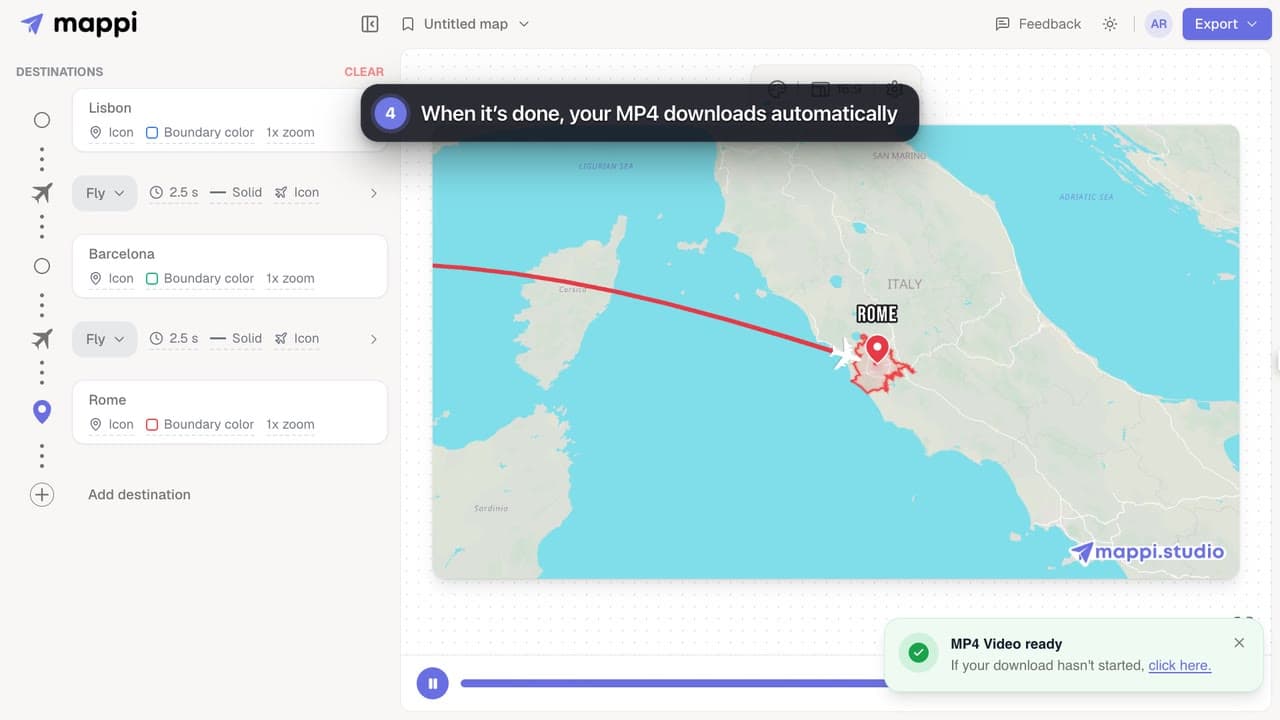
Export your Mappi map animation as an MP4 video: open Export, choose the quality and frame rate, and click Download. It renders right in your browser.
 0:37
Animation & camera
How to speed up or slow down a route
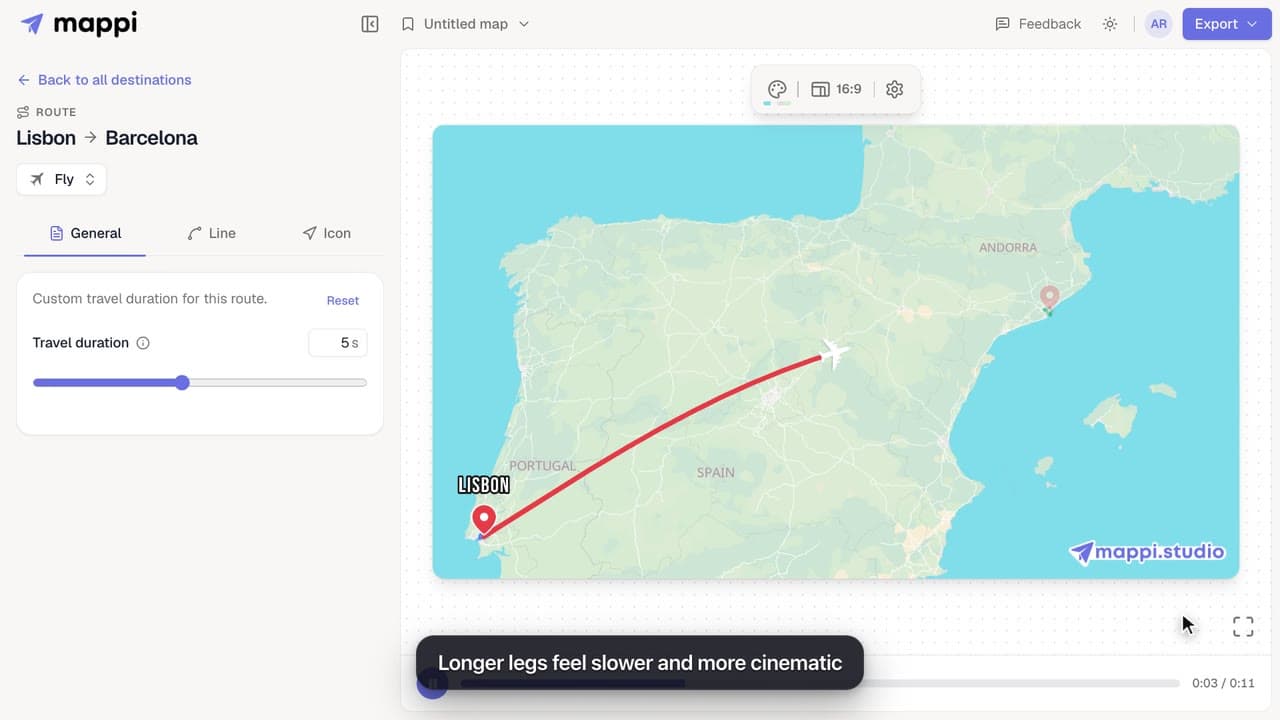
Control the camera speed of your map animation: set how many seconds each route takes on screen, from a quick 1 second hop to a slow 10 second journey.
