


How to drop a custom pin on your map
Click Add destination, type a name, and choose Can’t find it? Drop a pin under the results (or click the Drop a custom pin crosshair in the search field). Drag the map until the pin sits on the exact spot, check the label, and click Add destination.
Step by step
Start a new destination
Click Add destination under your stops, or on an empty map click the search field that reads Search for a city or region. Type a name for your spot, for example “Secret viewpoint”. The name becomes the pin’s label on the map.
Open the pin picker
Under the search results, choose Can’t find it? Drop a pin. If nothing matches, click Drop a pin instead. You can also click the crosshair button, Drop a custom pin, that appears in the search field while you type.
Place the pin
The preview turns into an interactive map with a pin fixed in the middle. Drag the map, or click a spot, until the pin sits exactly where you want it. Scroll to zoom: how close you zoom here is how close the video’s camera gets to this stop.
Name it and add it
Check the name at the top of the card at the bottom of the preview: it’s the pin’s label on the map, and you can click it to edit it. Then click Add destination or press Enter. The pin joins your route like any other stop.
Tips for placing a pin
- Search inside the picker with Search places or coordinates to jump to a town first, then fine-tune the spot by dragging.
- Paste GPS coordinates to land on an exact point. A map link with coordinates in it works too, but only its first 100 characters are read: a Google Maps place link lands where its map was centered, which can be off the place itself, and a longer link can land far away or not work at all. See add a place by GPS coordinates.
- On a computer, use Zoom in, Zoom out and Back to your last stop (Back to where you started on an empty map) at the side of the map, or the keyboard: arrow keys pan, + and - zoom, Esc cancels. On a touch screen, pinch to zoom.
- Leave the label empty if you don’t want text on the map. The stop shows as “Dropped pin” in your list.
Video transcript
Show the transcriptHide the transcript
- 0:04Click Add destination and type a name for your spot
- 0:09Search can’t find it, so choose Can’t find it? Drop a pin
- 0:14Drag the map and scroll to zoom until the pin sits on the exact spot
- 0:23Check the label, then click Add destination
- 0:27Your pin is now a stop on the route, like any other destination
Was this guide helpful?
Try it in the editor
Mappi is a map animation maker that runs in your browser. No download, and no account needed to start.
Open MappiRelated guides
 0:41
Destinations & routes
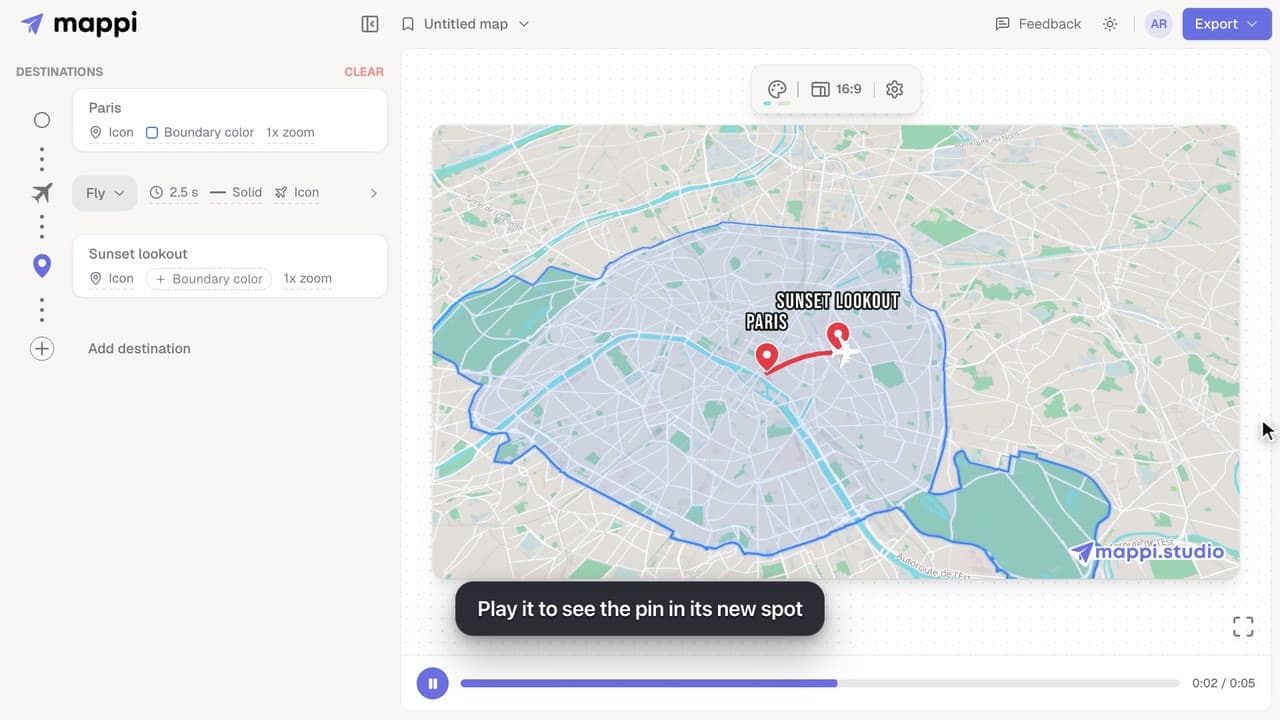
How to move or rename a dropped pin
Edit a custom pin after you add it: move it to a new spot, rename its label, or swap it for a place from search. Moves and swaps can be undone in one click.
 0:40
Destinations & routes
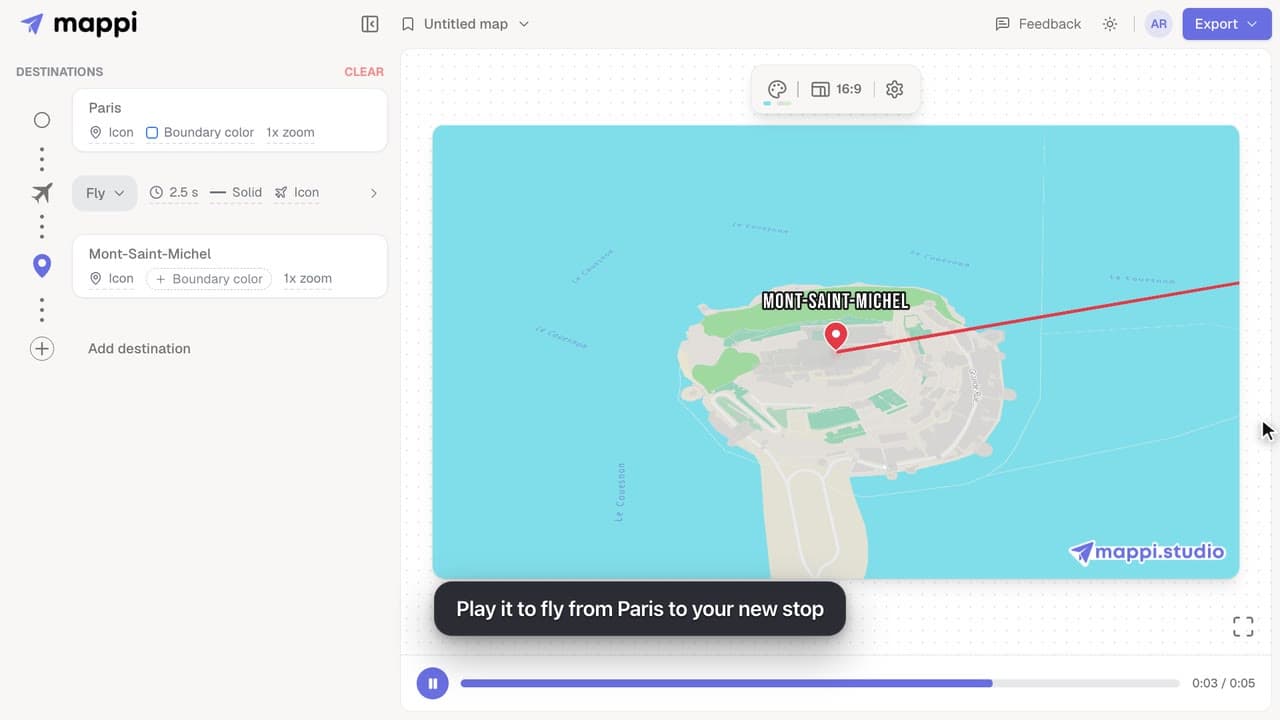
How to add a place by GPS coordinates
Paste latitude and longitude, or a map link, into the Mappi pin picker to add a destination at an exact GPS position. Supported coordinate formats inside.
 0:33
Pins, labels & icons
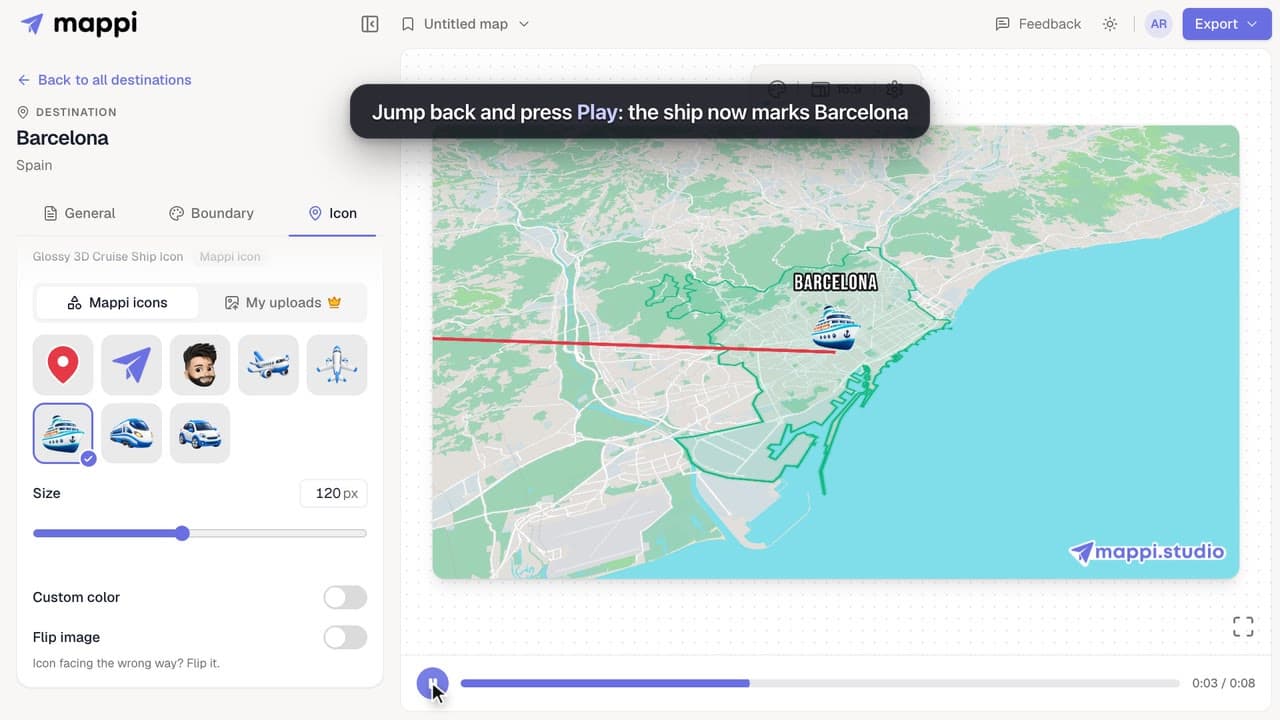
How to change a destination’s pin or icon
Replace a destination’s classic map pin with an icon, resize it, recolor it, flip it, or hide the marker. Works for every stop on your map animation.
 0:43
Map styles & themes
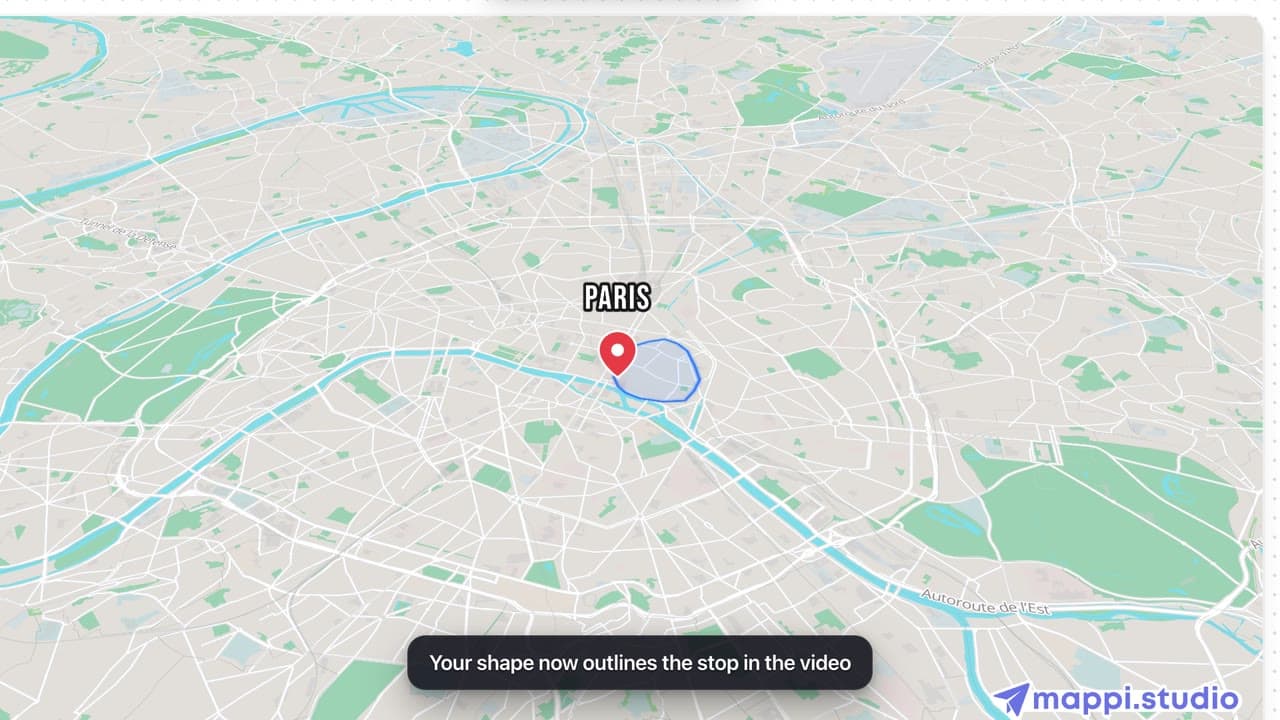
How to upload your own boundary (GeoJSON polygon)
Draw any shape around a stop on your map animation: upload a GeoJSON polygon of a district, park, delivery zone or region and review it before applying.
