


How to choose how each route travels: fly, drive, walk, sail or transit
Click the travel mode pill on a route (it reads Fly by default) and pick Drive, Walk, Sail or Transit. Each route between two stops can travel its own way, so one trip can fly, then drive, then sail.
Step by step
Open the travel mode menu
In your destination list, each route between two stops has a travel mode pill. Click it, here Fly, to see every mode with a short description.
Pick a travel mode
Choose Drive to follow roads. Mappi fetches the real route and redraws the line along it.
Mix modes in one trip
Every route has its own pill, so set the next one to Sail, Walk or Transit if that fits the story. Press Play to see the result.
The five travel modes
| Mode | What the route follows | Default moving icon |
|---|---|---|
| Fly | A direct flight path, drawn as an arc | Airplane |
| Drive | Roads | None (you can add one) |
| Walk | Walking paths | None |
| Sail | Shipping lanes across water | Ship |
| Transit | Public transit lines, with stations | None |
Transit routes get an extra Transit tab in the route’s settings, where Use official line colors and Show stations are both on by default. Turn off Use official line colors to draw every ride in the route’s own line color, or turn off Show stations to hide the markers where you board, transfer and get off.
What if a route can’t be found?
Some pairs have no possible route, like driving from New York to London. Mappi shows a “No route found” notice and keeps the route’s previous mode. See route couldn’t be found for fixes.
Video transcript
Show the transcriptHide the transcript
- 0:04Click the travel mode on a route, here Fly
- 0:08Pick Drive to follow real roads
- 0:14Each route can travel its own way. This one will Sail
- 0:21Play it to see the new routes
Was this guide helpful?
Try it in the editor
Mappi is a map animation maker that runs in your browser. No download, and no account needed to start.
Open MappiRelated guides
 0:37
Animation & camera
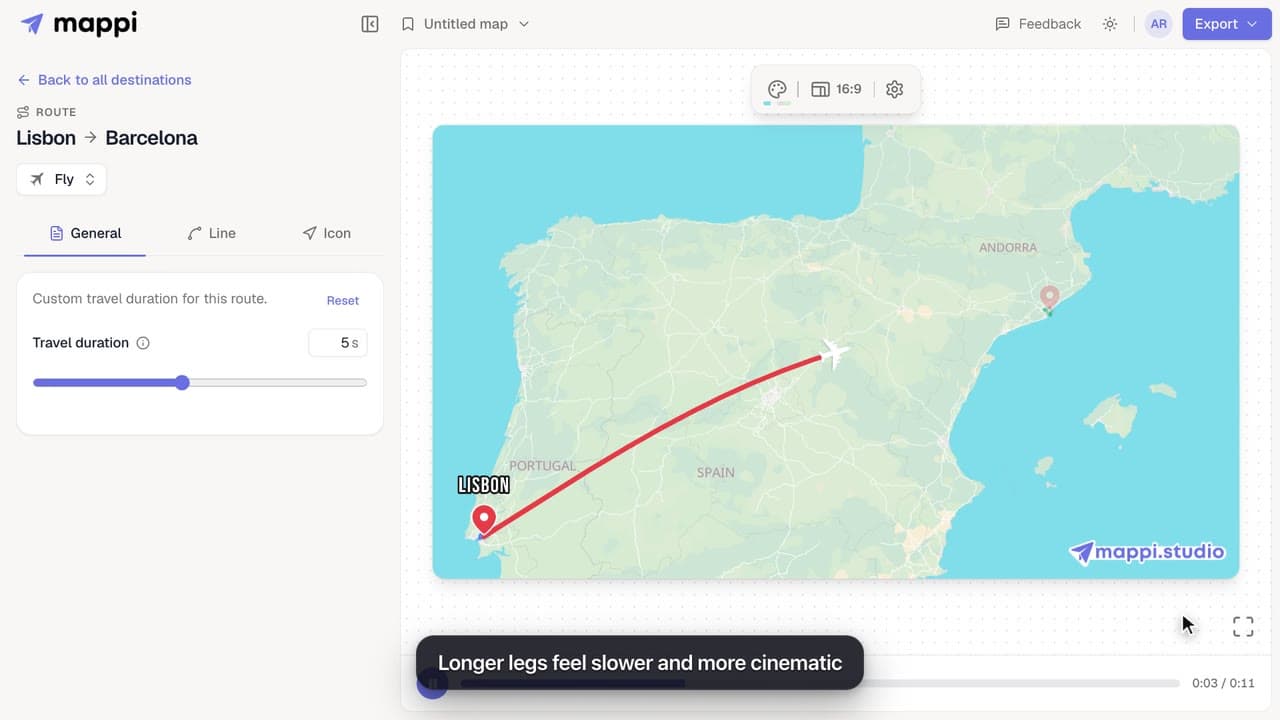
How to speed up or slow down a route
Control the camera speed of your map animation: set how many seconds each route takes on screen, from a quick 1 second hop to a slow 10 second journey.
 0:33
Pins, labels & icons
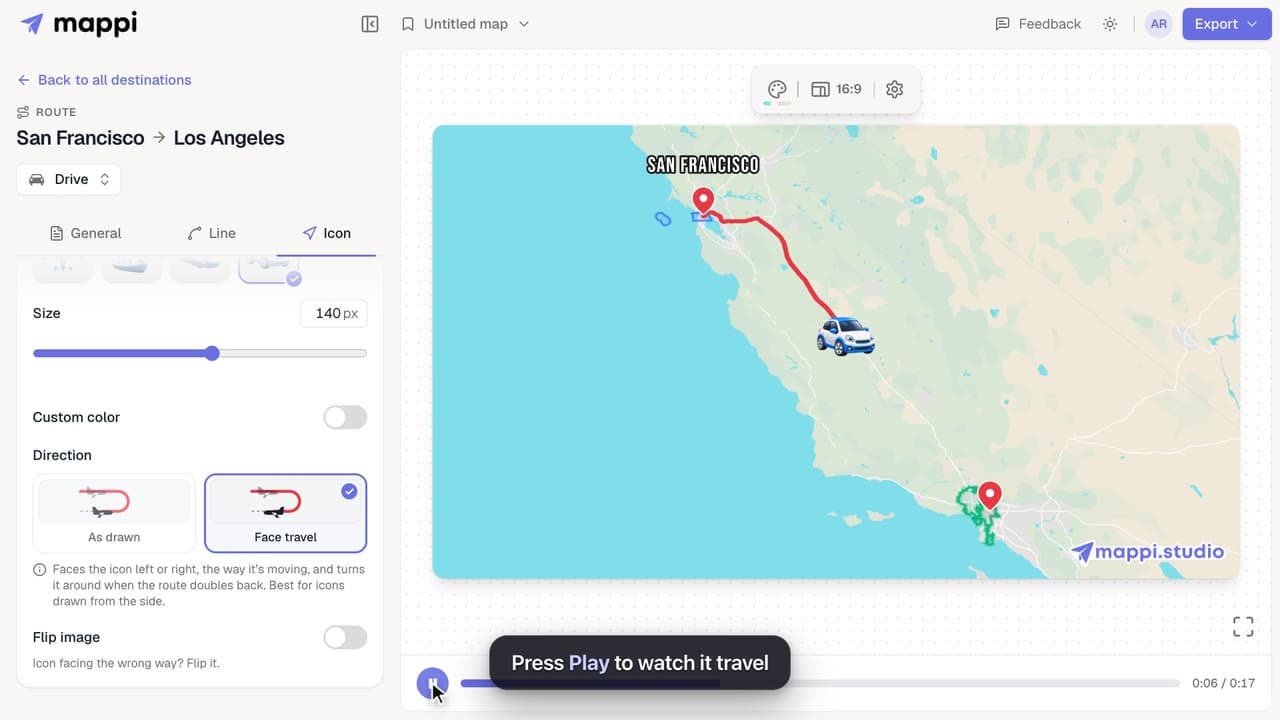
How to add a moving icon to a route
Send a car, plane, ship or your own icon along a route line in your map animation, and choose whether it turns with the path or faces the way it moves.
 0:33
Pins, labels & icons
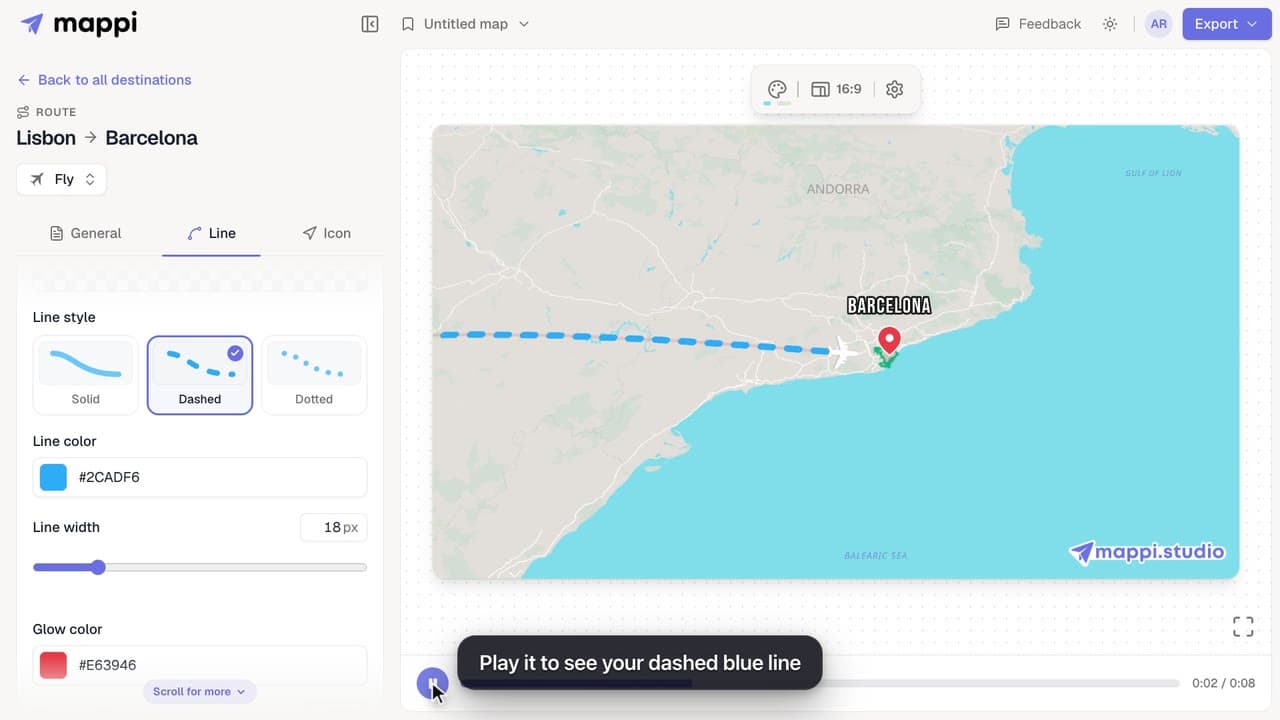
How to style a route line
Make a route line solid, dashed or dotted, change its color and width, and add a glow. Style one route, or set the default for every route at once.
Route couldn’t be found: “No route found” or “Route failed”
Why a driving, walking, transit or sailing route can’t be found between two stops, what each message means, and how to fix it or switch travel mode.
Rendering & troubleshooting
