


Export failed: “Your device couldn’t handle this export”
Mappi shows this message whenever a video export fails. It can mean your browser ran out of memory or video-encoding power for the size you chose, that it can’t encode video at all, or that the map tiles for one frame didn’t load within about 90 seconds. Export again at a lower Quality, turn on Faster export, choose 30 fps, and close other heavy tabs. On a phone, switch to a computer for large exports.
Step by step
Lower the export size
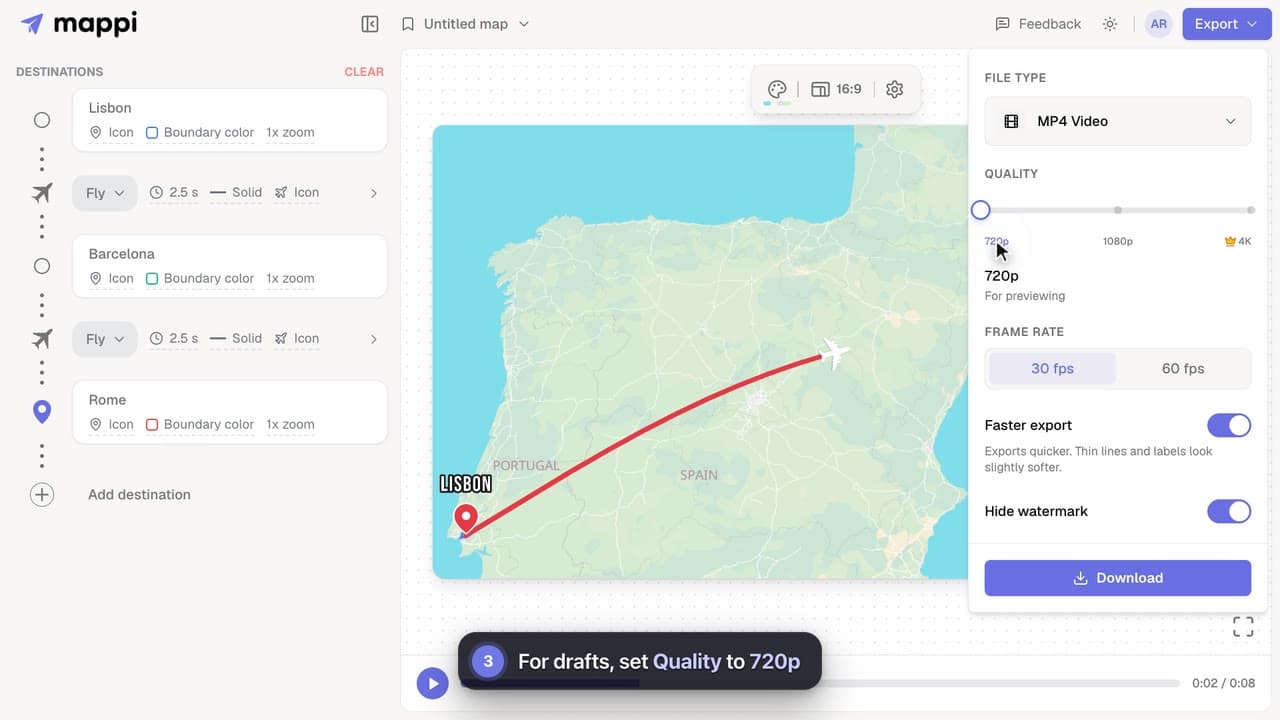
Click Export and drop Quality one step (4K to 1080p, or 1080p to 720p).
Turn on Faster export and 30 fps
Faster export draws the map at a lower internal resolution, and 30 fps renders half as many frames as 60 fps, so both cut the work your device does. Touchscreen devices don’t show Faster export because their exports already draw the map at a lower resolution. See make exports faster.
Free up resources and try again
Close other tabs and apps, keep the editor tab in front, and click Download again. Options reset to their defaults each time you open Export, so if it closed in the meantime, set the options from steps 1 and 2 again before you click Download.
What the messages mean
| Message | What to do |
|---|---|
| MP4 Video failed · Your device couldn’t handle this export. Try lowering the quality, then export again. | Follow the steps above. Updating your browser can also help. |
| MP4 Video failed · Your phone couldn’t handle this export. Try a lower resolution, or switch to a desktop browser for best results. | Export at 720p, or make the map again on a computer and export it there. A map made on a phone can’t be moved to another device. See exporting on a phone or tablet. |
Still failing on a computer? Make sure your browser is up to date and hardware acceleration is on (see browser requirements), then send us feedback with a screenshot.
Was this guide helpful?
Try it in the editor
Mappi is a map animation maker that runs in your browser. No download, and no account needed to start.
Open MappiRelated guides
 0:32
Rendering & troubleshooting
How to make exports faster
Cut map video export time on slower computers: turn on Faster export, render at 30 fps, use 720p for drafts, and keep the editor tab in front.
My export is stuck or taking too long
Map video export stuck at a percentage or taking forever? Why exports slow down, how long they should take, and what to do to get your MP4 faster.
Rendering & troubleshooting
Which browsers and devices work with Mappi?
Mappi runs in up-to-date Chrome, Edge, Firefox and Safari on computers, phones and tablets. Firefox on Android can’t export videos yet. What your browser needs.
Rendering & troubleshooting
Making and exporting map animations on a phone or tablet
Use Mappi on your phone or tablet: how the mobile editor works, why phone exports are lighter, and tips to export map videos without errors on mobile.
Rendering & troubleshooting
