


How to rename or hide a destination label
Open the stop’s More actions menu, choose Rename, type the new label and press Enter. To hide a label, open the stop and clear its Display name: the stop stays, without text on the map.
Step by step
Choose Rename
Hover the stop in your destination list, click More actions (the menu icon on the right of the row) and choose Rename.
Type the new label
Type the label you want (up to 100 characters) and press Enter, or click anywhere else to save. Press Esc to cancel.
Hide a label
Click the stop to open its settings, clear the Display name field and press Enter. The list shows a No label chip, and nothing is written on the map for that stop.
Label tips
- Short labels read best in vertical videos. “NYC” often beats “New York City, New York”.
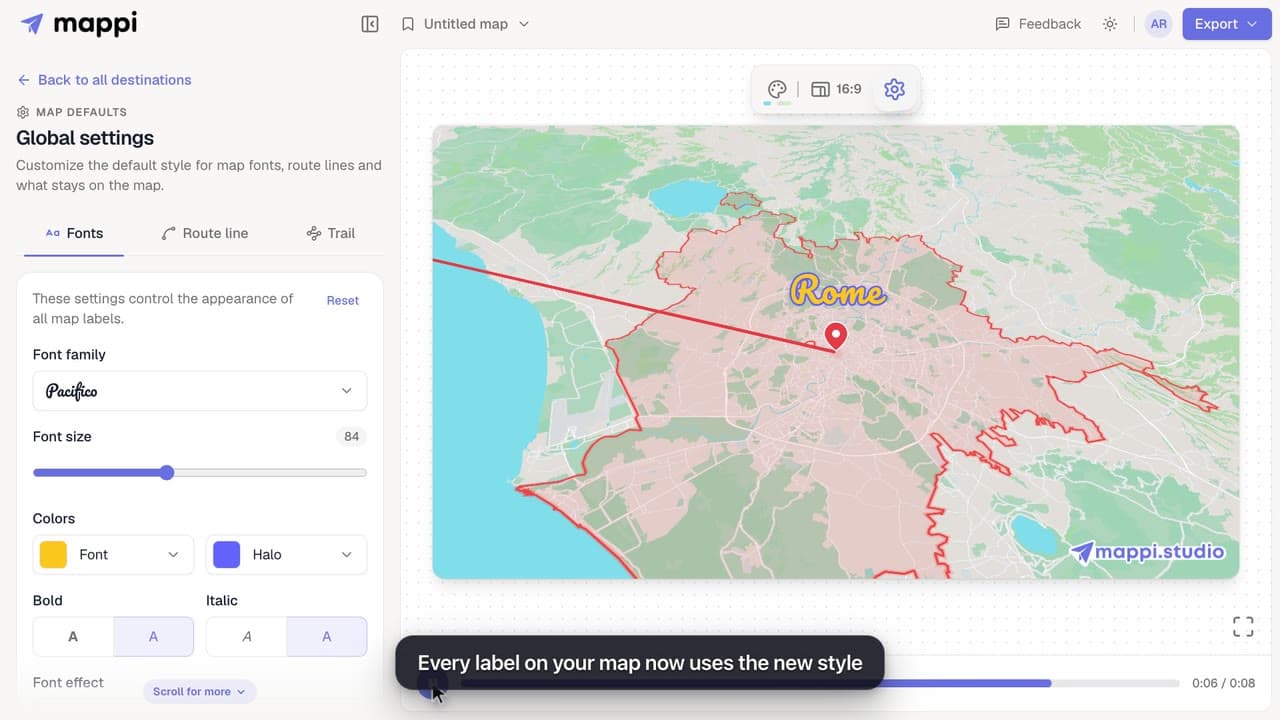
- Label styling (font, size, colors) is shared by every stop. See change label fonts and colors.
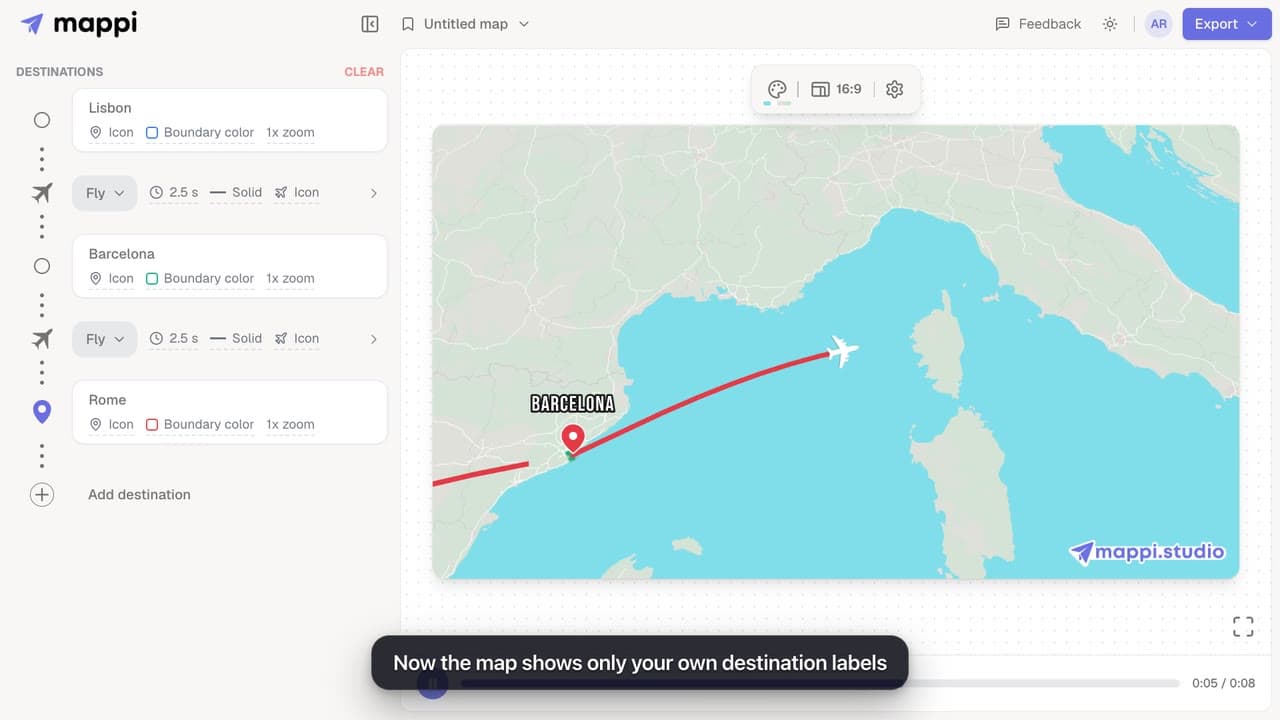
- To hide the country, ocean and road names printed on the base map instead, see show or hide map labels.
Video transcript
Show the transcriptHide the transcript
- 0:04Open the stop’s More actions menu and choose Rename
- 0:09Type the new label and press Enter
- 0:17To hide a label, clear its Display name
- 0:29Play it back: Rome is now labeled Roma
Was this guide helpful?
Try it in the editor
Mappi is a map animation maker that runs in your browser. No download, and no account needed to start.
Open MappiRelated guides
 0:42
Pins, labels & icons
How to change label fonts, size and colors
Style every destination label on your map animation: choose from 25 fonts, set the font size, text and halo colors, bold, italic and font effects.
 0:39
Map styles & themes
How to show or hide map labels
Turn the country, ocean and road names on the base map on or off with a custom map theme. Your own destination labels always stay on the map.
Pro
 0:33
Pins, labels & icons
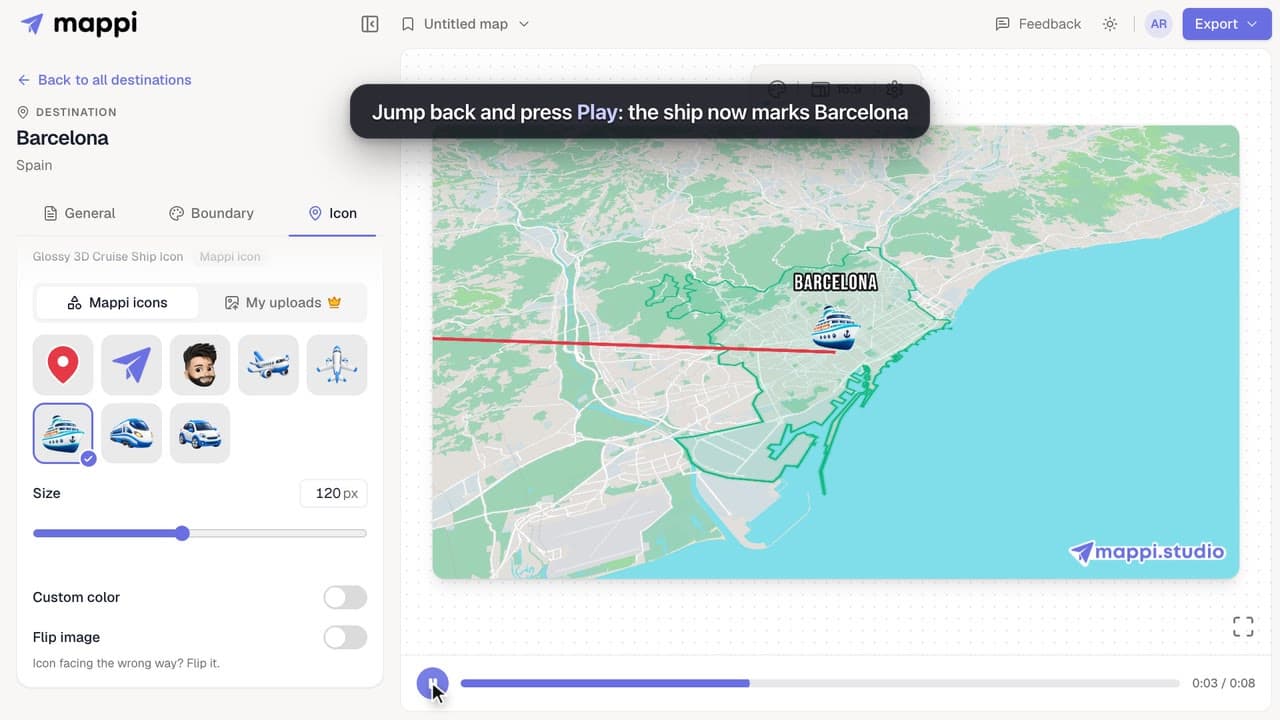
How to change a destination’s pin or icon
Replace a destination’s classic map pin with an icon, resize it, recolor it, flip it, or hide the marker. Works for every stop on your map animation.
