


How to import a route from Google Maps
In Google Maps, get directions with all your stops and click Copy link. In Mappi, paste the link into the search where you add destinations (on an empty map, you can also click A Google Maps route), check the stops and click Import. Your stops, the travel mode and any route you dragged come in.
Step by step
Get directions in Google Maps
Open Google Maps and get directions with all your stops, in order. Use Add destination for each stop after the second. Pick how you travel, like Driving. If you drag the route line to send it a particular way, Mappi follows the same roads.
Copy the link
Click Copy link, under the stops (or Share › Copy link). On a phone, in the Google Maps app, tap More (⋯), then Share directions, and copy the link.
Paste it into Mappi
In the Mappi editor, paste the link where you add destinations: the Add destination search, or Search for a city or region on an empty map. Mappi recognizes the link and opens Import from Google Maps with it. On an empty map you can also click A Google Maps route under or start from, then Paste. On a phone, tap the search bar at the bottom and, before typing, choose A Google Maps route.
Check the stops and import
The preview lists the route’s stops and the travel mode they’ll use, like Drive. To leave a stop out, click the X on its row. If your map already has stops, choose Keep them or Replace them. Then click Import (it says how many stops come in, like Import 4 stops). The new route plays right away, and Undo in the notice takes the import back.
What comes in from your link
| In Google Maps | In Mappi |
|---|---|
| Your stops, in order | Destinations, with their place names and boundaries |
| How you travel | The travel mode of every route between them (see below) |
| A route you dragged | The same roads, on Drive and Walk routes |
| A dropped pin | A custom pin on the same spot |
| A link to one place | One stop |
Your own location never comes in, because Google doesn’t put it in links. The preview lists it as Your location and leaves it out, so add your starting point after importing.
How Google Maps travel modes come in
| Google Maps | Mappi |
|---|---|
| Driving | Drive |
| Two-wheeler | Drive |
| Walking | Walk |
| Cycling | Walk (Mappi has no cycling routes yet) |
| Transit | Transit |
| Flights | Fly |
| Best (no mode picked) | Drive |
You can change any route’s travel mode after importing: see choose how each route travels. If a leg has no route in its mode, like driving across an ocean, it flies instead, and a notice says which one. See route couldn’t be found.
Which Google Maps links work?
- Share links from Copy link or Share directions, like maps.app.goo.gl/….
- Links from your browser’s address bar, like google.com/maps/dir/…, on any Google domain, such as google.co.uk or google.com.au.
- Embed codes from Share › Embed a map: paste the whole <iframe> code.
- Older maps.google.com links.
- A link to one place, which comes in as one stop.
Google My Maps links, Google Maps searches and links from other map apps, such as Apple Maps or Waze, can’t be imported.
How many stops can I import?
One import brings in up to 10 stops, as many as Google Maps directions hold. Your map’s destination limit applies too: free and guest maps hold up to 5 destinations, counting the stops already on the map, and Mappi Pro maps hold as many as you need.
When some stops won’t fit, the preview marks them Won’t fit and says why. Leave out other stops to choose which ones come in, or choose Replace them to make room. The notice after importing says how many came in, like “Added 5 of the route’s 8 stops from Google Maps”.
Import into a map that already has stops
If your map already has stops, the preview asks what to do with Your map’s stops. Keep them adds the imported stops after your last one, with a route from it to the first new stop. Replace them clears your stops first, along with any stickers and text on the map. Click Undo in the notice to take the import back.
If the import doesn’t work
| What Mappi says | What to do |
|---|---|
| That isn’t a Google Maps link | Copy the link from Google Maps again. It starts with maps.app.goo.gl or google.com/maps. |
| Google can’t find that link | It may have been cut short. Copy it again and paste all of it. |
| That’s a search, not directions | Get directions to your stops in Google Maps, then copy that link. |
| There’s no route in that link | Get directions with all your stops first, then copy the link. |
| My Maps links can’t be imported | Get directions to your places in Google Maps and copy that link instead. |
| Couldn’t find this place, so it’s left out | Import the other stops, then add this one from search or as a custom pin. |
| You’re offline | Check your internet connection and click Try again. |
| One leg flies instead | Mappi couldn’t get a route for that leg. Change its travel mode to try again. |
Video transcript
Show the transcriptHide the transcript
- 0:04In Google Maps, get directions with all your stops
- 0:08Pick how you travel, like Driving
- 0:13Click Copy link, under the stops
- 0:18In Mappi, click A Google Maps route
- 0:22Click Paste to add the link you copied
- 0:26Check the stops and the travel mode, then click Import 4 stops
- 0:33Your stops and drive routes are on the map, ready to play
Was this guide helpful?
Try it in the editor
Mappi is a map animation maker that runs in your browser. No download, and no account needed to start.
Open MappiRelated guides
 0:37
Destinations & routes
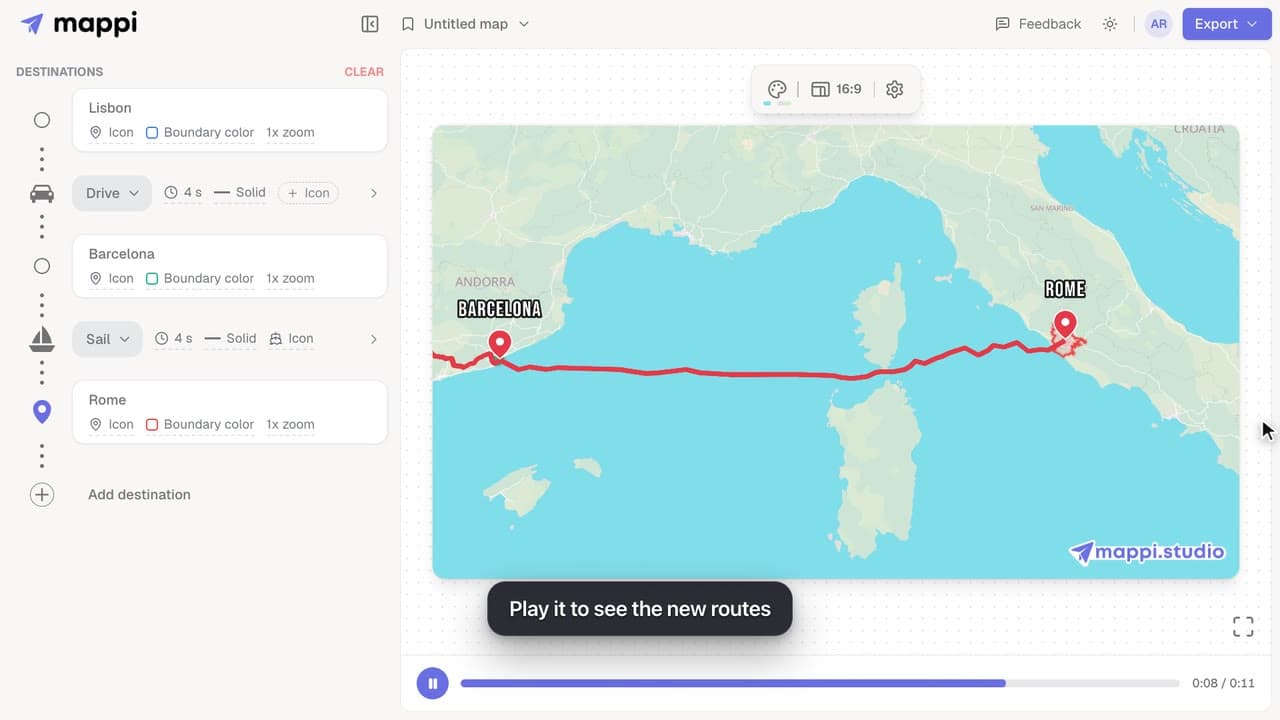
How to choose how each route travels: fly, drive, walk, sail or transit
Make a route follow real roads, walking paths, shipping lanes or public transit instead of a flight arc. Mix travel modes in one map animation.
How many destinations can a map have?
Free and guest maps hold up to 5 destinations; Mappi Pro maps hold as many as you need. Learn what counts toward the limit and what to do when you reach it.
Destinations & routes
 0:41
Destinations & routes
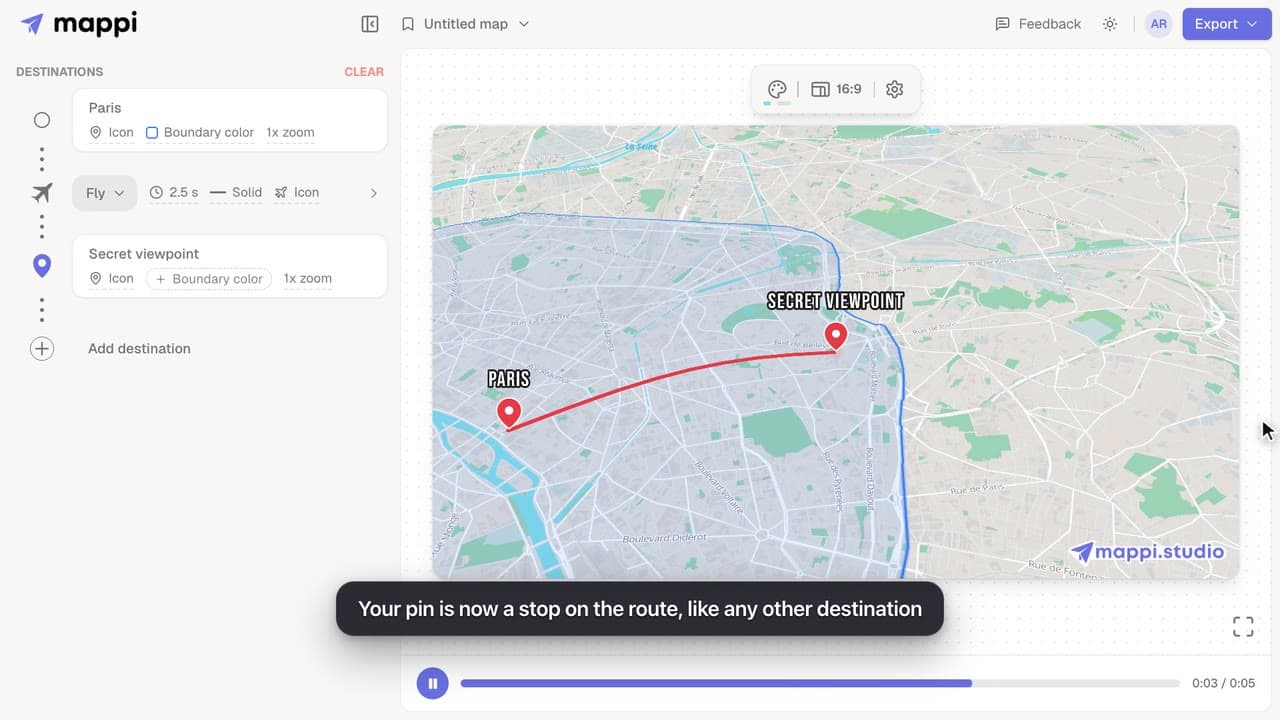
How to drop a custom pin on your map
Add a destination search can’t find: drop a custom pin anywhere on the map, set the exact spot and zoom, name it, and add it to your animated route.
Route couldn’t be found: “No route found” or “Route failed”
Why a driving, walking, transit or sailing route can’t be found between two stops, what each message means, and how to fix it or switch travel mode.
Rendering & troubleshooting
