FreeNo sign-up
True Size of Countries
Drag any country across a live map and watch it shrink or grow with latitude. See how big Greenland, Russia and Canada really are.



Google Maps route animation
Paste a Google Maps link and your stops, travel modes and route come in on their own, even a detour you dragged. Style the map, press play and export an MP4. Free, right in your browser.

Google Maps can show you a route, but it can’t turn one into a video. Mappi can, from the same link you’d send a friend. It takes about a minute, and you never retype a place.
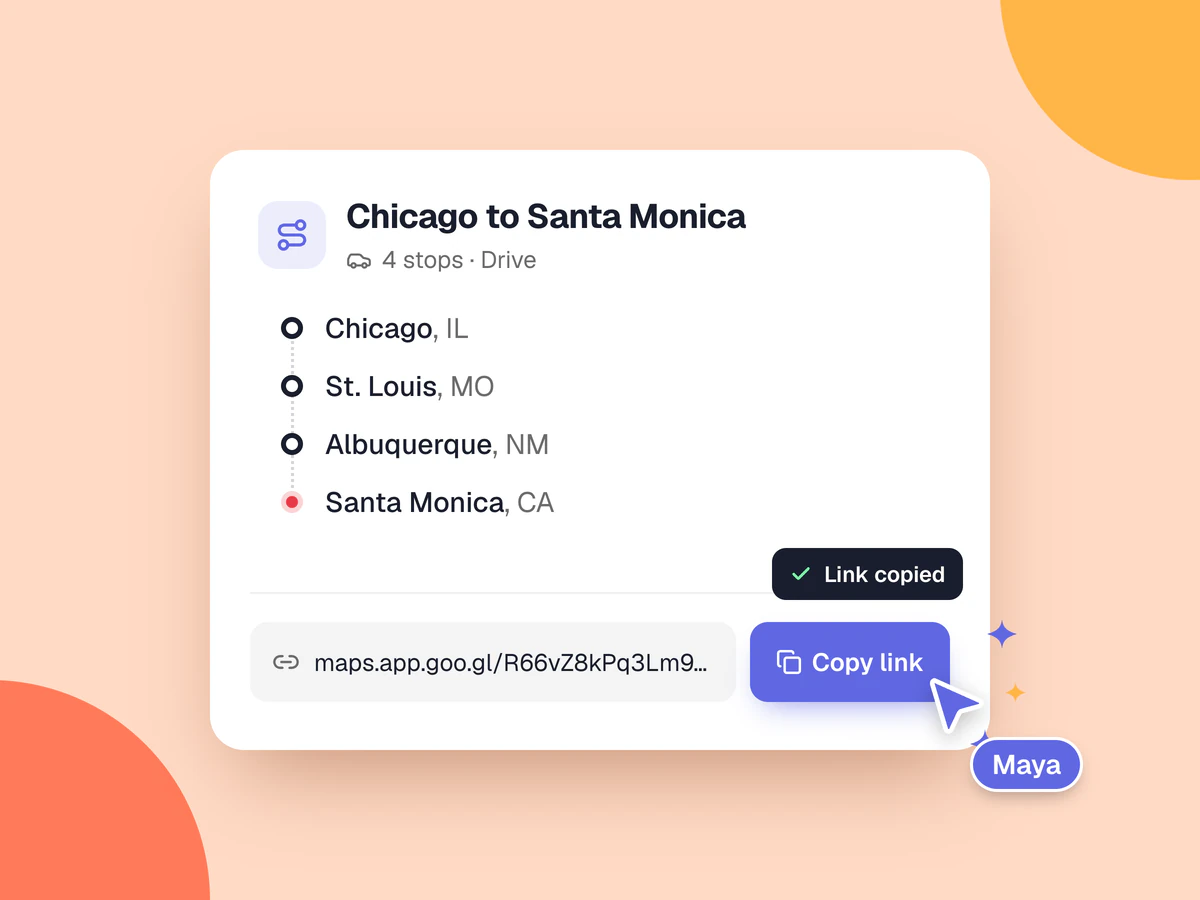
Get directions with every stop you want, in order. Then click Copy link under your stops, or on a phone tap More, then Share directions.
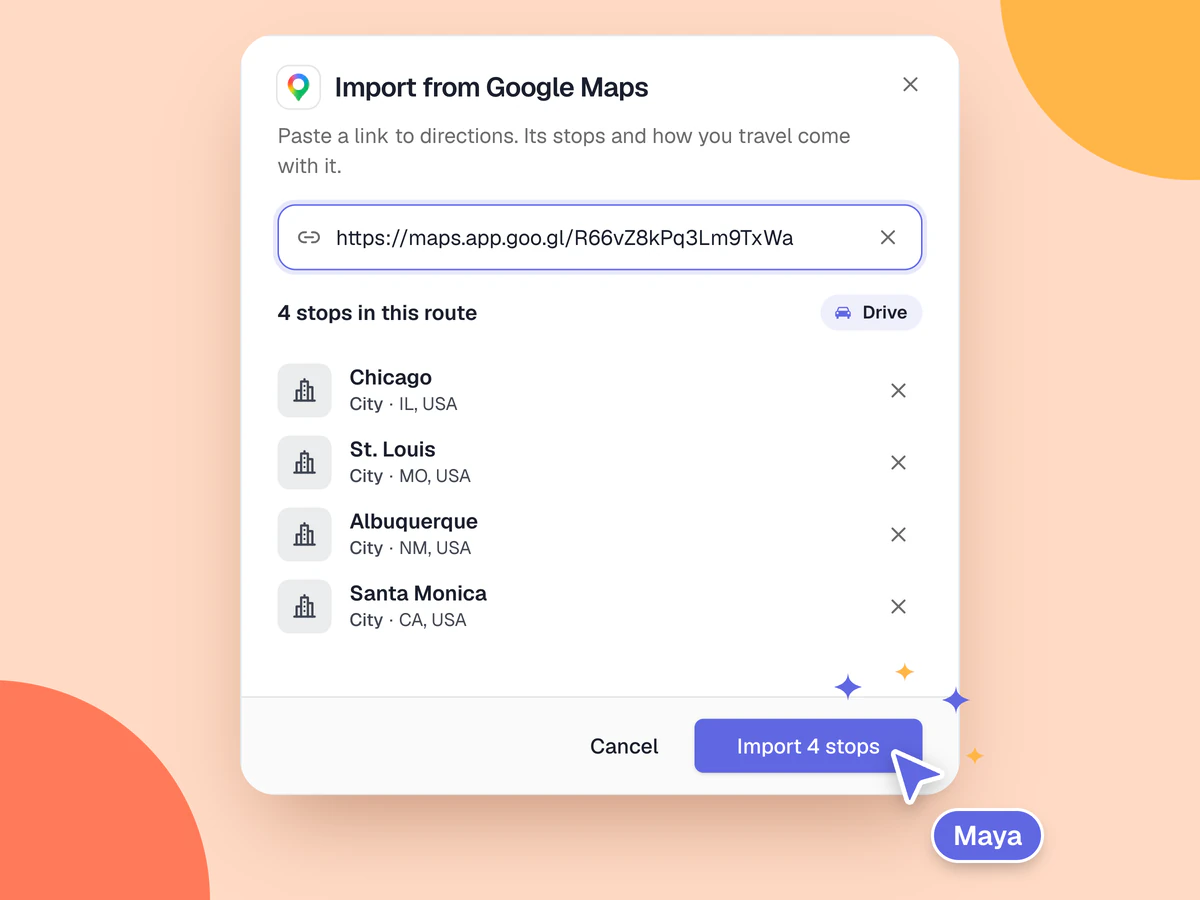
Paste it at the top of this page. The editor opens and reads your route: check the stops it found, then choose Import.
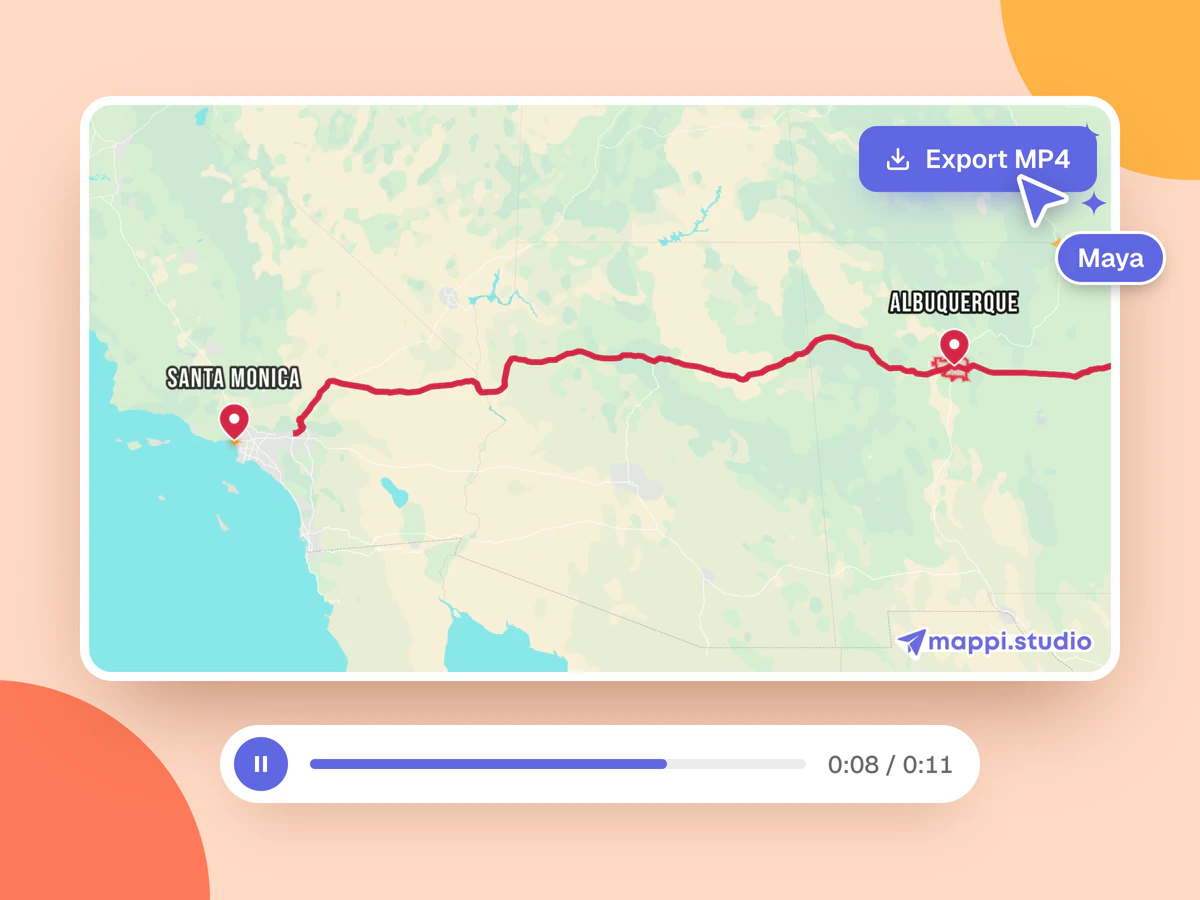
Your route plays as an animated map. Pick a map style and the shape of your video, then export an MP4 for YouTube, TikTok or Reels.
Mappi reads the link the way Google Maps wrote it, so your trip arrives the way you planned it.
Up to 10 stops from one link, the most Google Maps directions hold. Each comes in as a real place, with its name and address.
Driving, walking, transit and flights come in as Drive, Walk, Transit and Fly, so every leg moves the way you do.
Dragged the blue line onto a coastal road? On driving and walking legs, the video takes the same roads.
A pin you dropped, or coordinates you typed, come in as a custom place at that exact spot.
A link to one place comes in as one stop, ready for a video that flies in and zooms to it.
Share links, links from the address bar, embed codes and older maps.google.com links, on any Google domain.
Free and guest maps hold up to 5 destinations, and Pro maps as many as you need. If a link has more stops than your map has room for, you choose which ones come in.
Share the directions, not a single place: get directions with all your stops first, then copy the link. It works the same from a computer, an iPhone or an Android phone.
Already in the editor? Paste a Google Maps link into any destination search and the import opens on its own.
Your route opens in the Mappi editor as an ordinary map, so you can change anything before you export it.
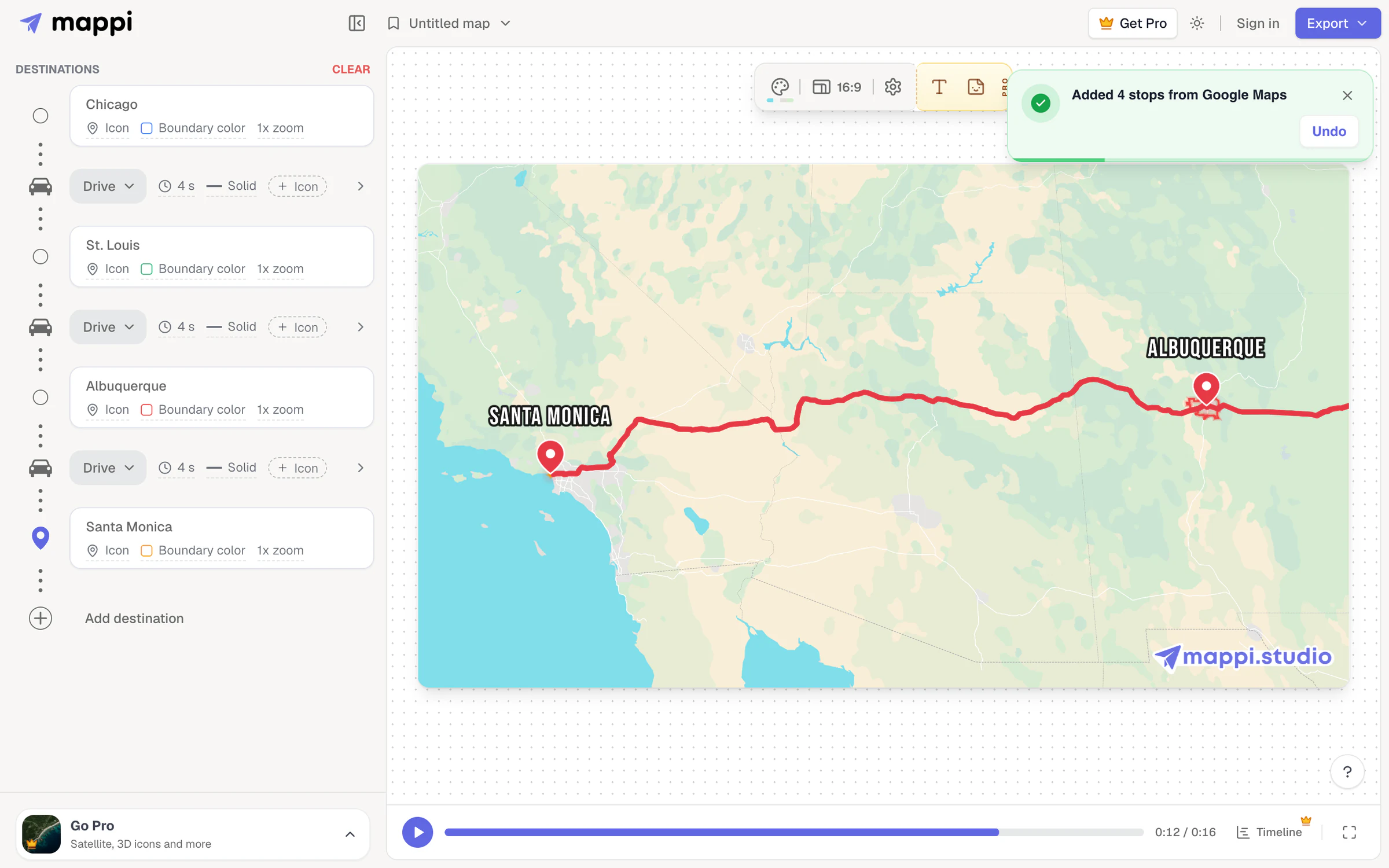
Choose a map theme, light or dark, or show a long trip on a 3D globe.
Vertical 9:16 for TikTok, Reels and Shorts, 4:5 or square for posts, 16:9 for YouTube.
Add, remove or reorder stops, or change how you travel between two of them.
Download it in 1080p for free, with a small Mappi watermark, or in 4K without one with Pro.
Starting without a Google Maps link? Mappi's map animation maker builds the same video from places you search for. Mapping a run, a ride or a hike instead? See animated route maps. Telling the story of a whole trip? Try travel map videos.
Not on its own. Google Maps can show a route and preview it turn by turn, but it can’t export an animation or a video. To animate a Google Maps route, copy its link and paste it into Mappi. The stops and the route come in, and Mappi plays them as an animated map you can download as an MP4.
Get directions in Google Maps with every stop you want, copy the link with Copy link or Share directions, and paste it at the top of this page. Mappi opens the route in its editor. Check the stops, choose Import, pick a map style and a shape for the video, then export an MP4.
Yes. Importing a Google Maps link is free, and so are unlimited 1080p MP4 exports with a small Mappi watermark. You don’t need an account or an app. Mappi Pro adds 4K exports without the watermark, the Satellite theme, custom map themes and as many destinations per map as you need.
Links to directions, in every form Google Maps makes them: share links from maps.app.goo.gl or goo.gl/maps, links copied from the address bar, embed codes from Share, then Embed a map, and older maps.google.com links, on any Google domain. A link to a single place comes in as one stop. Google My Maps links and searches can’t be imported.
Up to 10, the most Google Maps directions can hold. How many fit depends on your map: free and guest maps hold up to 5 destinations, and Pro maps as many as you need. When a link has more stops than your map has room for, the preview shows which ones come in, and you choose which to leave out.
Yes. Driving, walking, transit and flight directions come in as Drive, Walk, Transit and Fly, and a route you dragged onto other roads keeps its shape on driving and walking legs. Mappi has no cycling mode yet, so cycling directions come in as Walk. You can change how you travel on any leg after importing.
Not from a link. My Maps maps and your Timeline history aren’t directions, so there’s no route in their links for Mappi to read. Get directions to the same places in Google Maps and share those instead, or add the places one by one with Mappi’s search.
Yes. Mappi runs in your phone’s browser, on iPhone and Android, with nothing to install. Copy the link from the Google Maps app, open this page and paste it. The editor opens with your route, and the finished MP4 downloads straight to your phone.
Google Earth Studio animates Google Earth’s satellite and 3D imagery, and you build every camera move yourself with keyframes. Mappi starts from your route instead: paste a Google Maps link and it draws the line, frames each stop and moves the camera for you. You get an MP4 in minutes, and you can still restyle the map and change the timing.
Yes. Mappi exports a standard MP4 in vertical 9:16, 4:5, square or 16:9, so it uploads anywhere and drops into CapCut, Premiere Pro, DaVinci Resolve or Canva like any other clip. You own the videos you make, including for commercial work, and Pro exports have no watermark.
Quick answers to map questions, right in your browser. Every tool is free, with no sign-up.
FreeNo sign-up
Drag any country across a live map and watch it shrink or grow with latitude. See how big Greenland, Russia and Canada really are.
Paste a Google Maps link at the top of this page, or open the editor and add your stops one by one. Free to start, right in your browser.
Mappi is the simplest way to create stunning animated maps. Perfect for YouTubers, journalists, and storytellers.
 Stripe Climate member
© 2026 Mappi. All rights reserved.