


New in Mappi: Custom Map Themes, Dropped Pins, and Custom Zoom
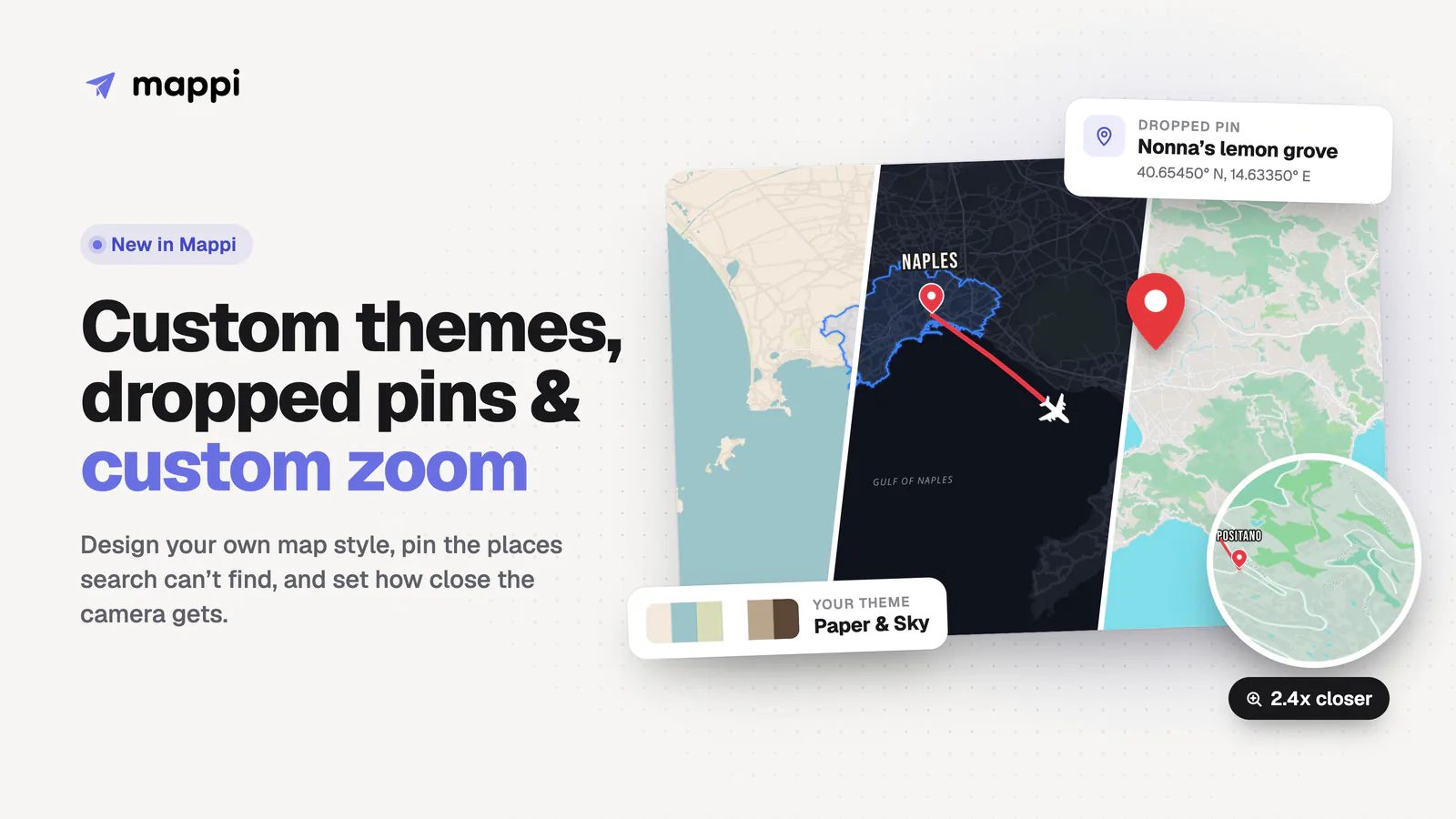
Every map video answers three questions before anyone notices: what the map looks like, where exactly you're going, and how close the camera gets when you arrive. Until now, Mappi answered most of them for you. You picked from our map themes, every stop had to be something search could find, and the camera chose its own zoom.
This update hands all three back to you. To show them off, we built a small trip along Italy's Amalfi Coast, from Naples to Positano to Amalfi, plus one stop you won't find on any search engine.
Custom map themes: design your own map style
A map theme sets the mood before the first camera move plays. Paper tones read like a travel journal. A dark map with glowing roads feels cinematic. Instead of picking the closest preset, you can now build the exact look you want and watch your map change as you go.
Six colors, one complete map style
A custom theme is six colors: Land, Water, Parks, Roads, Borders, and Labels. Mappi derives every other detail of the map from them, so minor roads, landcover, buildings, and label halos stay in harmony instead of fighting each other. A Detail slider sets how busy the map gets, and a Map labels switch hides the base map's place names when your own labels should be the only text on screen.
How to create a custom map theme
- In the editor, click the Palette button on the toolbar above your map. Under Custom themes, choose Create your own.
- Pick a starting point: your current map, any Mappi theme, or a ready-made mood like Midnight, Neon, Sandstone, Mint, Blush, Atlas, or Mono.
- Click Shuffle (or press S) for fresh color combinations. Click the lock next to any color you want to keep, and only the rest will change.
- Fine-tune any color with its picker, or type a hex code. Undo and redo freely with Cmd/Ctrl+Z.
- Click Save theme. Mappi suggests a name from your colors (ours was “Paper & Sky”), and the theme is saved under Custom themes so you can apply it to any map in one click.
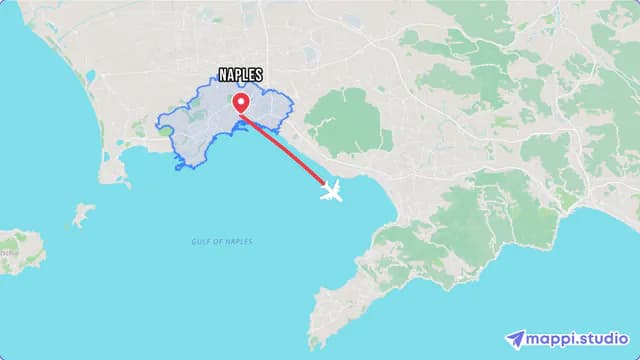
Mappi default
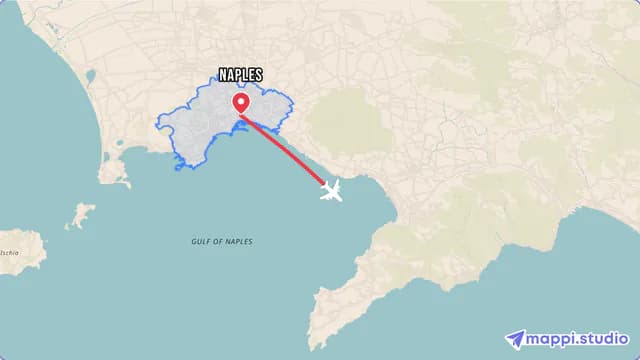
Sandstone
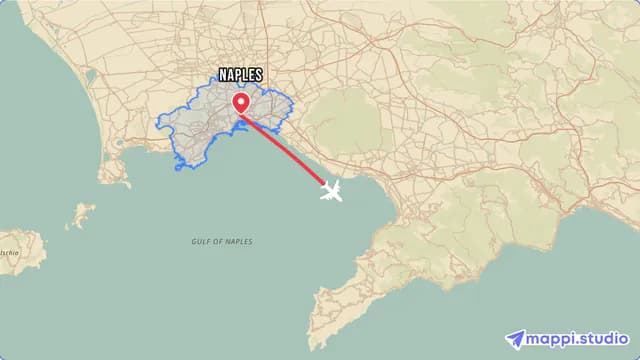
Atlas
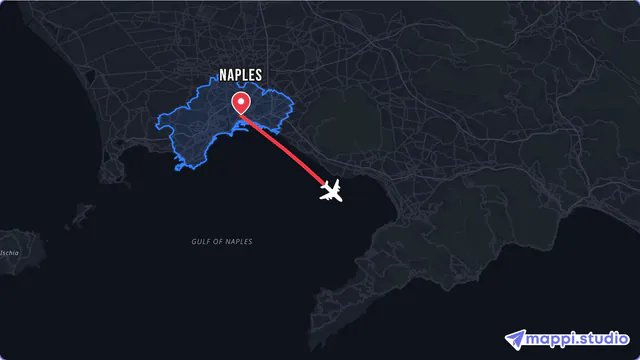
Midnight
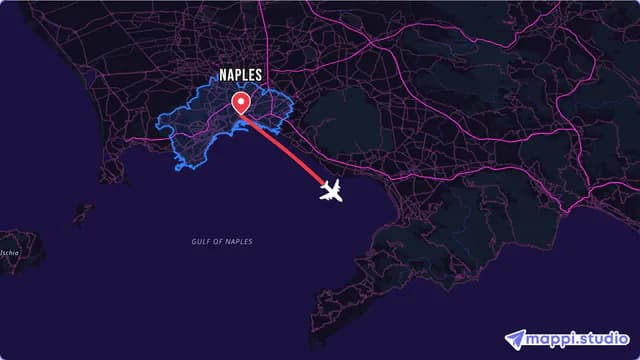
Neon
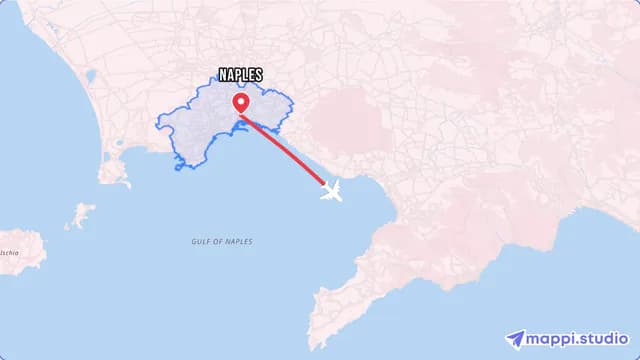
Blush
Tips for a theme that works on video
- Match your brand. Type your brand's hex codes into the color pickers. Our guide to matching your map style to your brand colors covers which color belongs where.
- Lock the water first. On a coastal map, water covers the most of the frame and sets the tone. Lock it, then shuffle everything else. That's how we got the coral roads in the clip above.
- Keep labels readable. When your label color gets too close to the land color, the editor flags the low contrast and offers a one-click fix.
- Judge it in motion. The preview keeps playing while you edit, so you see your theme the way viewers will, not as a still.
Anyone can open the theme editor and preview a theme on their own map. Saving, applying, and exporting custom themes is part of Mappi Pro. For a deeper look at map styling, read the custom map styles tutorial.
Drop a pin: add places search can't find
Some of the best places in a story don't have a listing: the trailhead where the hike really starts, the beach you swam at, the cabin your family rents every summer, a campsite, a filming location. Search can't help with those, so now you can put them on the map yourself.
We wanted our Amalfi trip to end at Nonna's lemon grove, on the terraced hills above Minori. Search had no idea what that was.
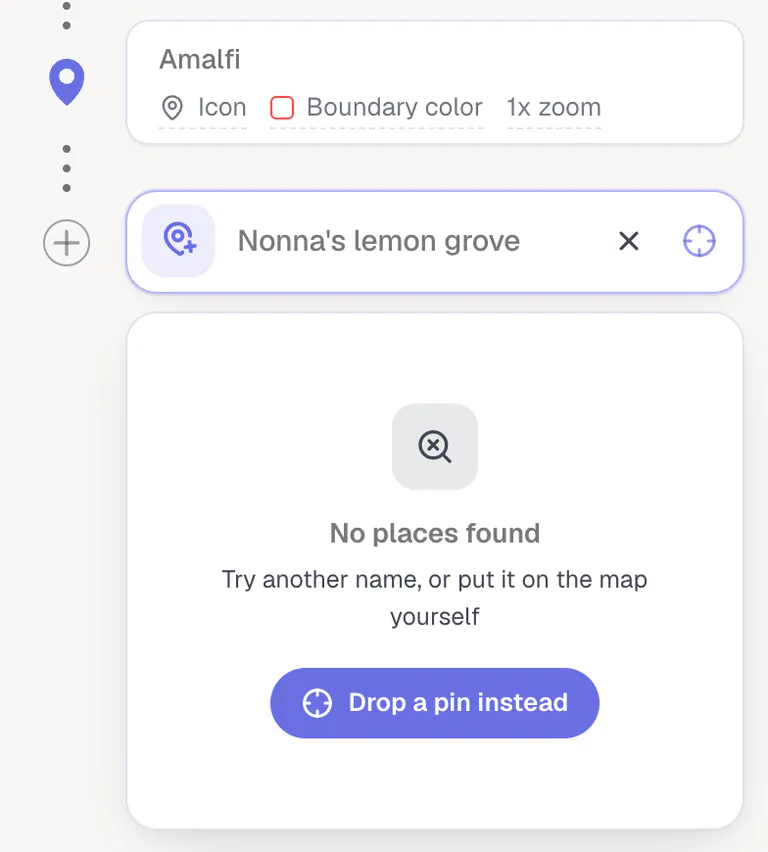
How to drop a custom pin
- Click Add destination and type a name for the place. Whatever you type becomes the pin's label.
- Choose to drop a pin: the crosshair Drop pin button at the end of the search field, the Can't find it? Drop a pin row under the results, or Drop a pin instead when nothing matches. On a phone, Drop a pin on the map is there before you type a thing.
- Your preview turns into a map with a fixed pin in the middle. Drag the map, or click a spot, to bring your place under the pin. Zoom all the way out and you get a globe to spin.
- Already know the spot? Type a place, or paste coordinates like
40.6545, 14.6335, into the search at the top left, and the map flies there. - Zoom to set how close the video gets. The card shows the zoom and how much ground the frame covers, like “Zoom 13.2 · 7.0 km across”.
- Click Add destination (or press Enter).
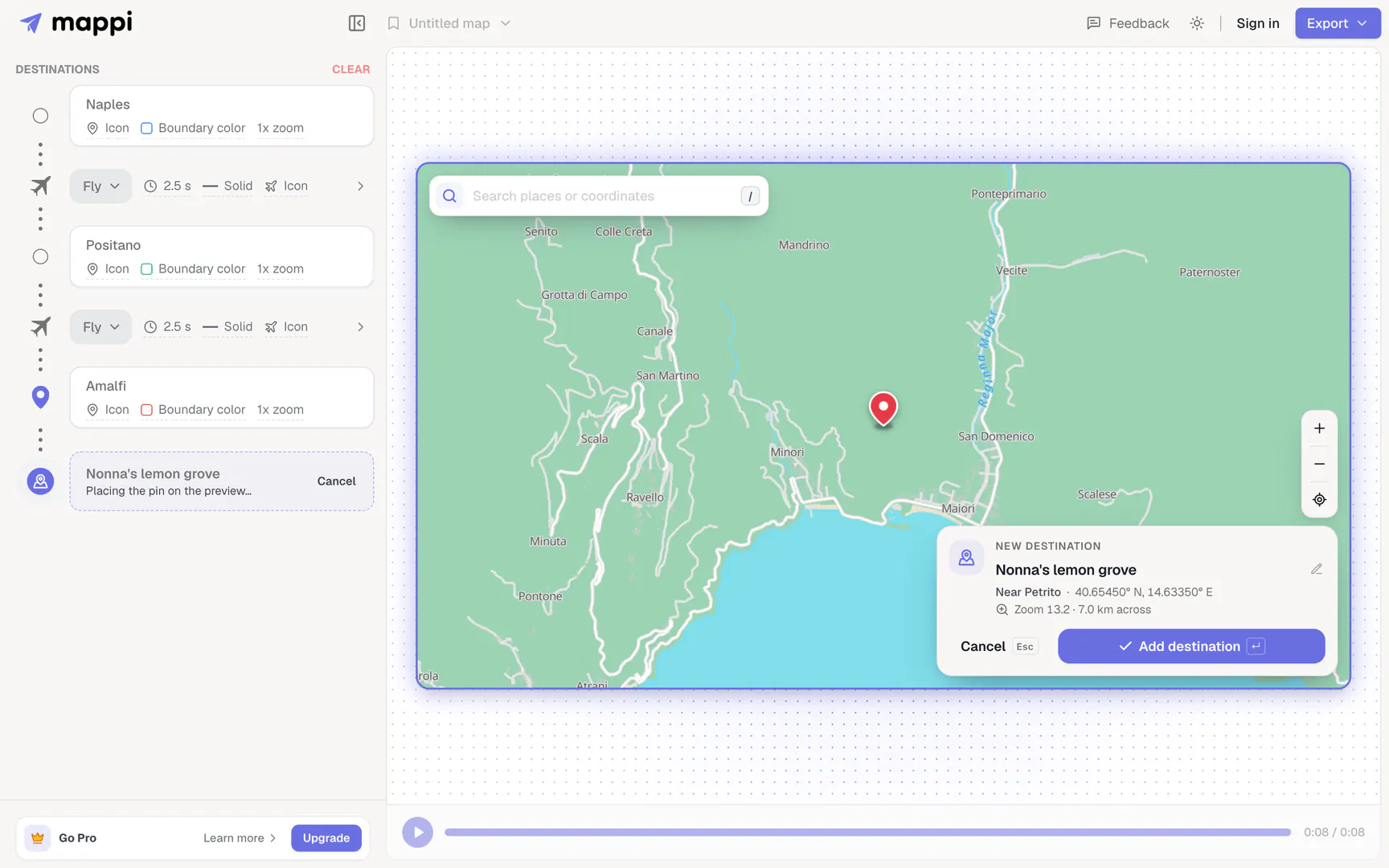
A dropped pin is a full destination. The leg to it animates like any other, whether you fly, drive, walk, sail, or take transit, and you can style its icon and label or upload your own boundary for it. See the map pins, labels, and icons tutorial for the styling side.
Need to fix it later? Move pin reopens the picker on it. And if your secret spot turns out to be on Google after all, Swap for a searched place turns the pin into a regular place, searching near the pin, and keeps its spot in your route. Keyboard fans get shortcuts too: / jumps to the search, the arrow keys pan, + and - zoom, Enter adds, and Esc cancels.
Dropped pins shine on road trips with multiple stops, where the best moments are pull-offs, viewpoints, and campsites rather than cities.
Custom zoom: frame every stop with Adjust view
Mappi frames each destination automatically, fitting the place on screen. That's a great default, but it isn't always the shot you want. Maybe you want to get right into a village's streets, pull back to show the whole region, or move the pin to one side to leave room for a title or a lower third. Adjust view does all three, one stop at a time.
How to set a custom zoom
- Click a destination in your list to open its settings, and find Camera on the General tab.
- Click Adjust view on map. The preview jumps to the exact moment the camera settles on that place, so you frame the real shot.
- Scroll, pinch your trackpad, or use the + and - buttons to zoom. Drag to move the pin.
- Click Save (or press Enter). Changed your mind? Reset to auto brings back Mappi's framing.
On desktop there's also a Zoom slider right in the place settings, with plain labels like “2x closer”, “Auto”, and “1.4x wider”, plus a Center pin button.
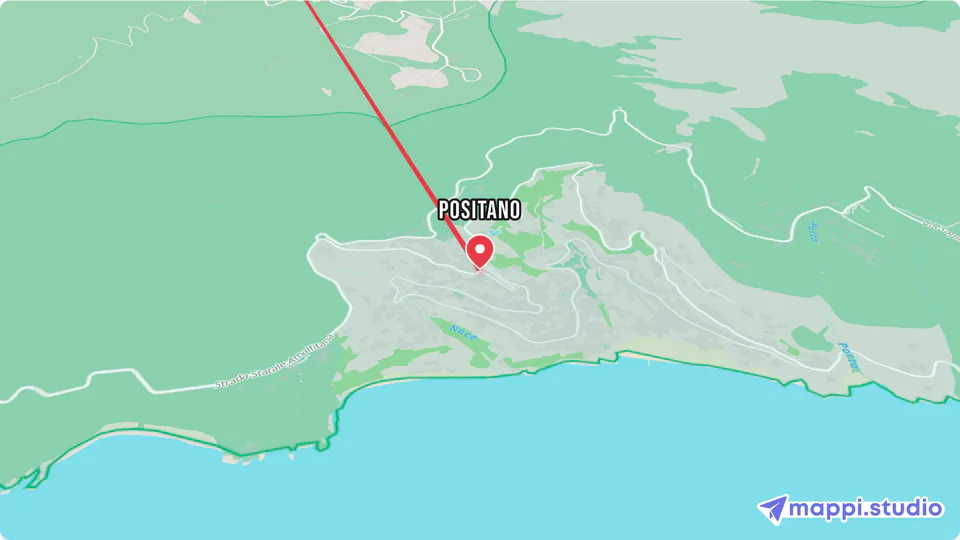
Auto framing
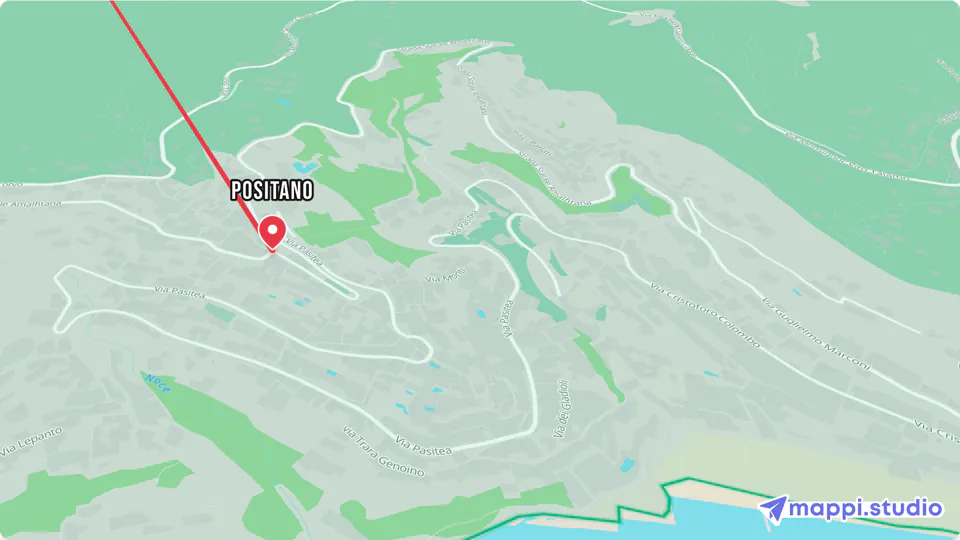
2.4x closer, pin off-center
Why it holds up in every format
Your framing is stored relative to Mappi's automatic framing, not as a fixed zoom level. So it carries over when you switch between widescreen, square, and vertical video for TikTok and Reels. It holds through the intro and outro, and the camera blends smoothly along a flight between two stops with different framing. Pins, labels, and boundaries move with the camera, so everything stays lined up in the preview and in the export.
To shape how the camera travels between stops, read the camera movements and easing tutorial. For an opening shot, pair a tight first stop with a map zoom-in intro.
Putting it all together
Here's the finished Amalfi trip: the Paper & Sky theme, a dropped pin for Nonna's lemon grove, and Positano framed 2.4x closer than the default. Each change took about a minute, and all of it lives in the map, so it carries into every export and every aspect ratio.
Making a travel video for your channel? Our guide to making an animated travel map video for YouTube walks through the whole workflow, and the full release notes for these features are in the changelog.
FAQ
Are custom map themes free?
You can open the theme editor and preview custom themes on your own map on any plan. Saving, applying, and exporting them requires Mappi Pro.
Can I drop a pin using GPS coordinates?
Yes. Paste a latitude and longitude, like 40.6545, 14.6335, into the search at the top left of the pin picker and the map flies straight there. The card shows the pin's exact coordinates as you move it.
Do driving and walking routes work with dropped pins?
Yes. Routes reach a dropped pin by its coordinates, so drive, walk, sail, and transit legs work just like they do for places you searched for.
Will my custom zoom survive a switch to vertical video?
Yes. Custom zoom is saved relative to Mappi's automatic framing, so it carries over between 16:9, 1:1, 4:5, and 9:16.
How do I undo a custom zoom?
Open the destination's settings and click Reset to auto in the Camera section to go back to Mappi's automatic framing.
Make your next map video yours
Add a few stops, give the map your colors, pin the places that only you know, and frame each one the way you see it.
Continue reading
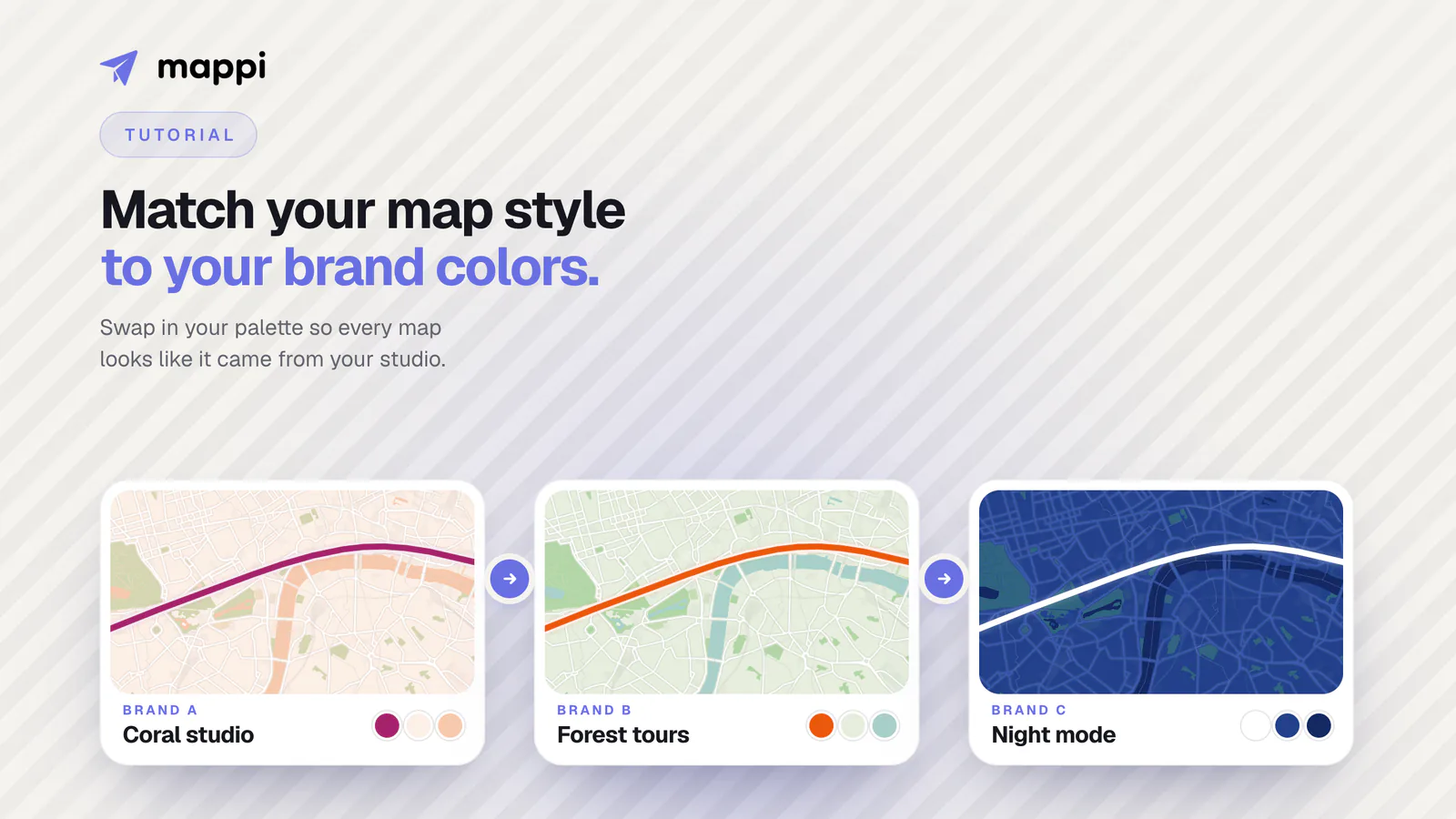
How to Match Your Map Style to Your Brand Colors
Paste your brand hex codes into the Theme panel, map land, water, and roads to your palette, and save a reusable theme every project can start from.
How to Animate a Road Trip Route With Multiple Stops
Turn a list of stops into an animated drive: Drive mode in the Route dock, drag-to-reorder, per-leg durations, and pause holds at every stop.
