Map Animation In Canva
Create cinematic map animations in Mappi and bring them straight into your Canva workflow. Animate routes, highlight destinations, export in 4K, and drop the video into any Canva design in minutes.
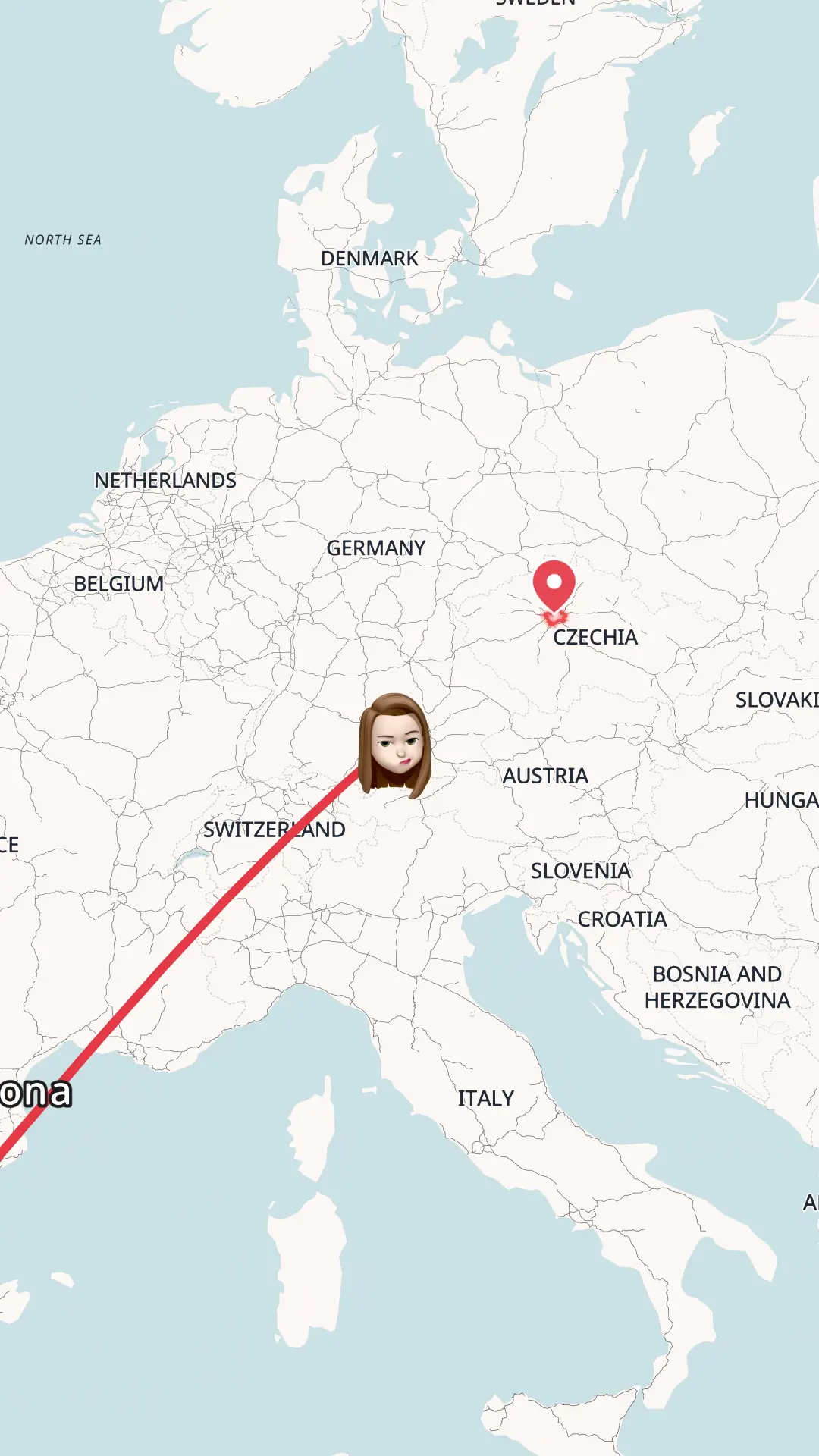
Create a map animation in Canva
Canva does not include a built-in animated map maker, but you can create one with Mappi and import it into Canva in a few clicks. Here is the full workflow, step by step.
- Step 1
Create a Mappi account
Sign up for Mappi for free in your browser. No download or install required. Your account gives you access to the full Mappi editor, cinematic map themes, and video export.
- Step 2
Export your animation out of Mappi
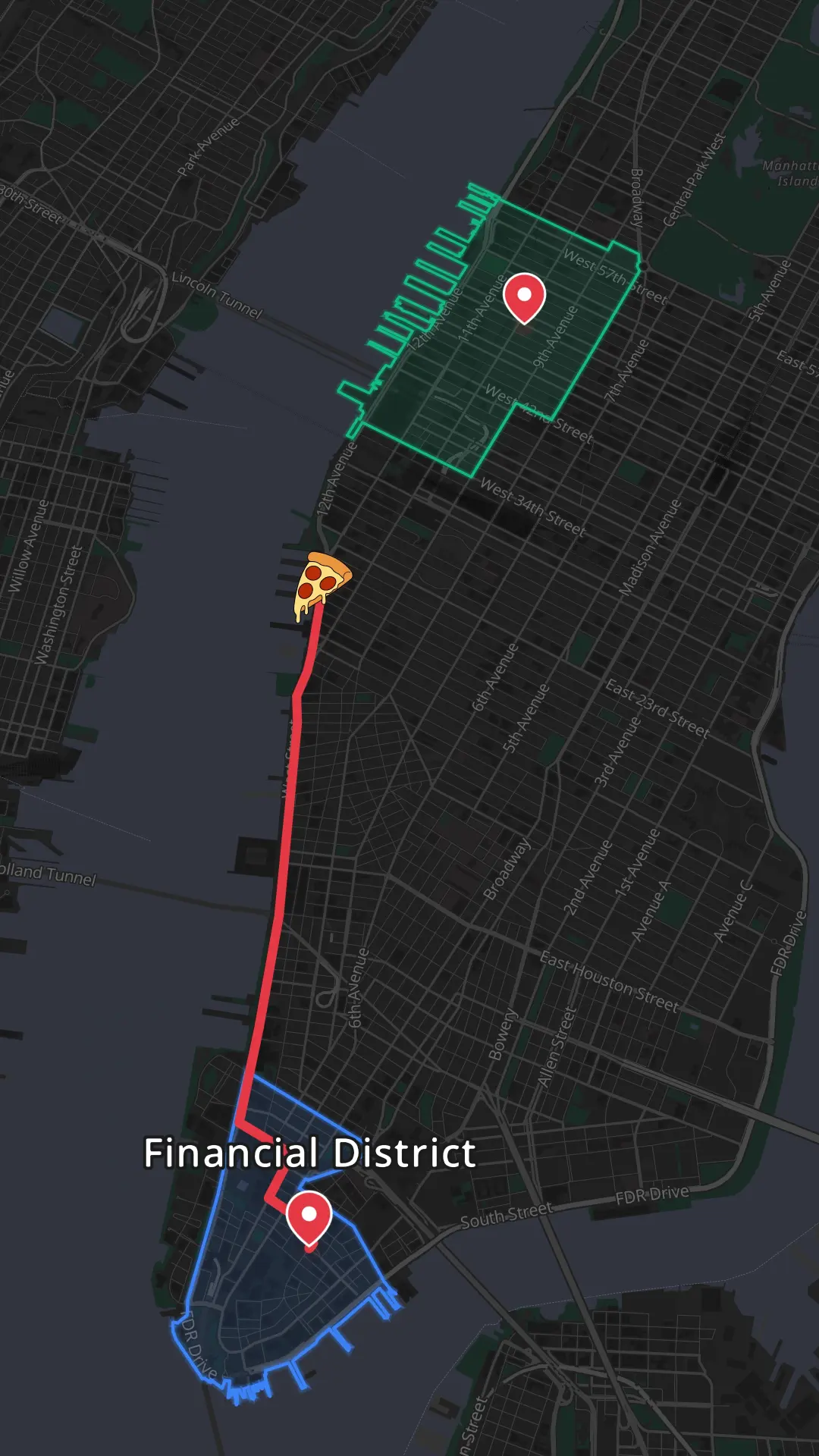
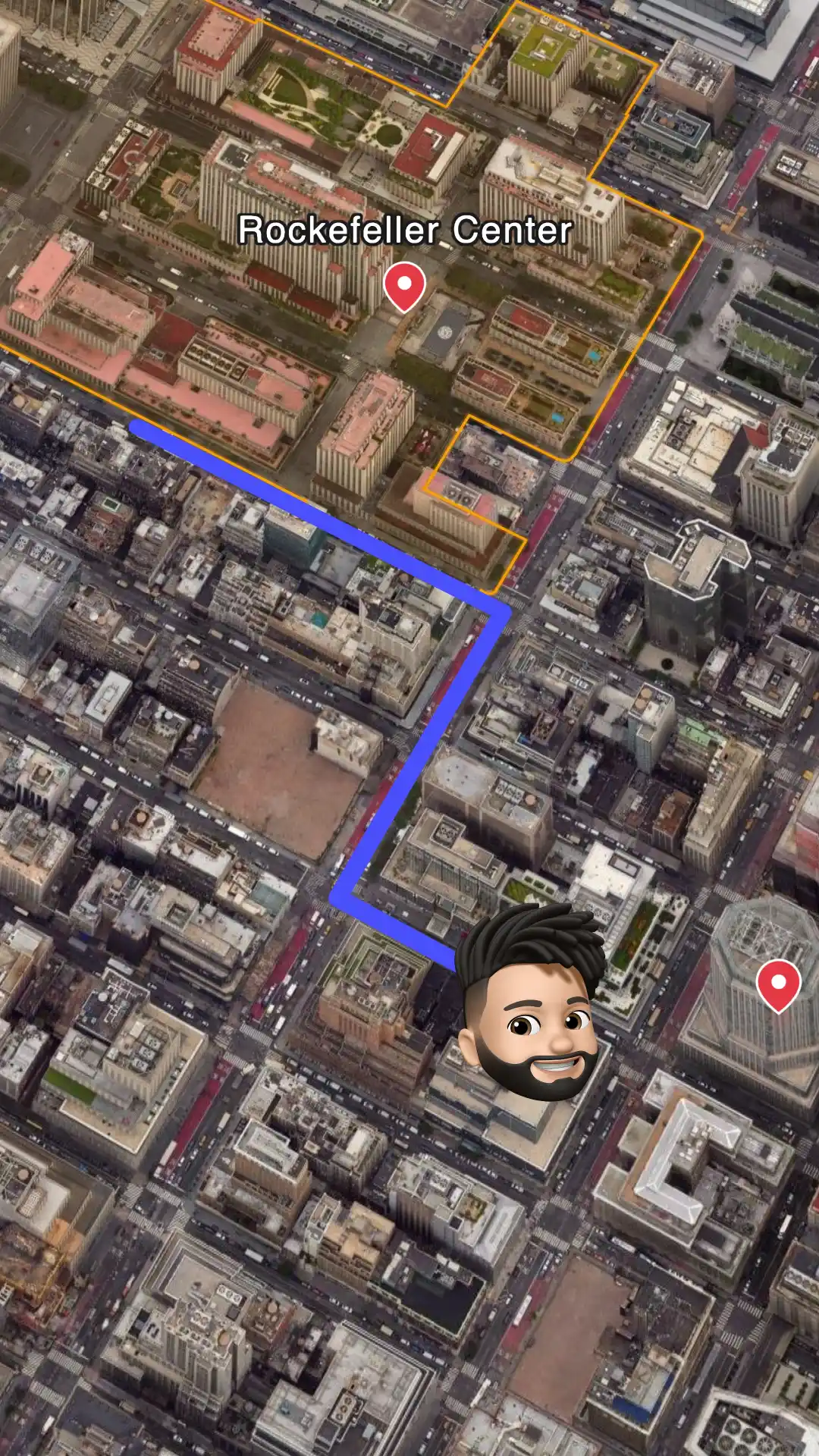
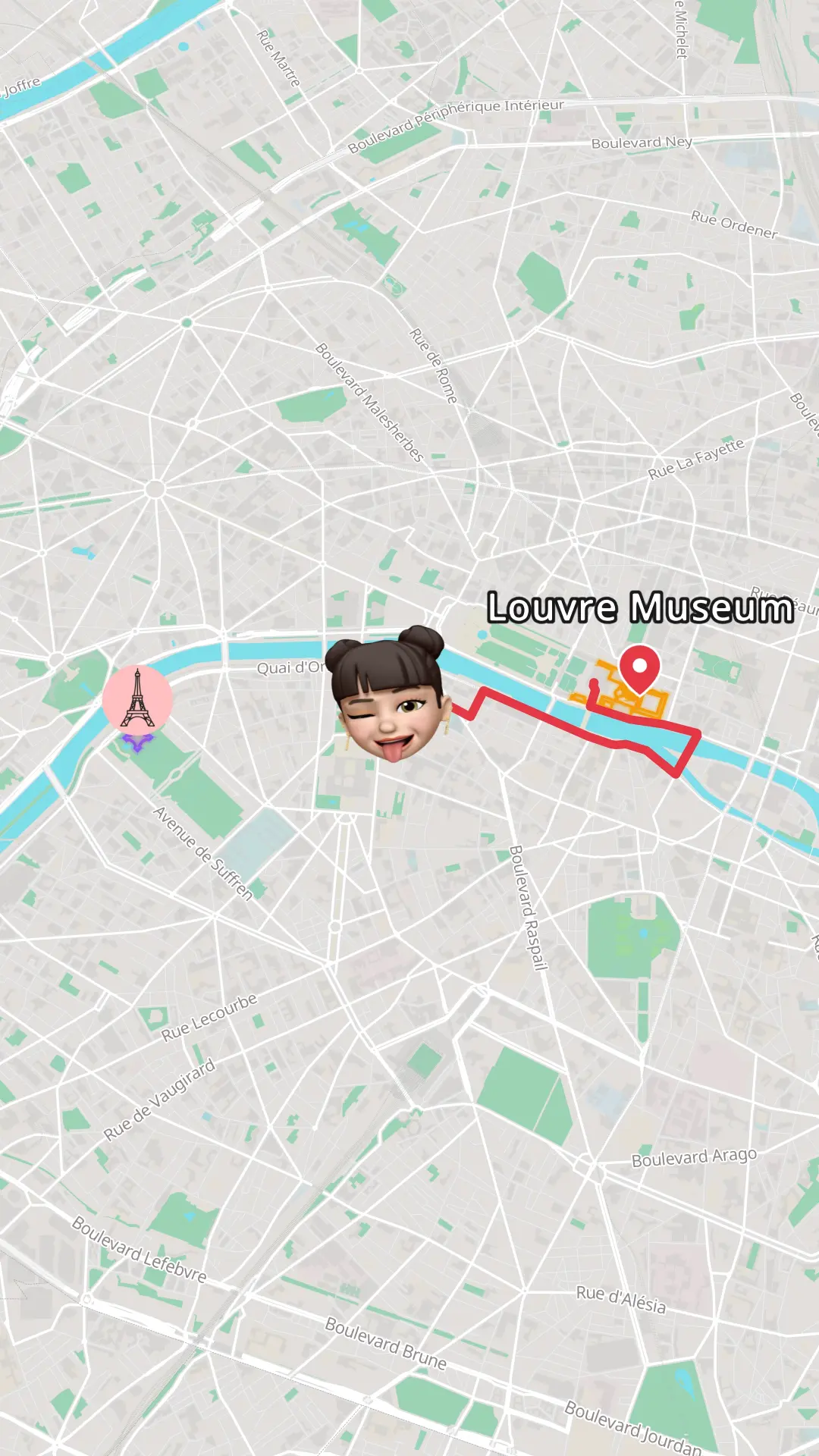
Build your map in the Mappi editor: search for your destinations, add routes between them, and pick a theme that matches your Canva design. Choose the aspect ratio you need: 9:16 for Reels, 16:9 for presentations, or 1:1 for feed posts. Then export it as an MP4 video file.
- Step 3
Open the Canva editor
Open your design in Canva, or start a new one. In the left-hand panel, go to the Uploads tab and click the Upload files button. This is where your Mappi video comes in.
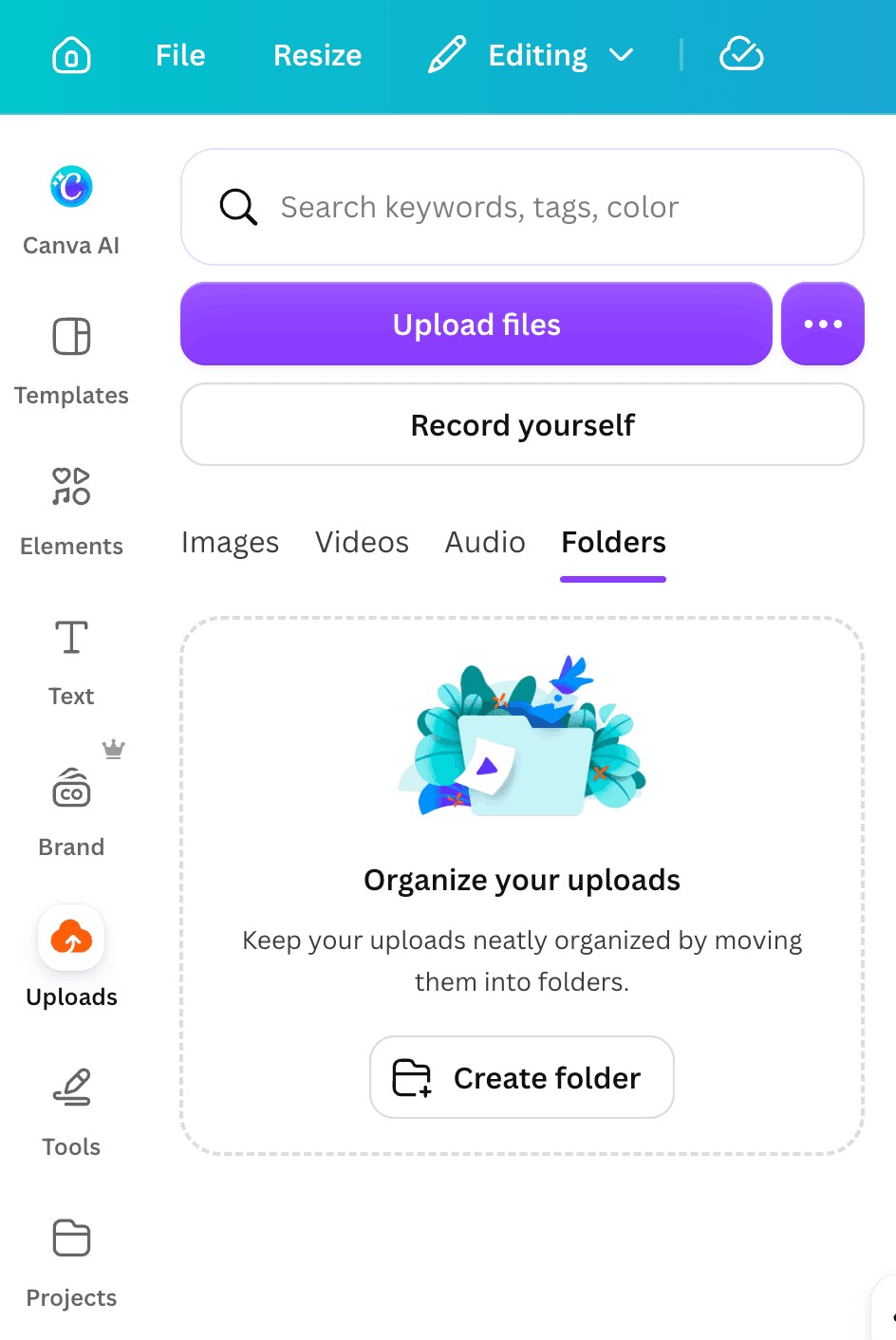
The Uploads tab in the Canva editor. Click "Upload files" to import your Mappi video. - Step 4
Import your video into Canva
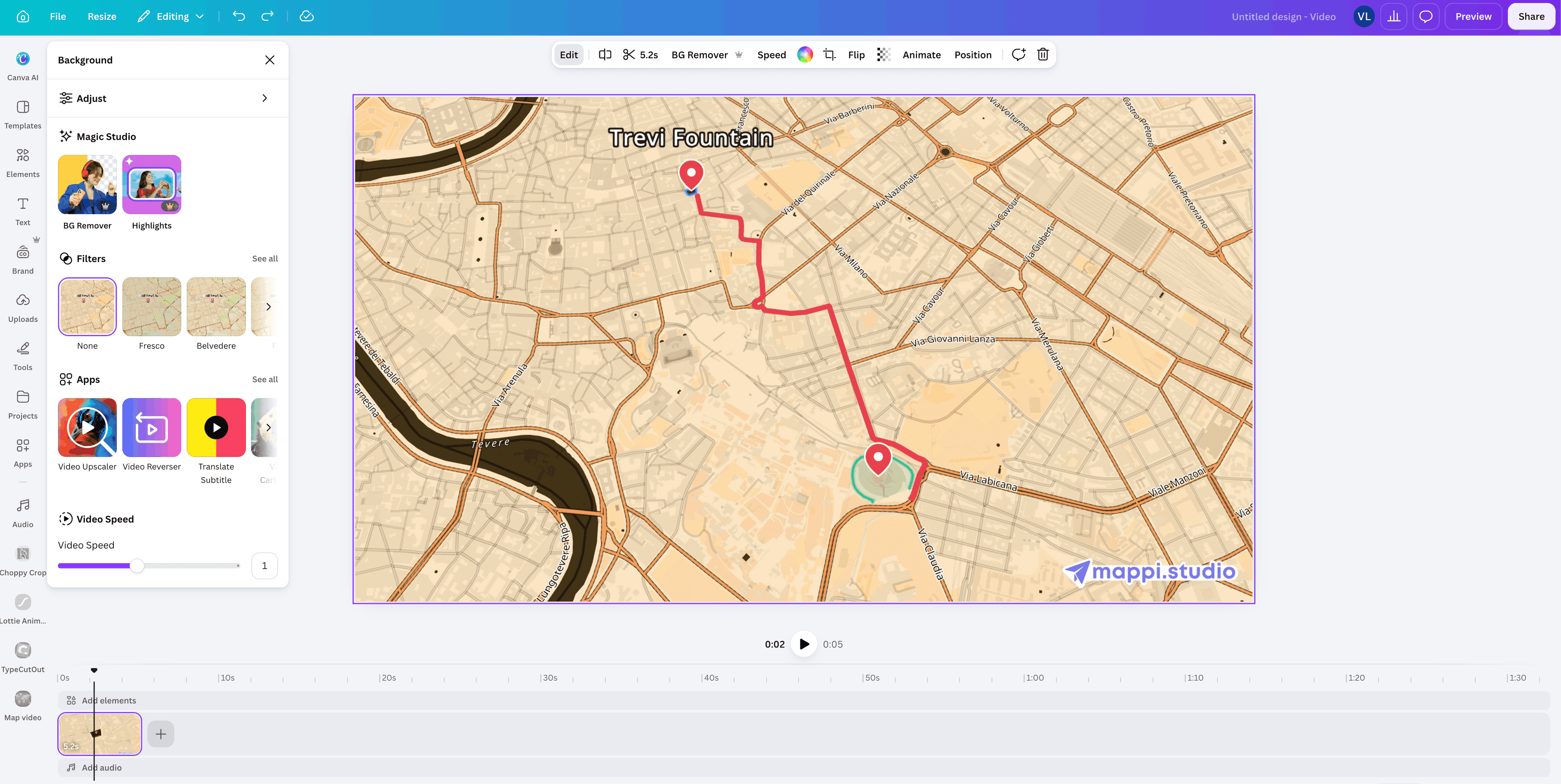
Select the MP4 file you exported from Mappi. Canva uploads it to your Videos library, and from there you can drag the clip onto your design canvas. It behaves like any other video element: resize it, reposition it, or set it as a full-page background.
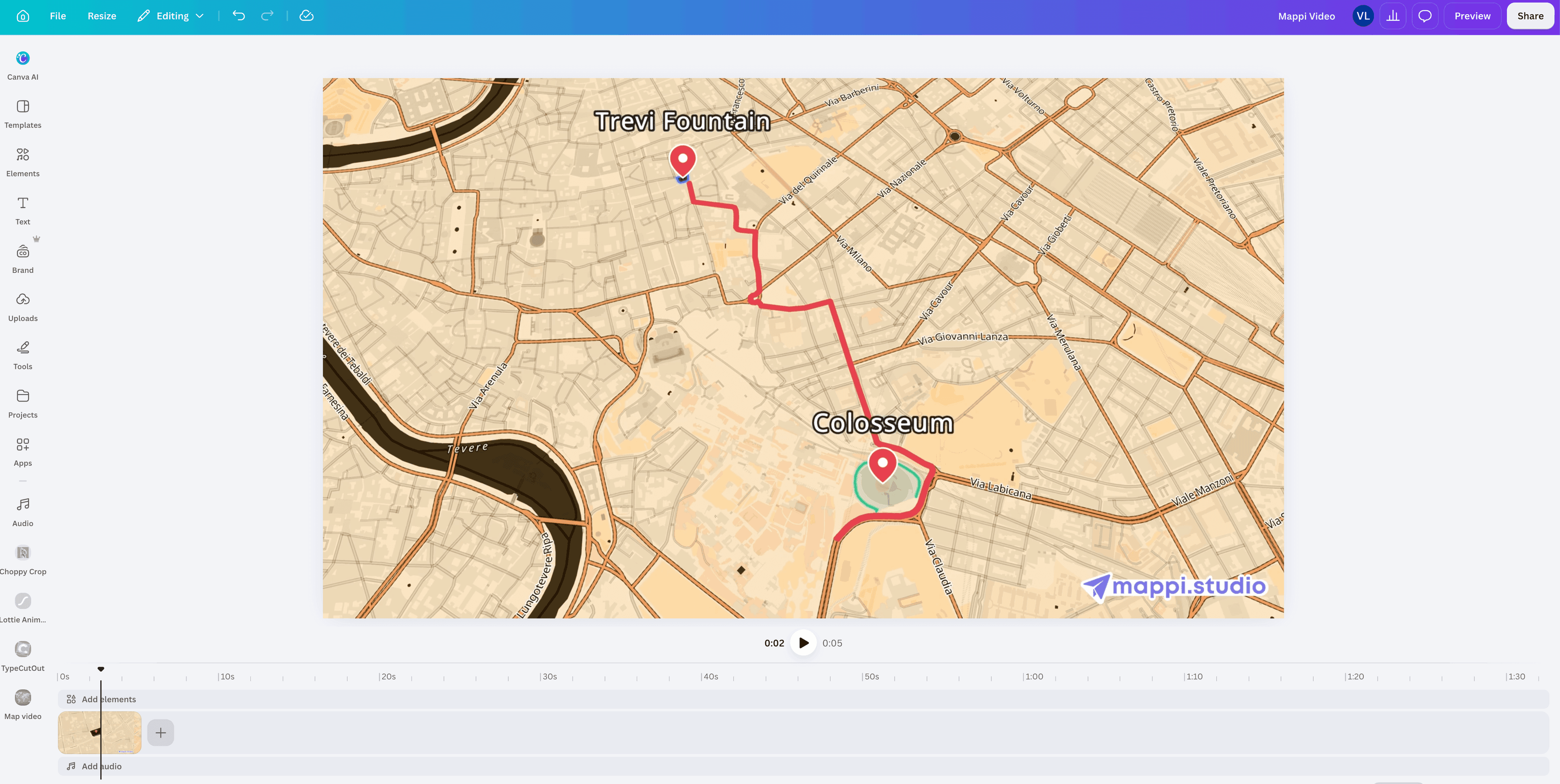
Your Mappi video on the Canva canvas, ready to be resized and positioned like any other clip. - Step 5
Edit the imported animation in Canva
Once the video is on your canvas, the whole Canva toolkit opens up. Trim the clip on the timeline, layer animated text and headings over the map, and style everything with your Brand Kit fonts and colors.
- Trim and split the clip on the Canva video timeline to match your pacing.
- Apply Canva video filters and adjust brightness, contrast, and saturation to match your design.
- Layer animated text, headings, and captions over the map with Canva text effects.
- Add stickers, frames, shapes, and graphics from the Canva Elements library around the animation.
- Sync the animation with a soundtrack from the Canva audio library.
- Apply your Brand Kit fonts, colors, and logo for on-brand travel or marketing content.
- Use Magic Switch to resize the same design into a Reel, presentation slide, or story without rebuilding it.
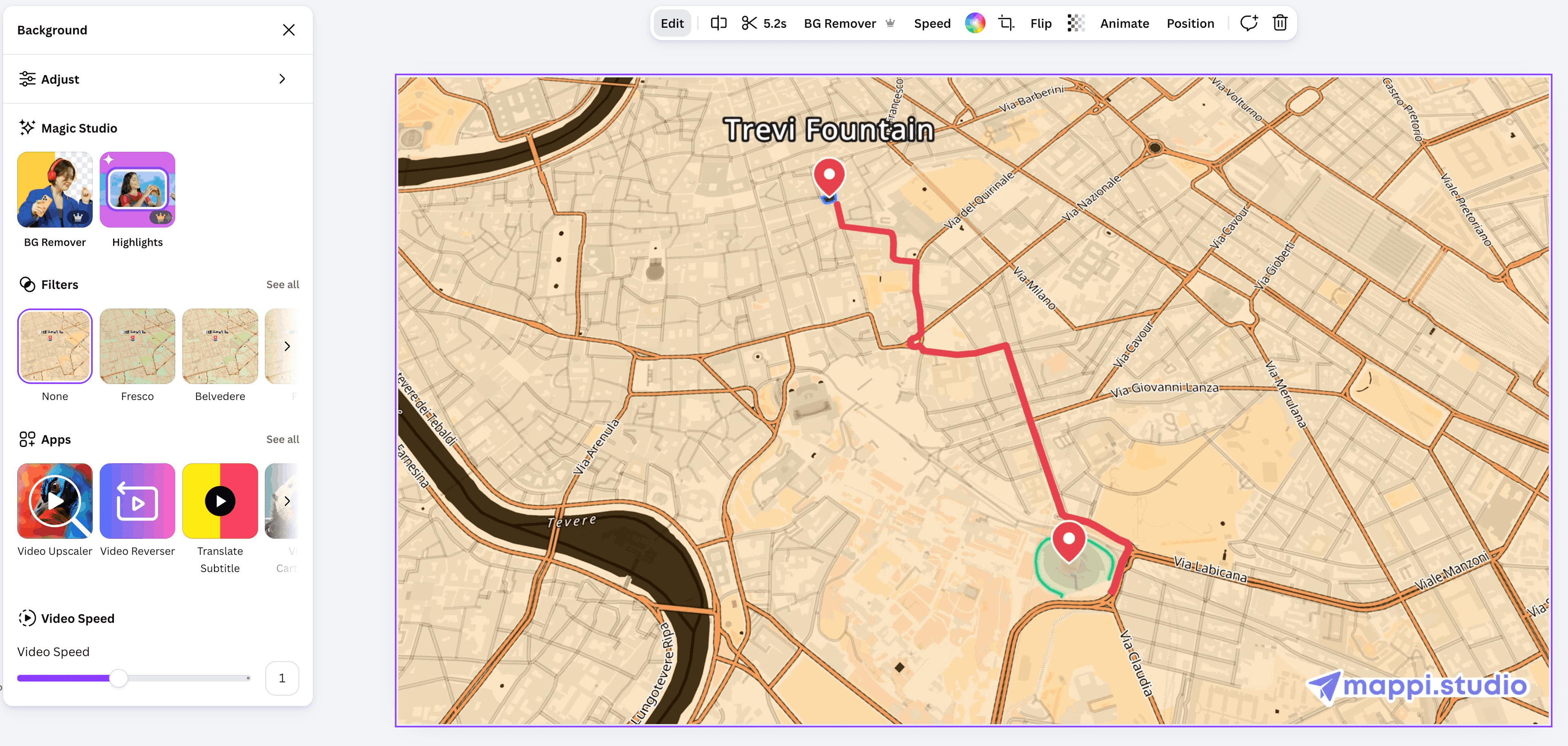
The finished result: an animated map styled inside Canva with text overlays and brand elements.
Read the next guide
The same Mappi export works in every editor. See how to import it into these tools.


Add a moving map to your next Canva design
Create your map in Mappi, export it in 4K, and drop it into Canva in minutes. Free to try, no editing skills required.



Mappi is the simplest way to create stunning animated maps. Perfect for YouTubers, journalists, and storytellers.
 Stripe Climate member
© 2026 Mappi. All rights reserved.