


Camera Director: Cinematic Map Camera Moves Made Easy
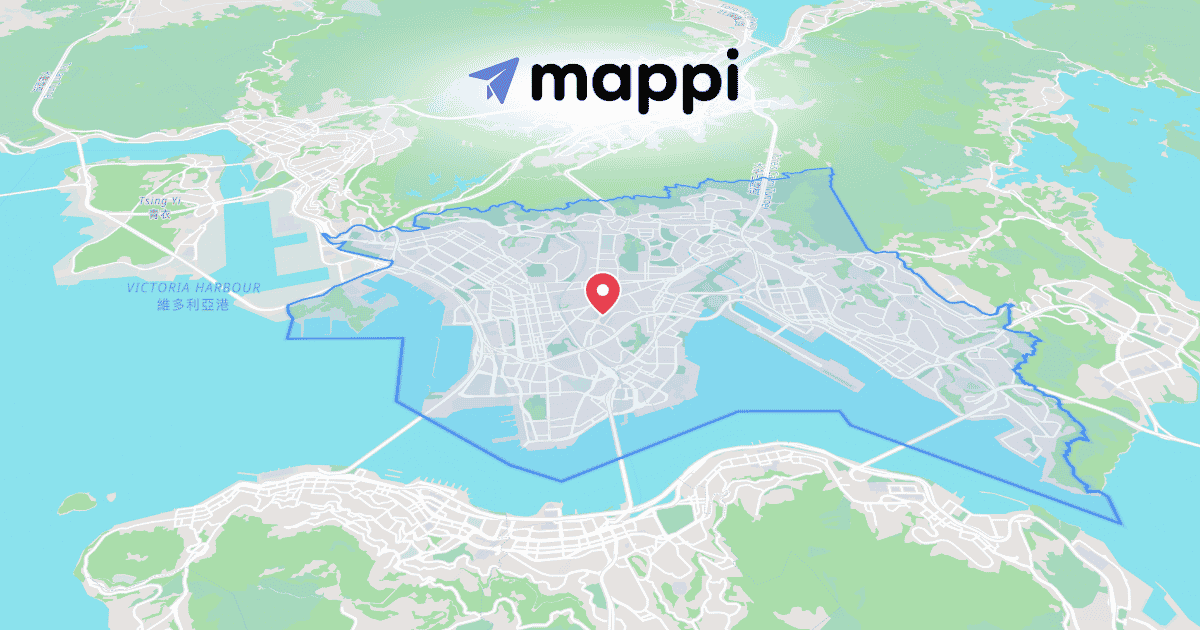
A great route with a static camera still reads like a screenshot. The camera is what makes a map feel cinematic, and Camera Director hands you a director's toolkit without asking you to touch a single keyframe.
Build a shot list, not keyframes
Open the right panel and select Camera. Instead of animating positions by hand, you stack named shots into a list:
- Orbit circles a landmark or city while the world turns beneath it.
- Follow tracks a moving route from behind, like a chase cam.
- Zoom-in reveal dives from globe to street. It's the classic way to create a map zoom-in intro.
- Tilt pitches the horizon for a dramatic low angle.
Per-shot speed and framing
Every shot carries its own speed and framing, so a slow establishing orbit can hand off to a quick follow without compromising either one. Stretching a shot is also the easiest way to slow down map zooms for a cinematic effect. For the motion in between, shots ease with Motion Curves, so nothing starts or stops abruptly.
Made for moving subjects
Camera Director really shines when something is moving underneath it. A follow shot chasing a runner through world marathon routes as map animations feels like a broadcast helicopter feed, not a slideshow.
Give the camera something worth chasing. Plot your journey with Route Builder first, then let the shot list bring it to life.
Continue reading
How to Create a Map Zoom-In Intro for Your Videos
The globe-to-street zoom is the strongest opening shot a location video can have. Build it with one Camera Director shot and one easing curve.
How to Slow Down Map Zooms for a Cinematic Effect
Swap the default snap for a slow, weighted glide: the Gentle Glide preset, a custom bezier, and longer shot durations.
