


How to Highlight a Country With an Animated Border
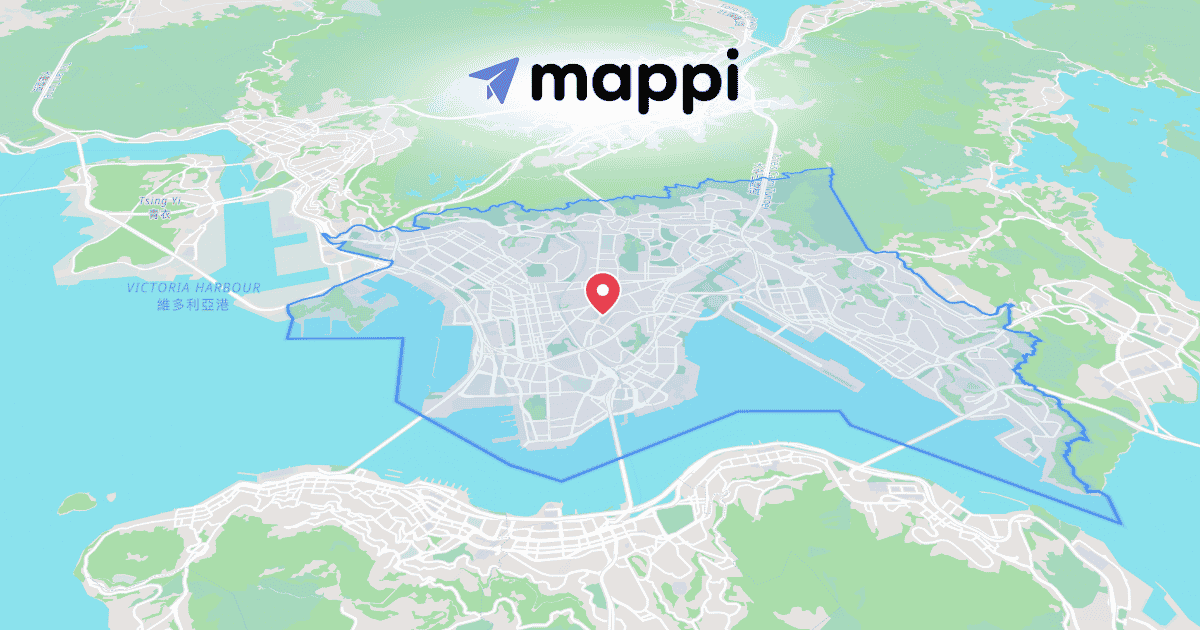
When you want a video to say "this is the place," nothing beats a border that draws itself. The outline traces the country, then the fill and the name follow. Mappi handles the whole sequence in one click.
Draw the border in three steps
- In the editor, open the search bar and switch to the Regions tab. That tab is Region Selector.
- Click your country. Mappi loads the exact boundary and applies an animated highlight: the outline draws on, then the fill fades in underneath it.
- Tune the timing so the border finishes drawing just before your narration names the country.
Make the reveal land
Fill, outline, and fade-in are all adjustable, so tune the highlight to your story instead of settling for the defaults. The country name deserves its own moment too. Click the label, open Label Styler, and set a per-label reveal so the text appears after the border completes rather than alongside it.
Beyond a single country
Stack several highlights in sequence to show alliances, spread, or the reach of an empire. Each region gets its own timing, so the story unfolds piece by piece. For a worked example at full scale, see the Roman road network as a map video.
If the default basemap fights your highlight color, restyle the land and water around it in Theme Studio.
Continue reading
Region Selector: Highlight Any Country in One Click
One click on any country, state, or city gives you an animated highlight, with fill, outline, and fade-in options built into the Region Selector.
How to Add Custom Labels and Callouts to Map Videos
Click a pin, open the Text panel, and style fonts, halos, and callout lines. Then time each label reveal to match your story.
