


Map Animation Troubleshooting: Fix Common Export Issues
Most export problems have boring causes and fast fixes. Map animation not exporting, coming out blurry, or playing back with jerky camera moves? This guide walks through the checks that resolve nearly every case inside the Mappi editor. Work top to bottom and you will usually be re-rendering within minutes.
Map animation not exporting? Run these checks
Renders happen in the cloud, so a stuck export is almost never about your computer. When a render sits at the same percentage for several minutes or ends with an error, go through these steps in order.
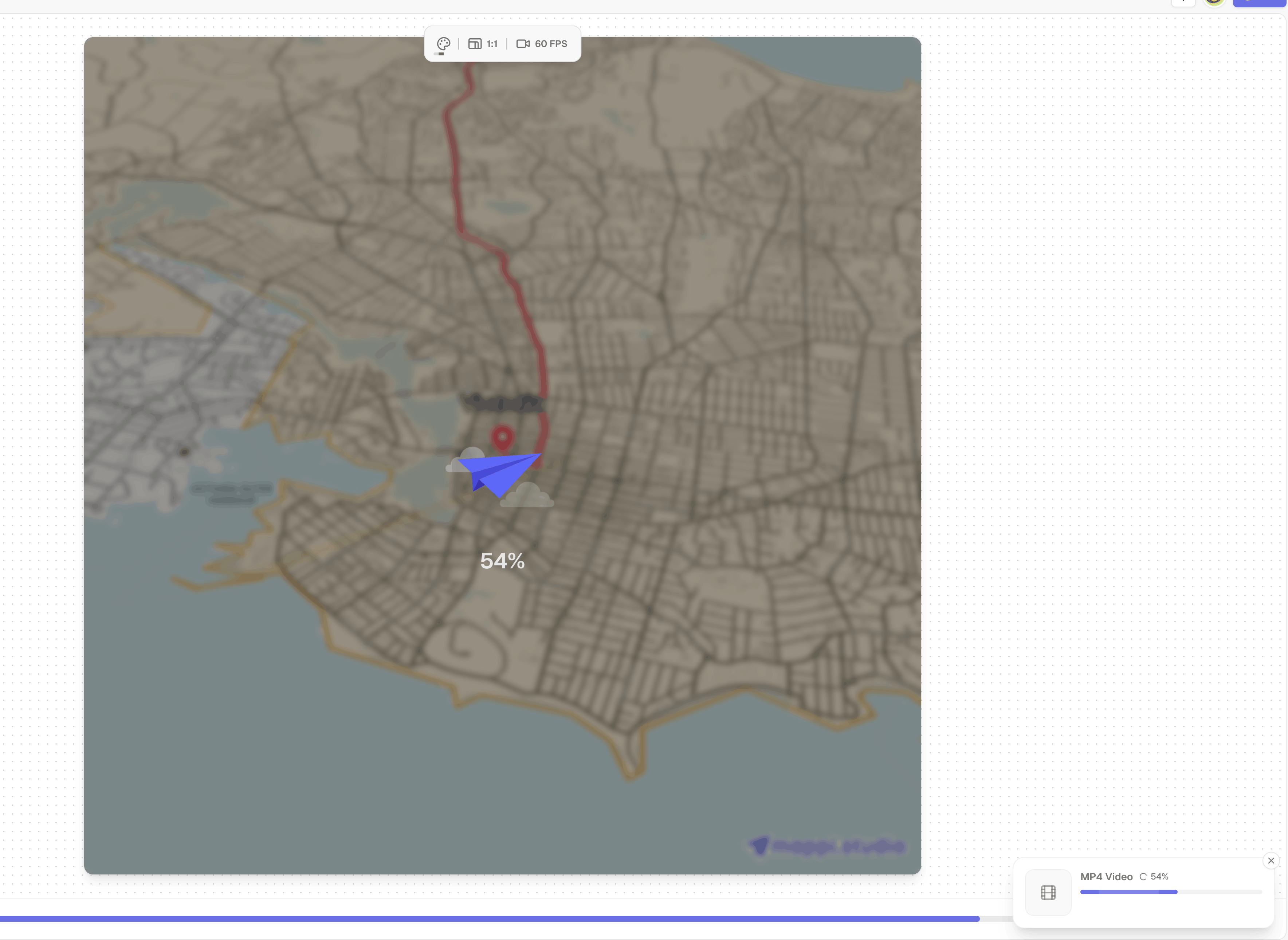
- Check the preview plays cleanly. Press play in the Mappi editor and watch the whole animation. A leg with no route type set, or a destination the search bar never fully resolved, stops a render where playback also stumbles.
- Confirm the plan matches the settings. 4K and the transparent background toggle are Pro features. If either is selected on a free account, drop to 1080p with a standard background and try again.
- Restart the render once. Cloud renders occasionally fail on transient issues. One clean retry from the Export panel rules that out before you change anything else.
- Shorten the test. If it still fails, duplicate the project and delete half the destinations. If the short version renders, the problem lives in a specific leg; add legs back until you find it.
Quality problems: symptom, cause, fix
When the export finishes but looks wrong, match the symptom in this table. Each fix is a single setting.
| Symptom | Likely cause | Fix |
|---|---|---|
| Blurry labels and roads | Resolution too low for the detail in frame | Export at 1080p minimum, or 4K on Pro for label-heavy animations |
| Choppy or abrupt camera moves | Easing set to Linear, or route speed too high | Switch the leg easing to Smooth or Slow arrival and lower the route speed |
| Unreadable text at arrivals | Label size too small for the camera distance | Raise the label size in the pin options, or increase the zoom level on that leg |
| Video looks washed out on upload | Platform re-compression eating a low-resolution file | Upload a higher resolution master so the re-encode has more detail to keep |
| Route hugs the frame edge | Aspect ratio changed after the camera was tuned | Re-check each leg zoom level in the new ratio before exporting |
When quality is fine but uploads look worse
If your downloaded MP4 looks sharp but the uploaded version does not, the platform re-encode is the culprit, and the only lever you control is the quality of the file you hand over. Export the highest resolution your plan allows and let the platform scale down. Our guide to exporting a map animation in 4K explains why map content suffers more from compression than regular footage and how a 4K master protects it.
What to do next
A failed export is usually one unresolved destination, one plan mismatch, or one setting away from working. Once it renders clean, the same discipline that fixed it will improve everything you make: preview fully, change one thing at a time, and export a strong master. For more of the craft, browse our map animation tutorials or continue with the related guides below.
