Map Animation In DaVinci Resolve
Create stunning map animations in Mappi and slot them straight into your DaVinci Resolve workflow. Fly between locations, trace animated routes, export a clean 4K MP4, then finish the edit with titles, grades, and retimes on the Resolve timeline.
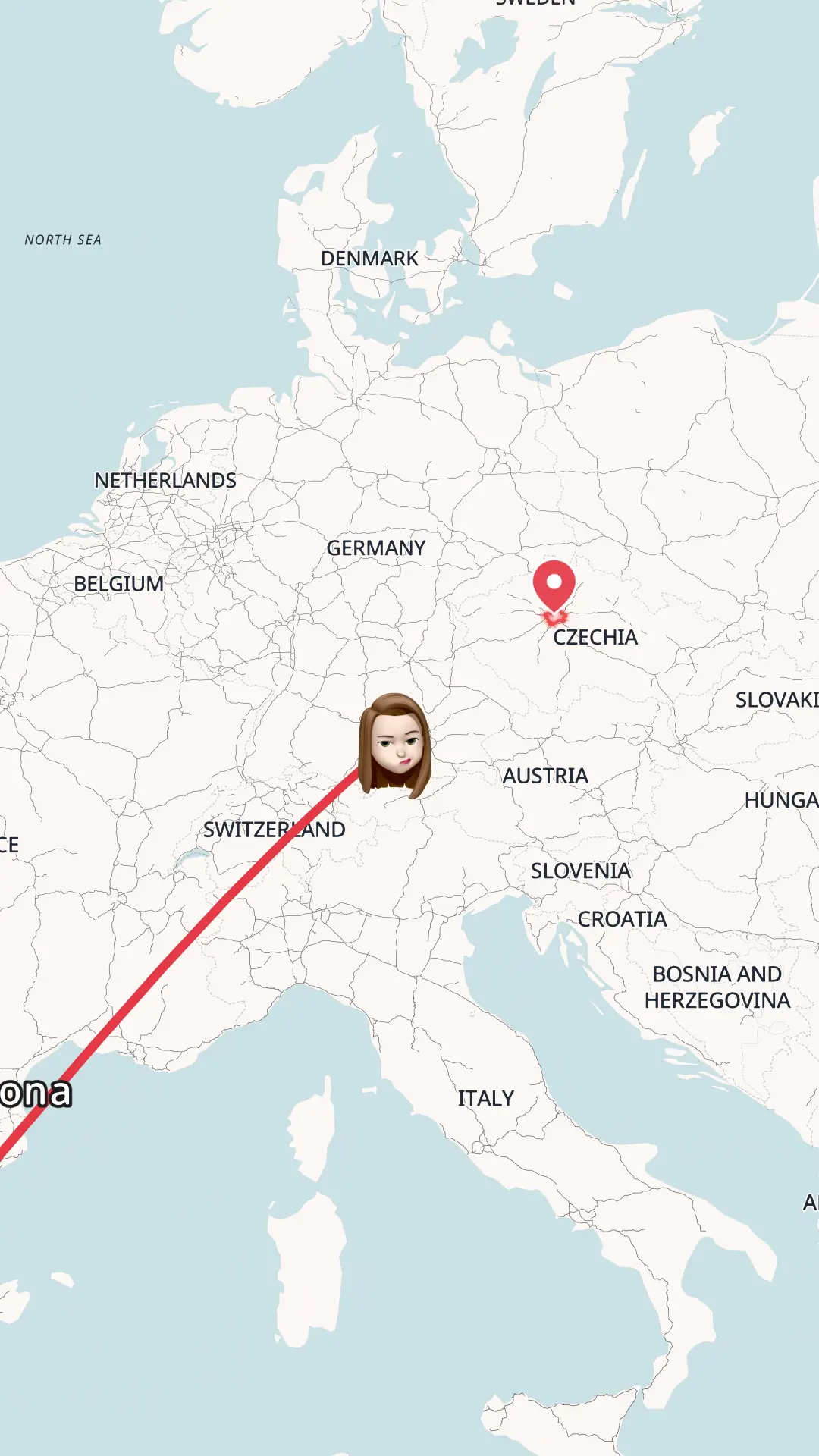
Create a map animation in DaVinci Resolve
DaVinci Resolve has no built-in animated map generator, and rebuilding one in Fusion takes serious node work. The quicker path: generate the map video in Mappi, then bring it into your Resolve project as a clip. Here is the full workflow.
- Step 1
Create a Mappi account
Sign up for Mappi for free, directly in your browser. No plugins, templates, or Fusion presets to install. You get the full Mappi editor with cinematic map themes, camera flights, and high-resolution video export.
- Step 2
Build and export your map in Mappi
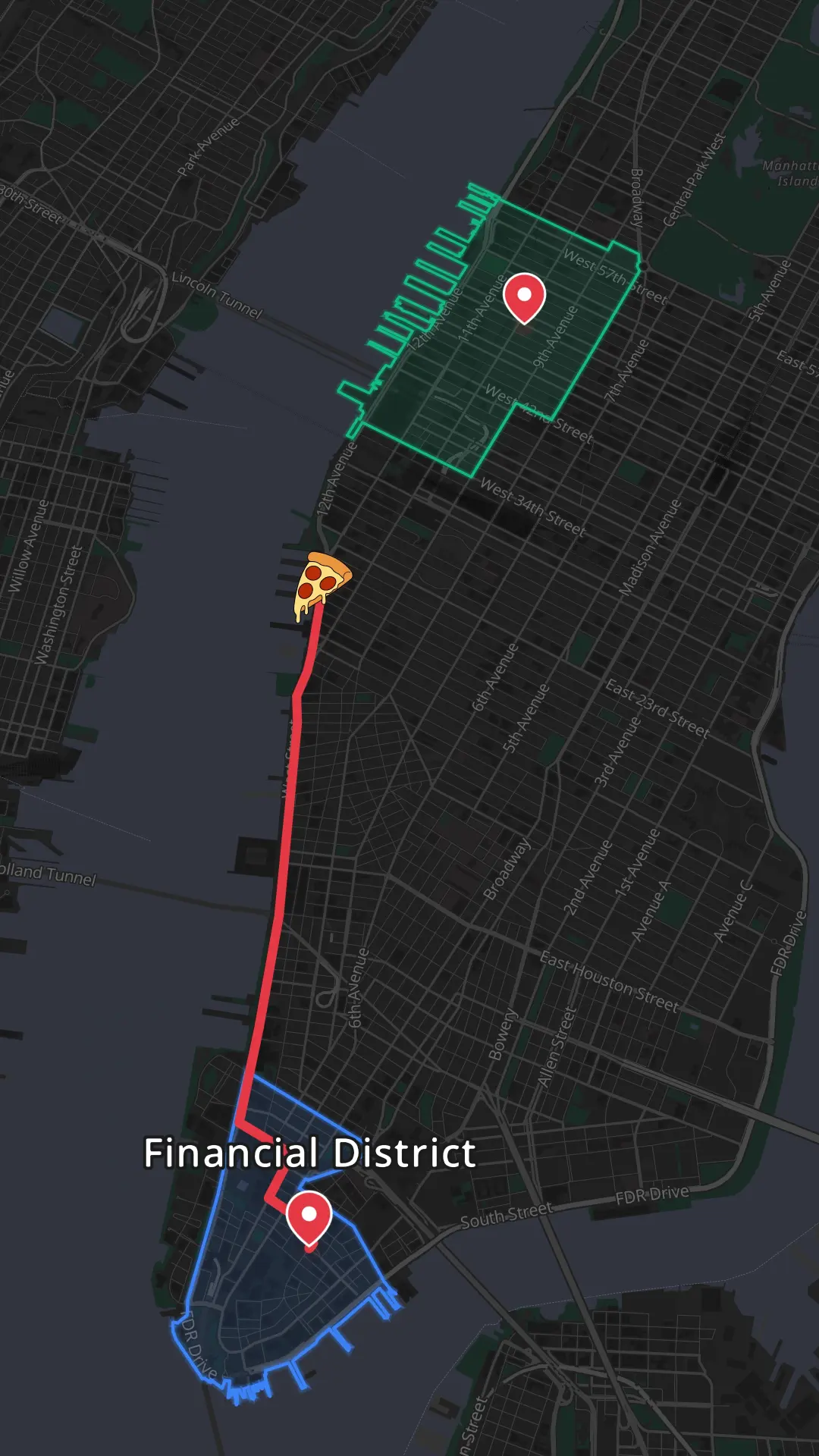
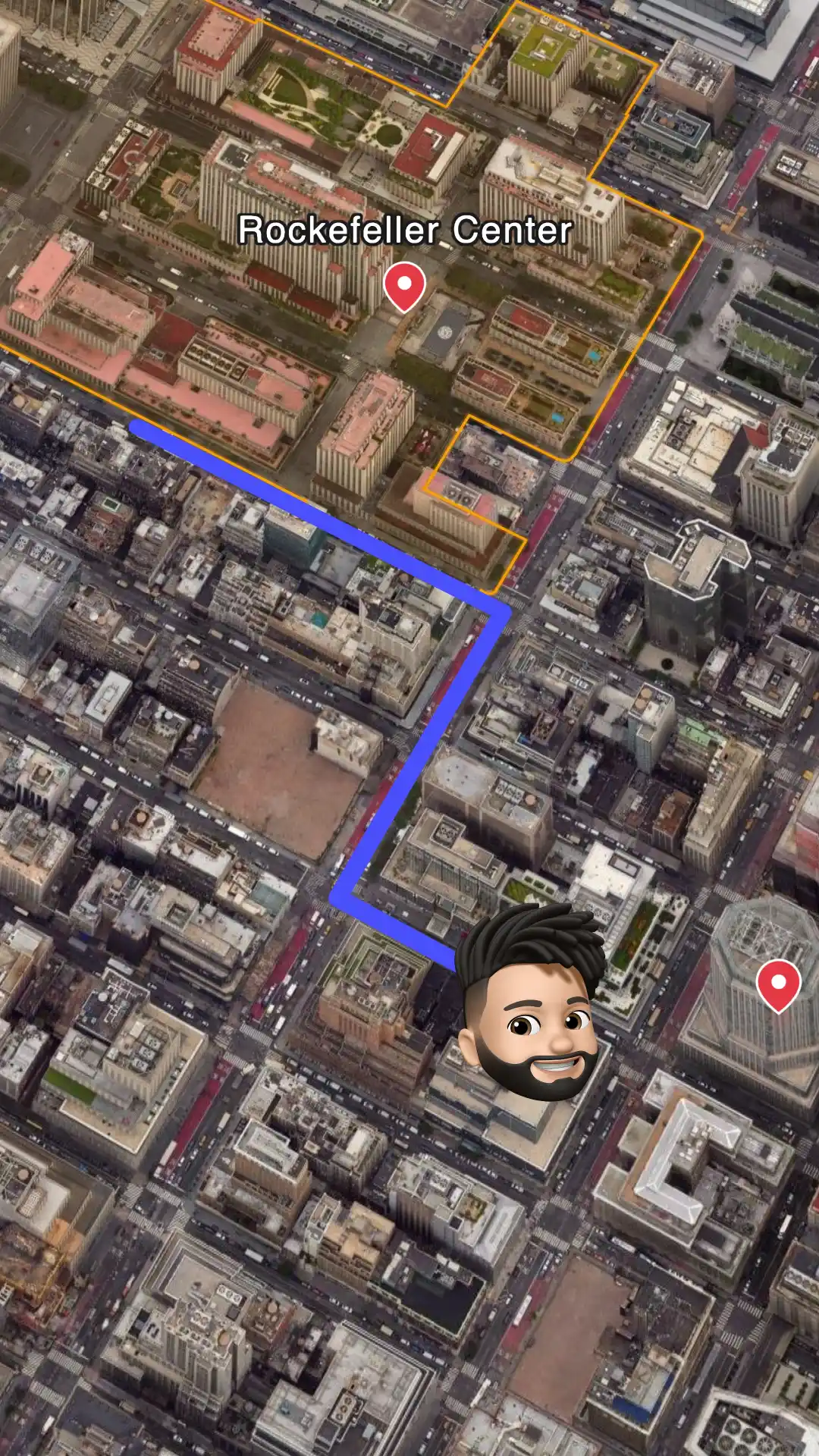
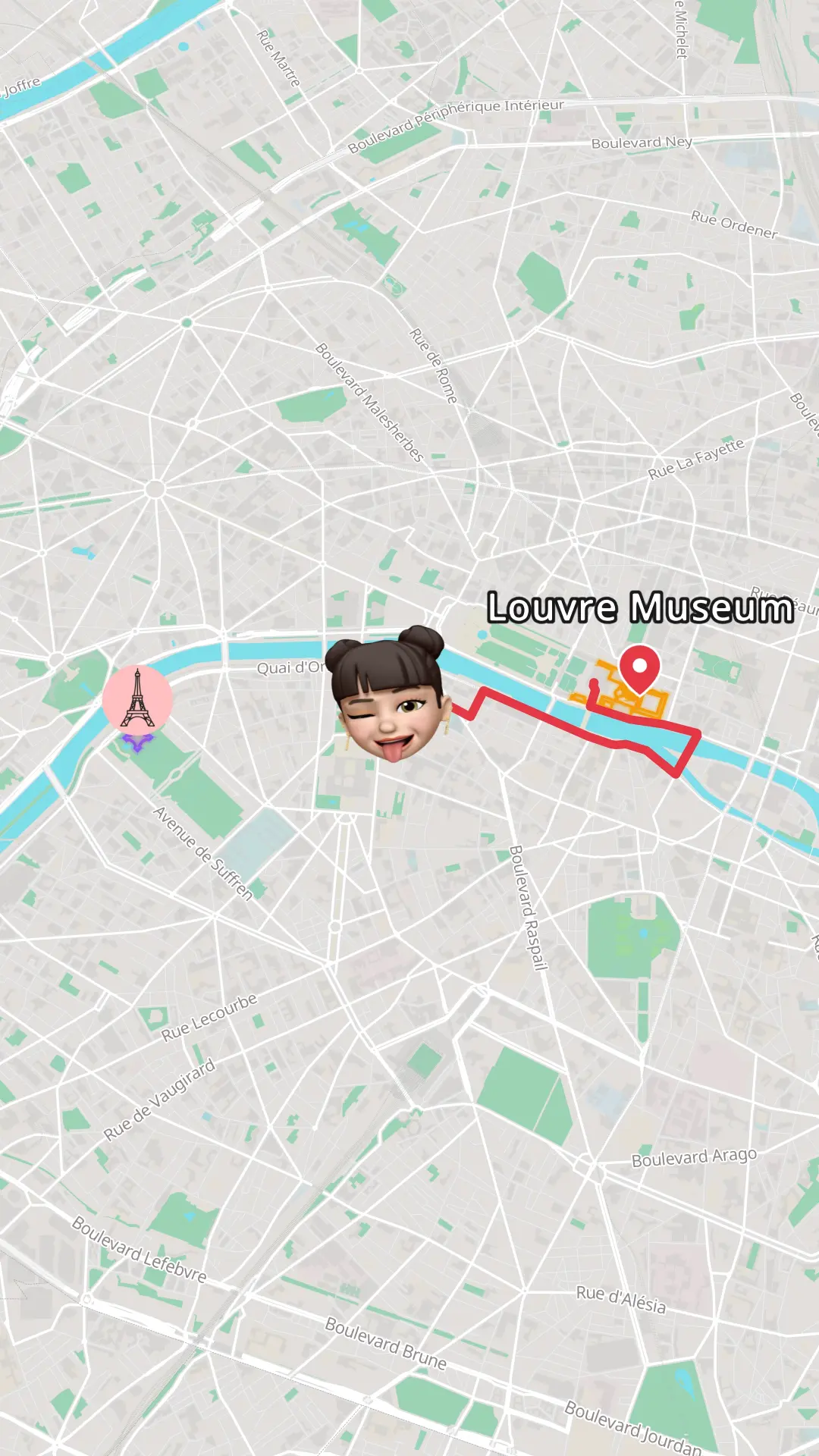
Search for your locations, connect them with animated routes, and choose a map theme that suits the look of your project. Match the aspect ratio to your Resolve timeline before exporting: 16:9 for a standard 1920x1080 or 4K timeline, 9:16 for vertical deliverables, or 1:1 for square posts. Then export the animation as an MP4 file.
- Step 3
Import the clip into your Media Pool
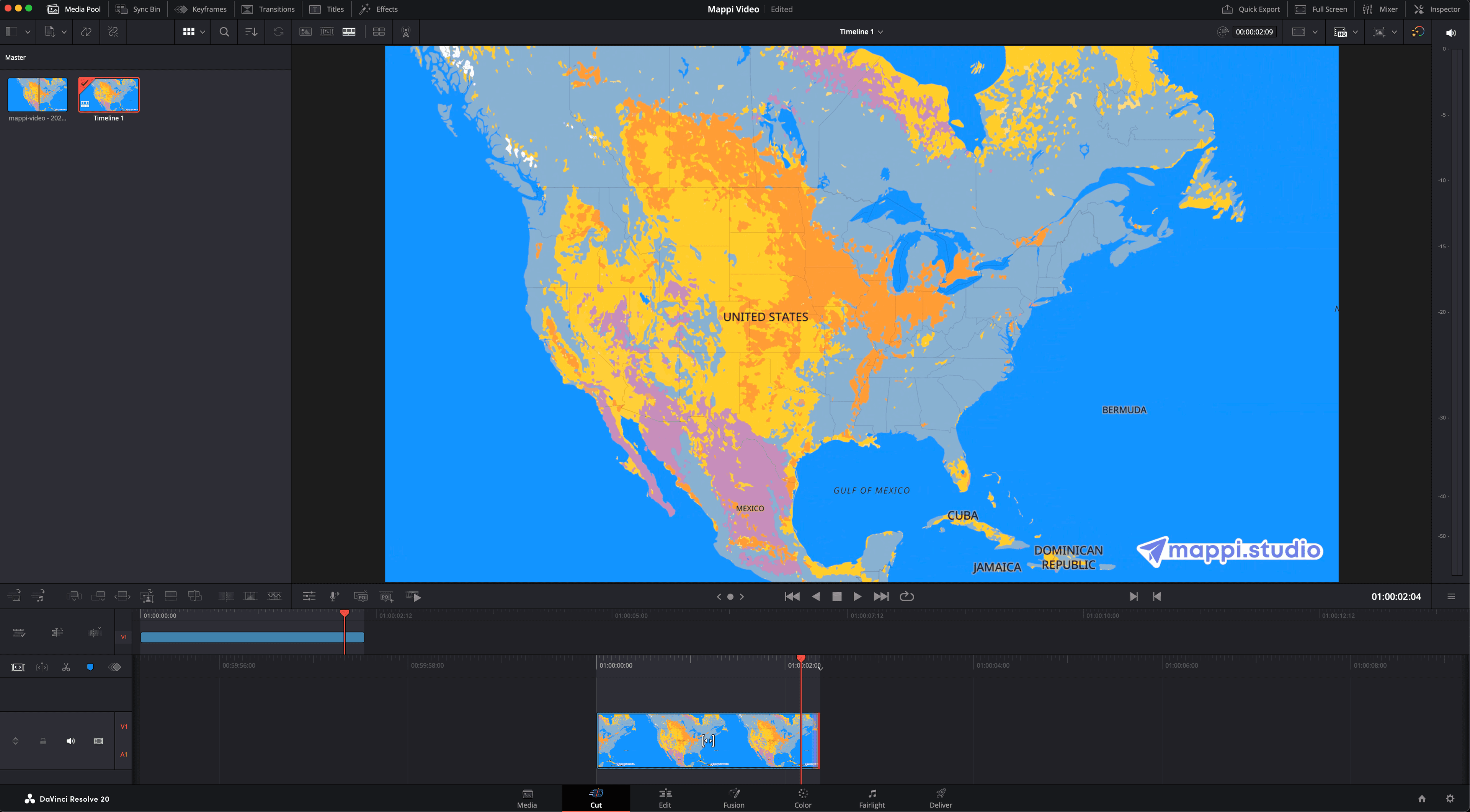
In DaVinci Resolve, drag the MP4 you exported from Mappi into the Media Pool, or right-click inside the Media Pool and choose Import Media. This works from any page, Media, Cut, or Edit. The clip lands in your bin alongside the rest of your footage, ready to organize with the usual bins and smart bins.
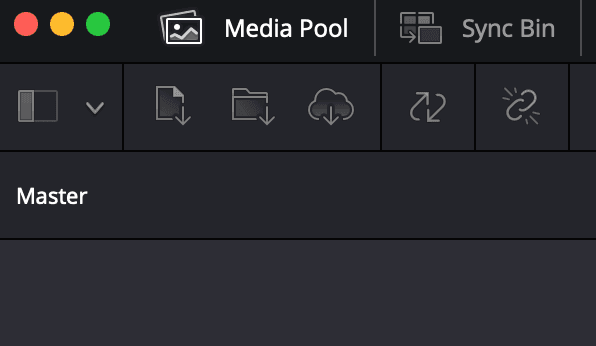
The Mappi MP4 imported into the DaVinci Resolve Media Pool, sitting in a bin with your other footage. - Step 4
Edit it on the timeline
Switch to the Edit page and drag the map animation from the Media Pool onto the timeline. Use it as a full-frame clip, or stack it on a higher video track to play as an overlay above your footage. Select the clip and open the Inspector to adjust Zoom, Position, and Opacity, then trim the in and out points or cut it with the blade tool, exactly like any other clip.
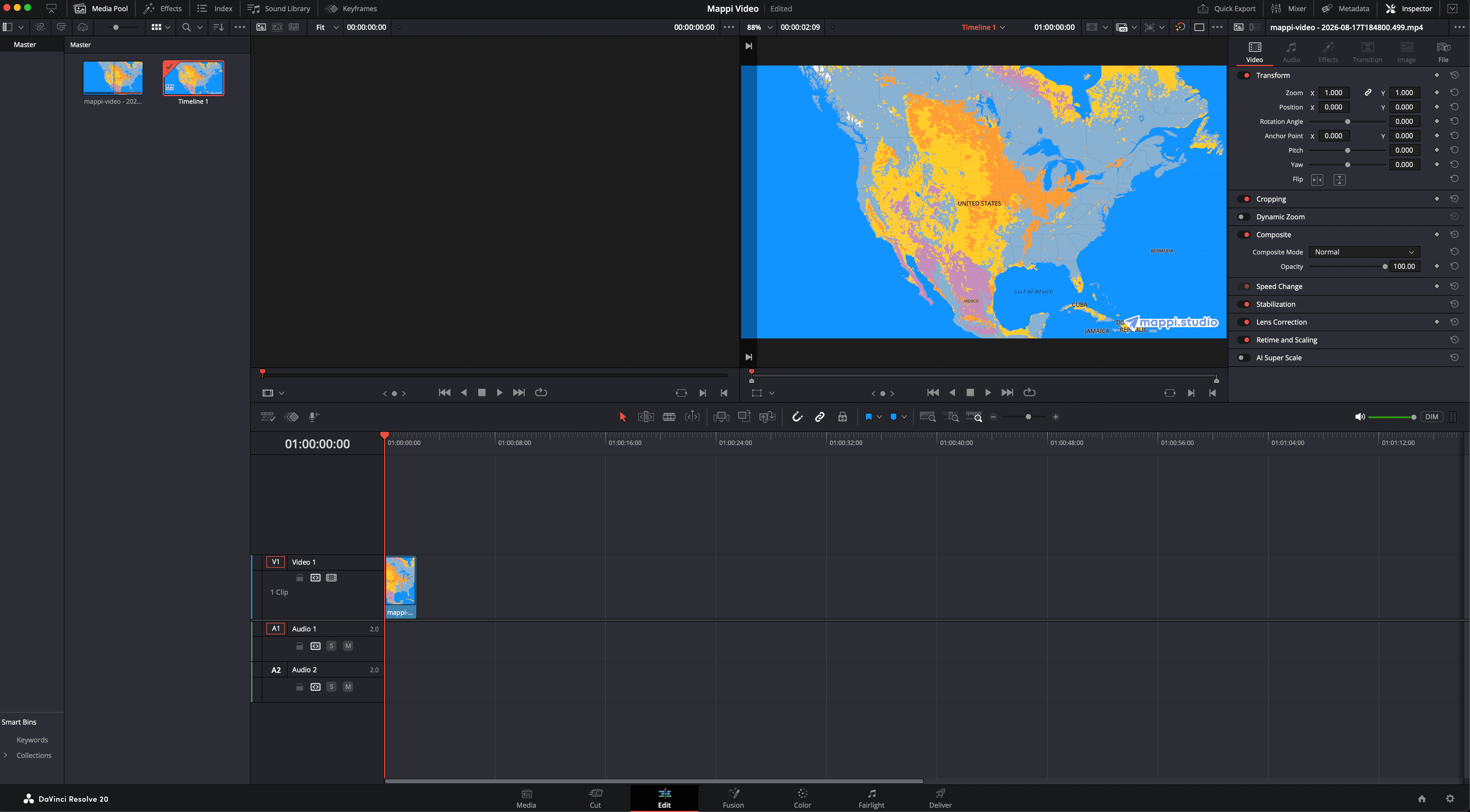
The map clip on the Edit page timeline. Adjust Zoom, Position, and Opacity from the Inspector. - Step 5
Style the map animation with Resolve tools
From here the map behaves like regular footage, so every page in Resolve can work on it, from Edit page titles to Color page grades and Fusion compositing.
- Drag Text+ or a Fusion Title from the Effects Library onto a track above the map for animated location names and lower thirds.
- Keyframe Zoom and Position in the Inspector, or use Dynamic Zoom for quick punch-ins on key destinations.
- Open the retime controls (Ctrl+R / Cmd+R) and add speed points to ramp the camera flight for dramatic pacing.
- Jump to the Color page and add a serial node with the color wheels to grade the map so it matches the rest of your sequence.
- Place an adjustment clip above the map and drop ResolveFX like Glow, Vignette, or Film Grain onto it from the Effects Library.
- Send the clip to the Fusion page to composite it inside shapes, masks, or Merge and Transform nodes.
- Turn the map and its titles into a compound clip so you can reuse the whole setup across timelines.
- Cut the flight to your soundtrack on the Fairlight page, or drop markers on the beat and snap your edits to them.
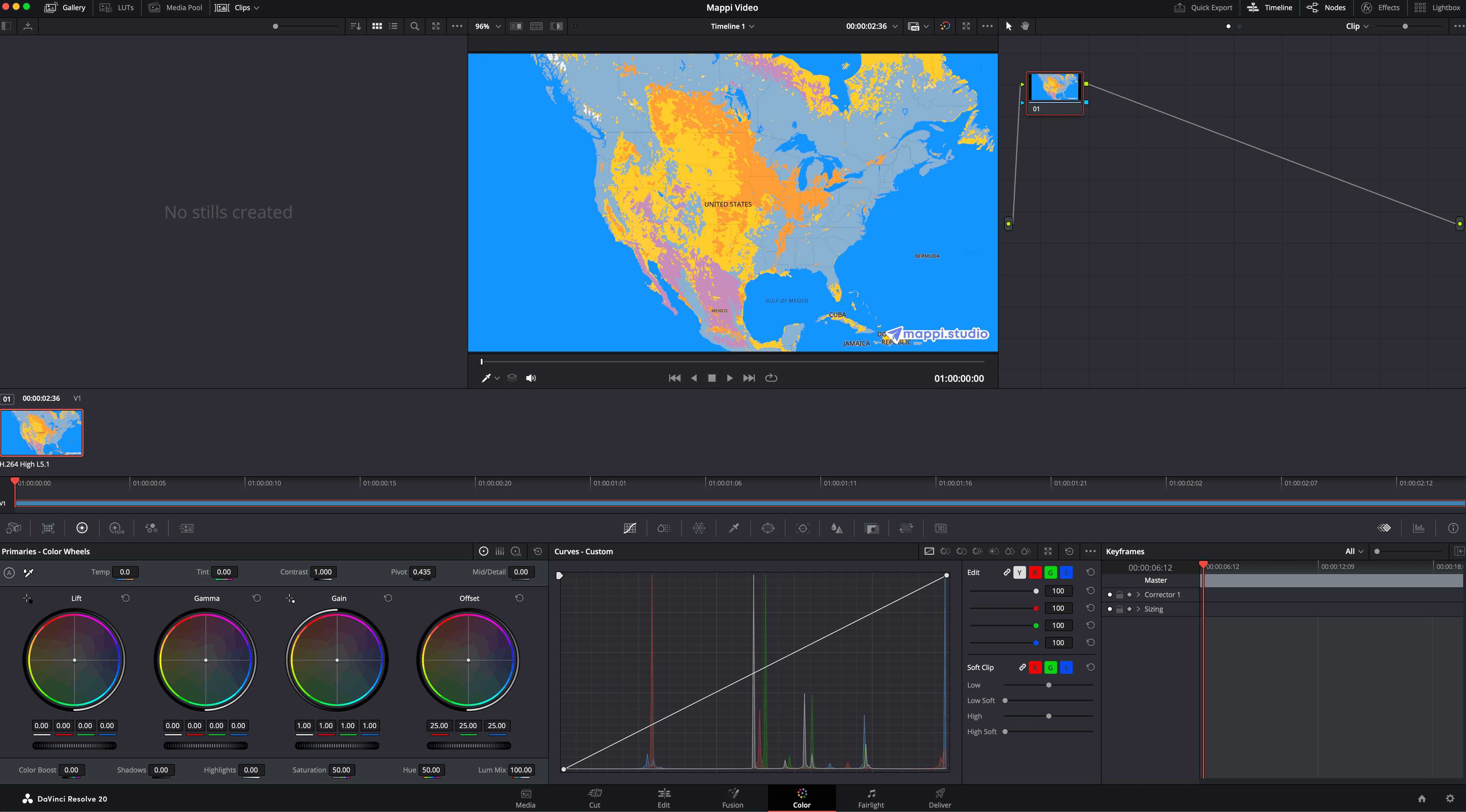
The finished edit: map animation titled with Text+, graded on the Color page, and retimed to the music. - Step 6
Render on the Deliver page
Open the Deliver page, pick a render preset like YouTube or H.264 Master, or dial in a custom format, resolution, and frame rate. Click Add to Render Queue, then Render All. Your finished video exports with the map animation baked in, ready for any platform or client delivery.
Read the next guide
The same Mappi export works in every editor. See how to import it into these tools.


Drop a moving map into your next Resolve edit
Generate the map animation in Mappi, export it in 4K, and finish the edit in DaVinci Resolve. Free to try, no Fusion nodes required.



Mappi is the simplest way to create stunning animated maps. Perfect for YouTubers, journalists, and storytellers.
 Stripe Climate member
© 2026 Mappi. All rights reserved.